Issues
- Image Legend Not Displaying Quantities
- Image Legend does not display on Some Pages
- Unable to Move the Image Legend Around the Page
Image Legend Not Displaying Quantities
Cause
The Image Legend can display Quantity 1, 2, and 3 for each Condition, however, this option has to be enabled.
Resolution
There are two places where you can specify whether to show or suppress Condition quantities in the Image Legend.
Individual Bid
For an existing bid,
- Open the Cover Sheet
- Select the Preferences tab
- Set your options for the Image Legend, including which Quantities you want to have displayed.
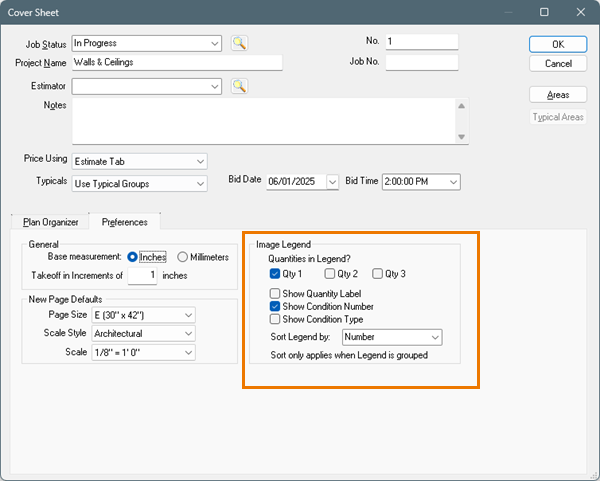
This affects the current bid only. Repeat for any other existing bids in the database.
Future Bids
For all future bids,
- Click Tools > Options
- Select the New Bids tab
- Set options for the Image Legend
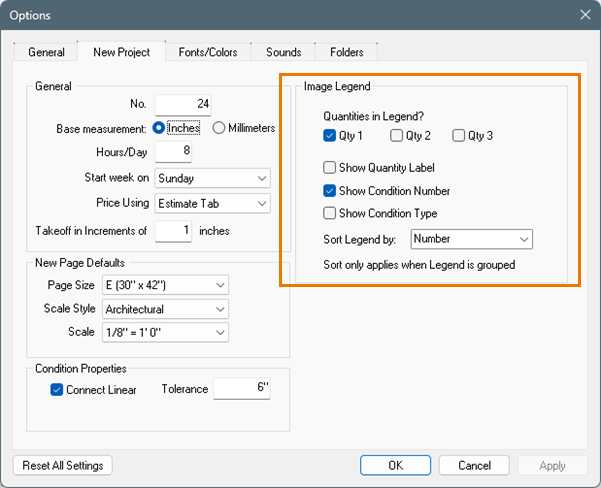
When you create new bids, going forward, they will show the Image Legend based on these settings, by default.
Image Legend does not display on Some Pages
Cause
The Image Legend is being displayed outside of the image boundaries.
Resolution
On the Image Tab, right-click within the image window and select Reset Image Legend.
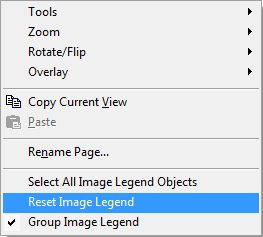
You can also resolve this issue by unchecking, and then re-checking Group Image Legend.
Unable to Move the Image Legend Around the Page
Cause
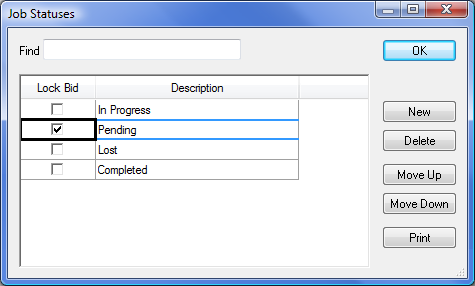
The Image Legend cannot be moved when a Bid is in a locked Job Status.
Resolution
To determine if the bid is locked,
- Open the Cover Sheet
- In the Cover Sheet check the Job Status field
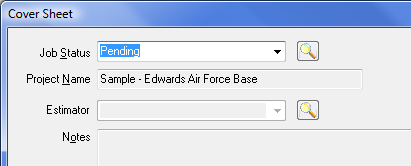
- Click the magnifying glass next to Job Statuses the Job Statuses list opens
In the Job Statuses window, if Lock Bid is selected for the bid's Job Status either select a different Job Status or remove the checkmark for Lock Bid (which changes the locking for all Bids set to this Job Status.)
- Click OK
- Select the Projects Tab, then click on the Takeoff Tab to refresh the updated information
Related Articles
