You may be asked to send your OCSSync logs to Technical Support to help troubleshooting On-Screen Takeoff/Quick Bid interactivity issues.
To gather these logs,
- Open Windows File Explorer,
- Navigate to your “C” drive (assuming "C" is your system drive, where Windows is installed and where your profile folder is - if you are unsure, contact your IT department)
- Navigate to the "Users" folder
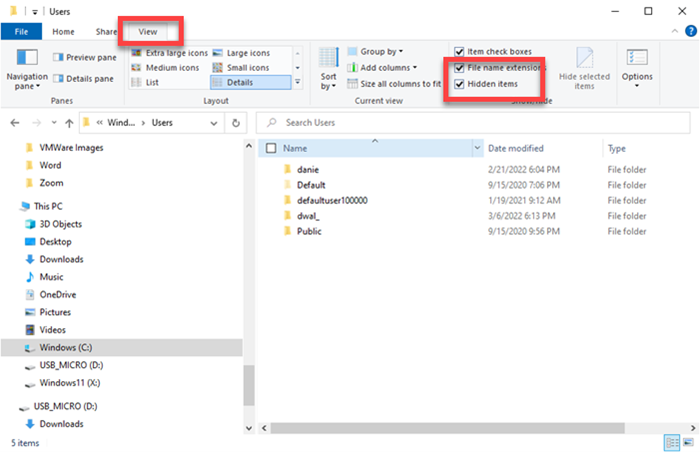
By default, the files/folders you need to access are hidden. When you open File Explorer, click the "View" tab. In the Show/Hide section, check the "File name extensions" and "Hidden items" boxes.
We recommend that you delete this log file every morning before you launch On-Screen Takeoff to keep it's file size manageable.
If there's not a log file here, you probably have not enabled logging yet, see Related Articles for details.
- Navigate to:
C:\Users\<your Windows profile name>\AppData\Local\VirtualStore\Program Files (x86)\On-Screen Takeoff 3
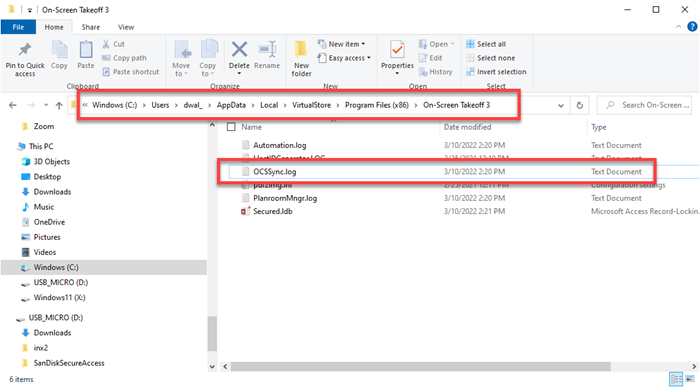
Substitute your Windows profile name for "dwal_" shown in this screenshot of Windows File Explorer
Send the file named "OCSSync.log" to Technical Support, as instructed by the technical support representative you are working with.
Please provide as much detail as possible about what you were doing whenever you experienced and issue with OST-QB interactivity. The log only captures what was being passed through OCSSync, your account of what you were doing is invaluable. (For example, were you drawing takeoff, assigning takeoff to a Bid/Typical Area, creating Typical Groups, placing Typical Group Markers on the plans, adding Items to a Condition in Quick Bid, etc.)
Related Articles
