

Issue
After upgrading On-Screen Takeoff® some interactive bids become disconnected from Quick Bid.
Causes
One program is not open/available/licensed when accessing an Interactive bid
On-Screen Takeoff and Quick Bid projects are linked through common paths in each program's database. When you click on an interactive bid in On-Screen Takeoff you may receive a message stating the bid has changed.
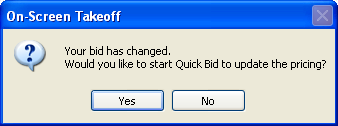
This message indicates Quick Bid is not currently open (running) - click Yes to open Quick Bid, this will retain interactive mode.
If Quick Bid is not opened quickly enough, is not authorized, or if you select No, the bid will be placed in Manual mode although it will still be connected to Quick Bid.
Resolution
Open and activate Quick Bid before launching On-Screen Takeoff. If the bid is already in Manual mode you must re-link the bids from within Quick Bid and then set the bid to Interactive in On-Screen Takeoff (just setting the OST Bid back to Interactive mode without re-connecting the bids first may create a new bid in Quick Bid, which is not the desired outcome).
See Connecting and Disconnecting Interactive Bids for information on reconnecting bids.
Users have opened SQL database inconsistently
Users of a shared database who open the same bid(s) can break interactivity if they typed the SQL Server name in different 'case' when finding the database. It's important that every user who opens an SQL database types the name of the SQL exactly the same - we recommend all lower-case letters, for consistency.
Resolution
Every user accessing a shared SQL database should close the database and remove it from the Open Databases dialog box. Then, they can "re-find" the database and this time, every user should enter the Server Name\Instance Name in lower-case (no CAPS).
See Using SQL Server to Share Databases in On-Screen Takeoff and Quick Bid for more information.
You may have moved your database to a different machine
Quick Bid stores the name of the computer on which the OST database is stored (OST does not do this), so if you move your databases from one computer to another (or store your databases on a USB/Thumb drive), the drive letter/computer name could change - this will cause your bid's interactive connection to fail/break.
Resolution
If you are using a USB/thumb drive and connecting it to more than one machine, each time you do this, you must re-establish the interactive connection from Quick Bid first, then set the bid back to Interactive mode in OST. See the Quick Bid User Guide for more information on reconnecting broken bids.
Advanced Troubleshooting with Technical Support
If you are working with Technical Support, you may be asked to enable logging on the OCSSync utility to help identify interactivity issues.
Do not enable logging unless instructed by Technical Support. This logging can cause significant performance degradation and is only used when Technical Support is asked to provide logs to our Developers and only for a set time.
These steps require you to edit your Windows System Registry, doing so incorrectly can leave your computer in an unusable state. Only perform these steps if you are 100% confident in doing so, otherwise, contact a qualified IT professional. We take no responsibility for ensuring your computer continues to function if you edit your Registry incorrectly.
On-Screen Takeoff must be run "as Administrator" for the log file to be written, please consult your IT Department if you are not a System Admin on your computer.
Here's how to enable logging:
Step 1 - Add Registry Key
Open Windows Registry Editor
Create the following Registry key:
[HKEY_CURRENT_USER\SOFTWARE\On Center Software\On-Screen Takeoff 3\OCS Sync]
"Logging"=dword:00000001
Step 2 - Run On-Screen Takeoff
Right-click on the desktop icon for On-Screen Takeoff and select "Run as Administrator".
If prompted by Windows User Account Control, select Yes.
Use On-Screen Takeoff and Quick Bid interactively as you normally would.
Step 3
If you experience any interactivity issues (specifically the interactive connection failing), contact Support so we can get the log file from you.
See Related Articles for instructions on gathering OCSSync log files.
Related Articles
