Issue
Some screens in the On-Screen Takeoff, Quick Bid, or Digital Production Control user interface do not seem to fit, the text is oversized or bolded, or fields are cut off.
Examples
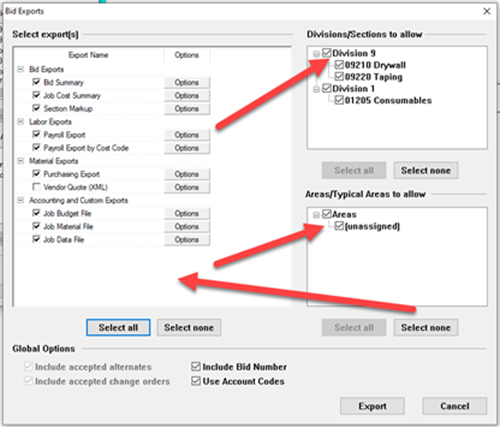
The Quick Bid Exports dialog box (and other) - fonts are bolded, there's too much white space around artifacts/lists.
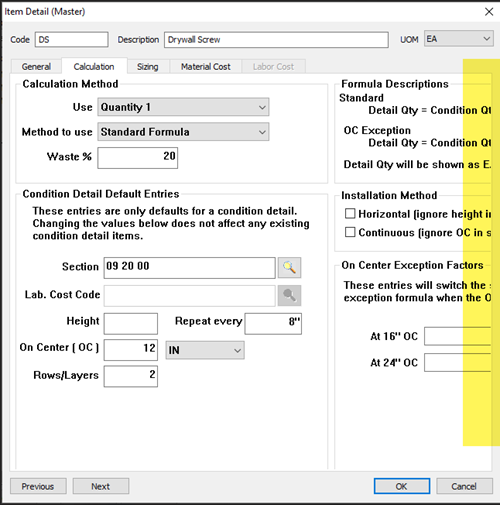
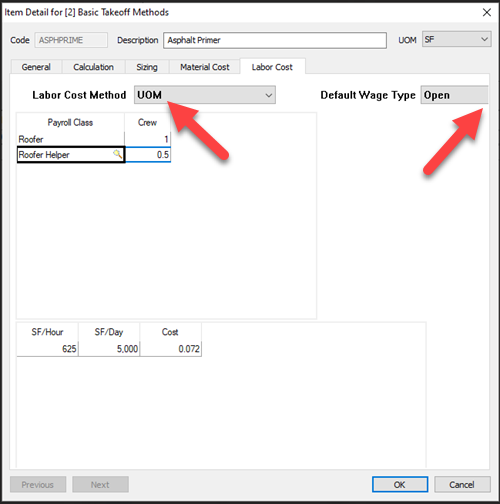
The Quick Bid Item Detail dialog box - the text is bolded and several fields don't "fit" in the box.
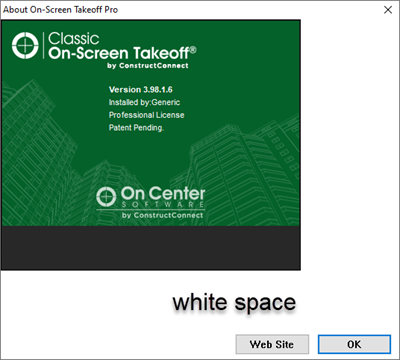
The On-Screen Takeoff, Digital Production Control, and Quick Bid splash screens/About dialog boxes.
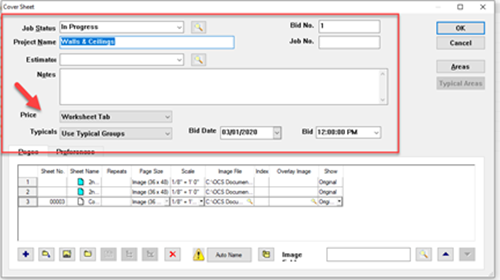
In the OST Cover Sheet, fields are misaligned, fonts are bolded incorrectly, and text/labels don't "fit".
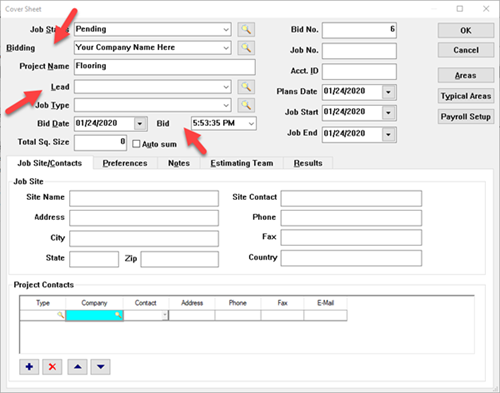
Same thing for Quick Bid.
Discussion
Somehow, your system is missing a font Windows uses to render many screens in a variety of 32-bit applications. This font is included with Windows, so somehow, someone or some application uninstalled this font.
Resolution
To fix this issue, you must reinstall the missing font (MS-Sans Serif).
You must be signed in as a local system administrator (or have their credentials) to install the missing font. If you are not a system admin, contact your IT Department to complete the font installation.
You can download the font here: https://downloads.oncenter.com/Downloads/support/SSERIFE.FON
- Save this file to your Downloads folder
- Close On-Screen Takeoff and Quick Bid
- Locate the file SSERIFE.FON in your Downloads folder
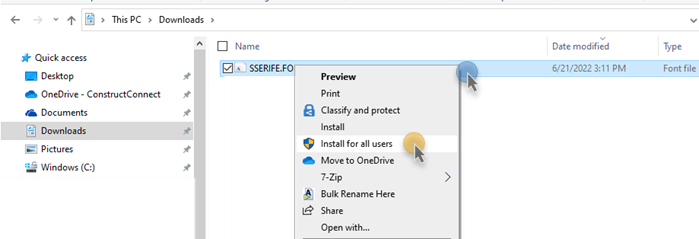
- Right-click on the file and select "Install for all users" - follow the prompts to reinstall the MS Sans Serif font.
Related Articles
