

Issue
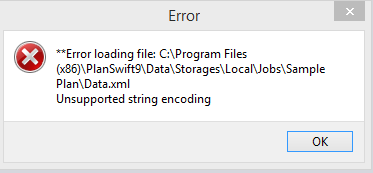
You are receiving an error message that there is an unsupported string coding or that a data.xml file is missing from a job folder
Resolution
Follow these steps:
- Notice the file path in the error message
- Open Windows Explorer
- Locate the job folder with the corrupted data based on the file path information shown in the error message
- Look for a data.xml file
- Right-click and open this file in Notepad
- Check to see if it contains any information - it should not
We want to take the whole job folder, remove it and paste it to another location (usually the desktop)

- Restart PlanSwift and there should no longer be an error message
- Once PlanSwift is loaded, Click New, and type in a name for the job so we can put the old information in this new job
- Don’t add any files, simply click Next to get a dialogue box that asks permission to continue without adding images

- Click Yes
- Next, using Windows Explorer:
- Open the job folder for the new job you created, and
- Open the old corrupted job folder you placed on the desktop
- Now, copy any folders, or items from the old job to the new folder

Do not copy the data.xml file from the old, corrupted job folder!
- Close Windows Explorer
- Open PlanSwift - the new job should have all of the information of the corrupted job, and the error message should no longer appear
Related Articles
