Issue
PlanSwift is not adding in the pitch to my takeoff results.
Discussion/Resolution
When using the Roof Area tool there are a few steps to making sure that your values are correct.
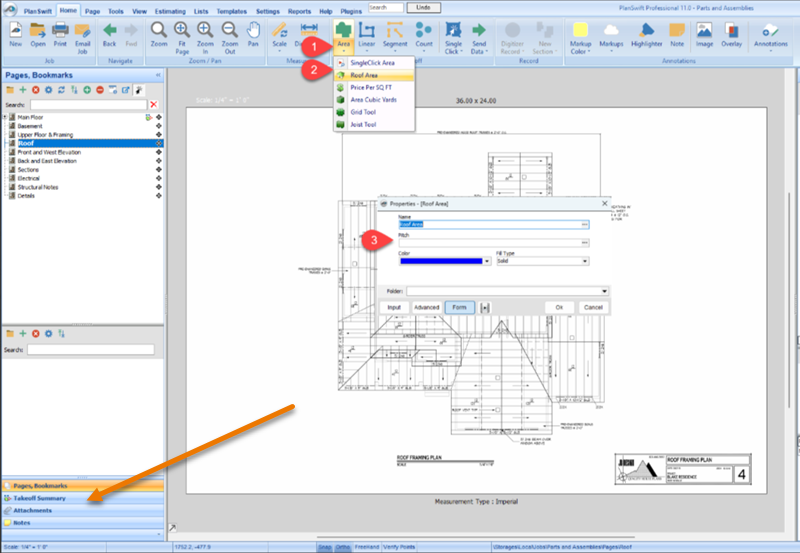
- Click the drop-down menu on the Area tool and select Roof Area Tool
- Name the Takeoff item, add the pitch (i.e., if your pitch is 7/12 you can just enter in 7 for the pitch), choose your color (PlanSwift will automatically assign a color for each item), the fill type, and the take-off folder you would like to save it to
- Draw out your area and remember to stop digitizing
The value shown on the page will be of just the area; it does not calculate with the pitch!
You can see the result including pitch in two places: Takeoff Summary panel and Estimate Tab. Use the value in these locations for your estimating purposes.
Related Articles
