Issue
- PlanSwift throws an error that states 'Error Out of Memory/Storage', or
- When you import drawings and they appear as blank white sheets or a gray background
Discussion
Usually, this is caused by loading images at too high of DPI.
The problem with that is there can several things causing the error.
Resolution
The three ways to cover most of the issues will be:
Reducing Memory Requirements
Re-import the images in PlanSwift. When you get to the Tiff Conversion tool, make sure the DPI is set at "200". Most images come in clear and error-free when set to this standard. However, you can be flexible with that number depending on the image within the PDF before it's converted.
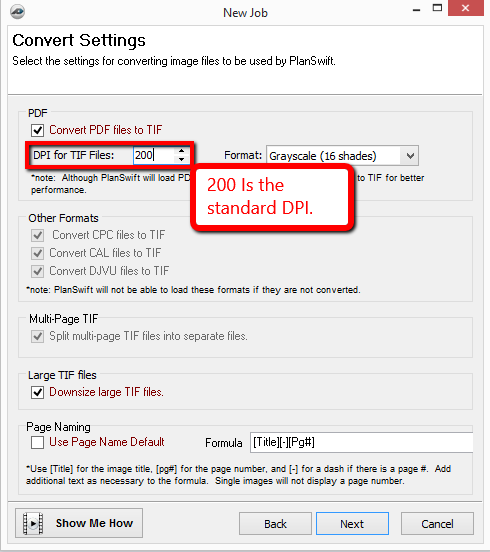
You can choose to decrease or increase that number depending on what you want. Decreasing it will decrease the memory used by PlanSwift but will decrease the quality. Increasing the number will increase the memory used making it more likely for the error message to appear, but will increase the quality. We have found that if you change the DPI up to 100 in either direction will resolve most issues.
Also, choosing to import the image as black and white rather than the grayscale option will use less memory.
Reducing the DPI for PDF Conversions
PDF's can have upwards of 7000 DPI, and PlanSwift's standard is 200 DPI for conversion, so even though an image is converted at 200, the original image could still be too large.
See Related Articles for information on reprinting your PDFs.
Verifying the Integrity of the PDF
If the first two solutions don't resolve the issue, then it might be a problem with the PDF,
First, try reprinting the PDF, see Related Articles.
If that doesn’t work, contact the sender and ask for a new image file.
Related Articles
