Miscellaneous Items can be used to create new Items needed in the database or to add items at the bid level. Miscellaneous Items are included with several Trade and Manufacturer database, but not all.
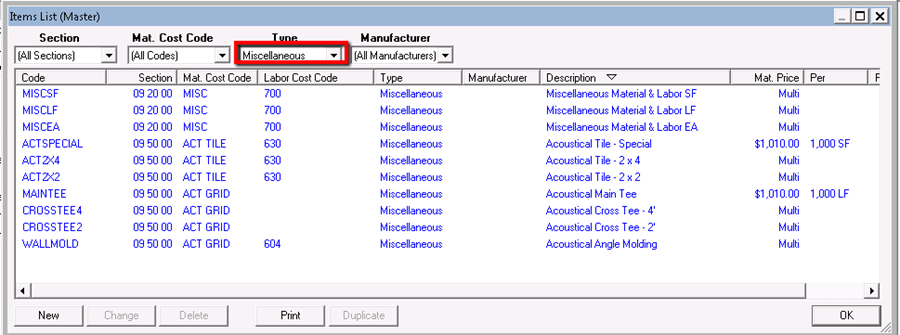
- Click on the Item Type filter drop down
- Select Miscellaneous to find all Miscellaneous items
Creating New Items using Miscellaneous Items
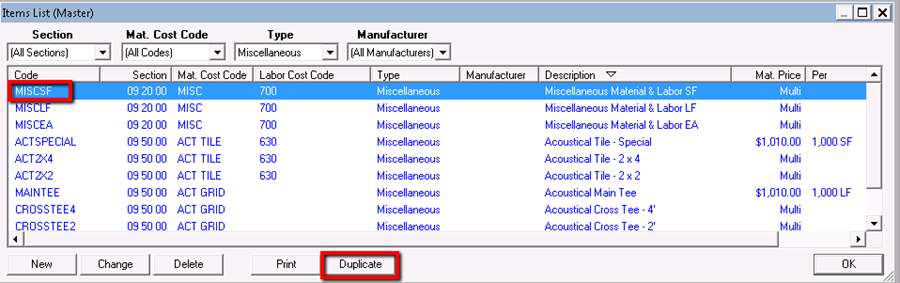
- If the item will be added to the database, choose the miscellaneous items corresponding to the UOM needed
- Duplicate the item and make changes to the Item details
Adding Miscellaneous Items at the Bid Level
- Insert miscellaneous Item to the Condition details window
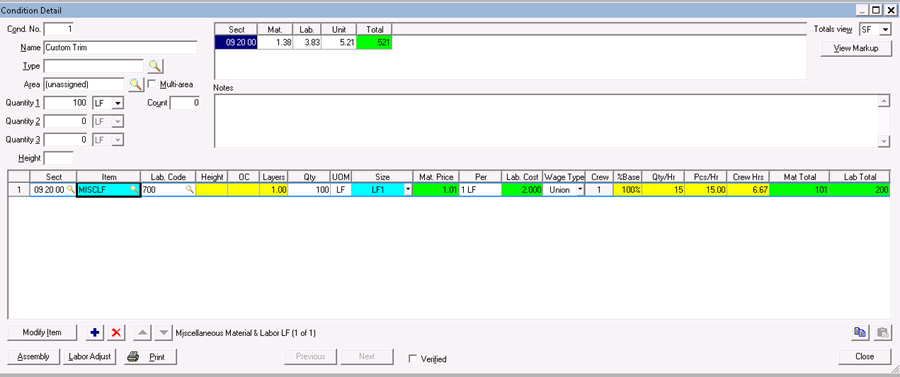
- Click Modify
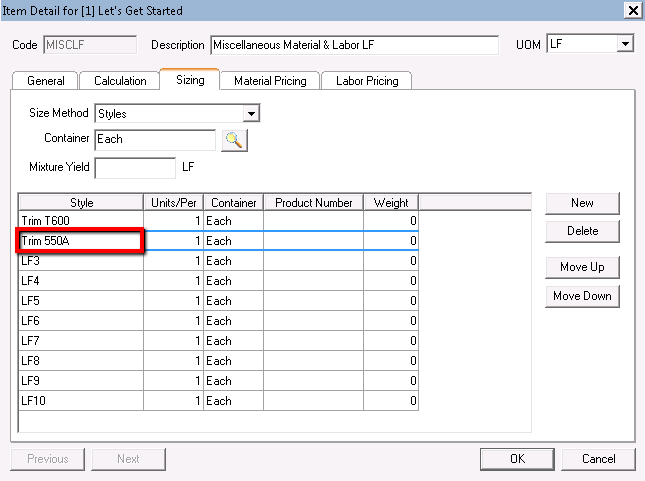
- Click on the Sizing tab
- Update the Style
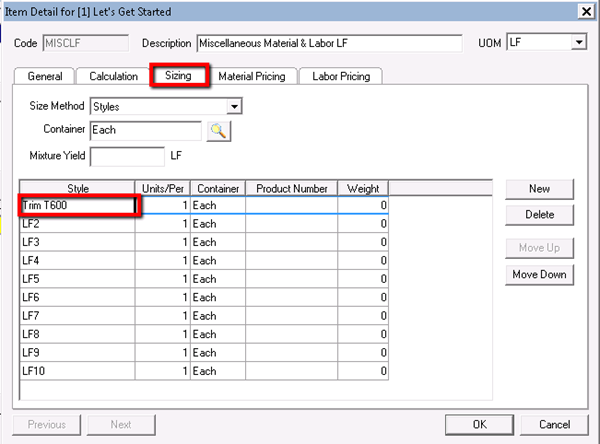
- Click OK
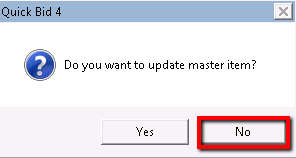
Click No to update Master Items
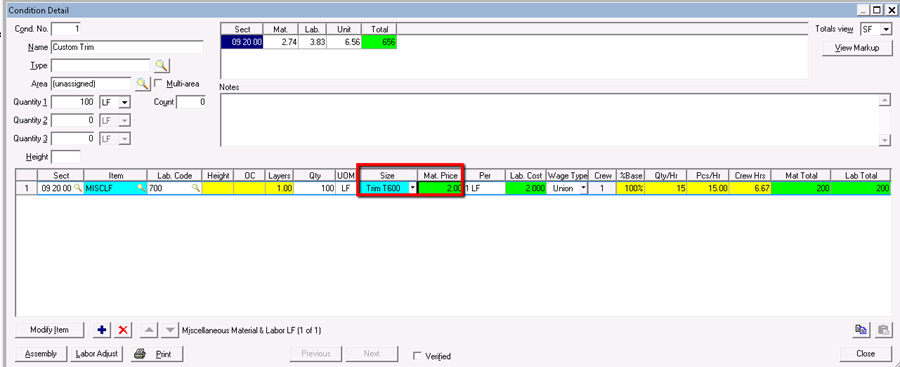
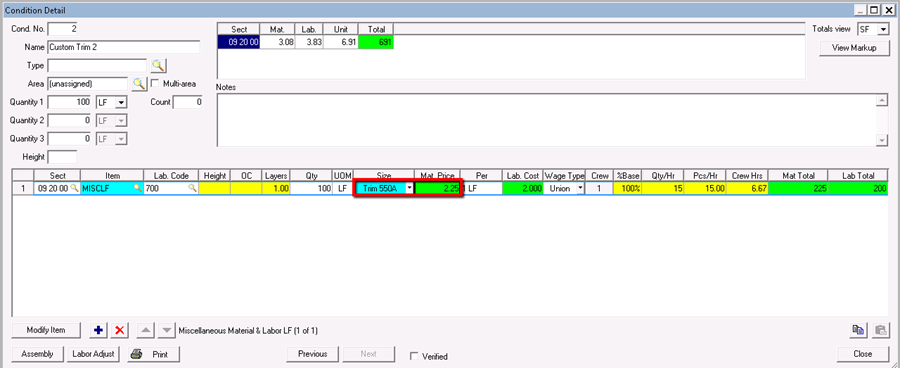
The new product appears as a style (in the Size drop-down in the Condition Detail).
- Update pricing as needed
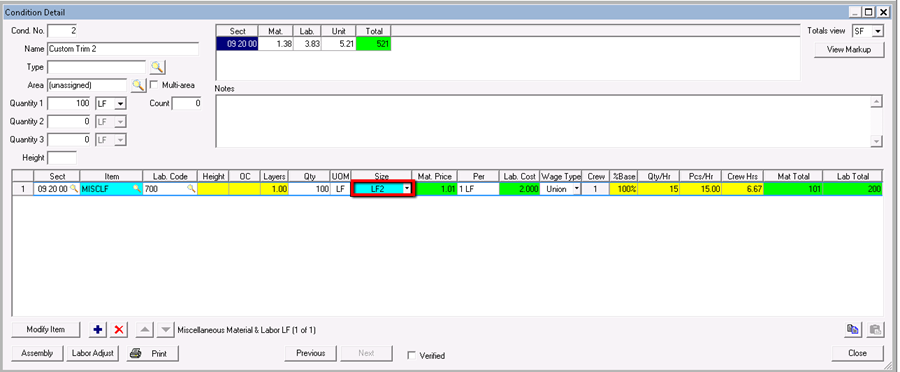
The next time another miscellaneous item is needed use the next Style available.
- Click on Modify
- Click on the Sizing tab
- Update the Style
- Click OK
Click No to update Master Items
The new product appears as a style.
- Update pricing as needed
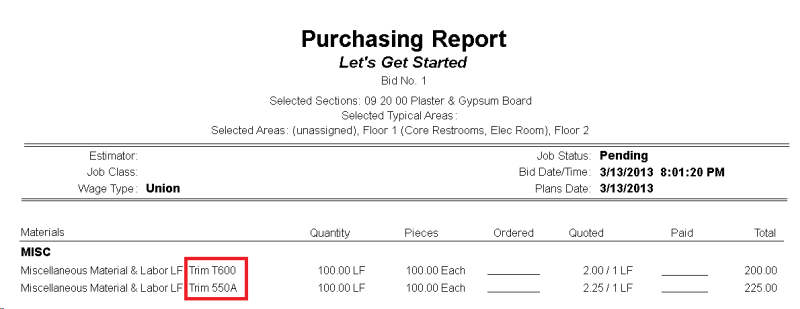
Reports Display Your New Styles
Related Articles
