

Issue
Incorrect Wall Type Names
Sometimes, Takeoff Boost garbles the name of the Wall Type.
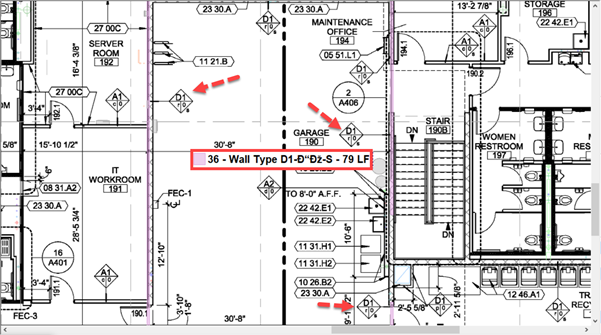
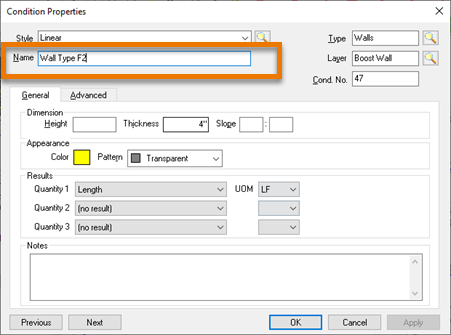
The name of the wall type (the Condition) is incorrect
Resolution
This is an easy fix - just open the associated Condition and update its name.
Incorrect wall type assigned to walls
Sometimes, Takeoff Boost just gets the wall type assignment wrong:

Incorrect wall type assignment
- F1 Wall Type was taken off with the generic "Wall" Condition
Resolution
If the takeoff looks correct, but the Wall Type (Condition) assignment is wrong, select the affected takeoff objects and reassign them to the correct Condition.
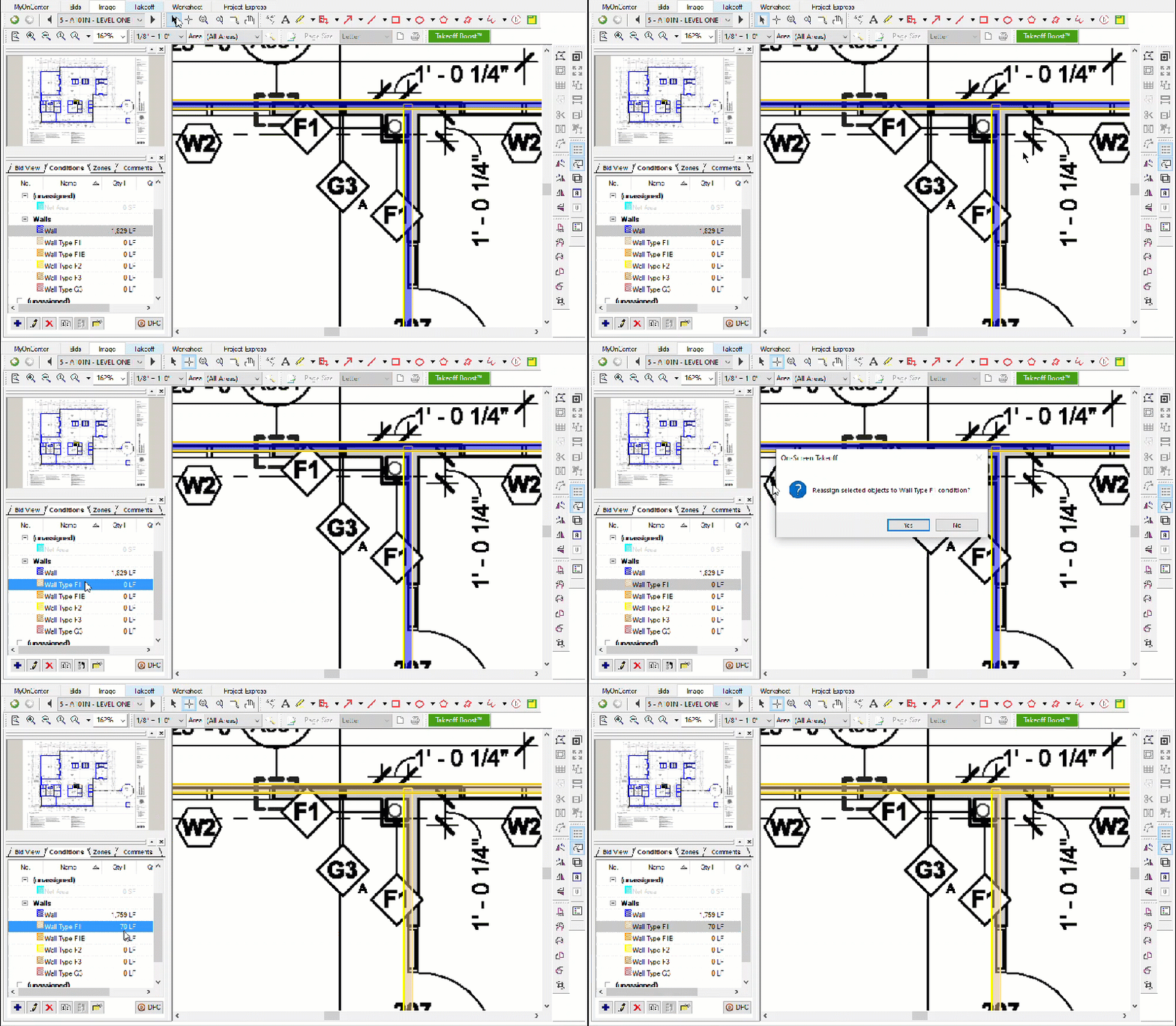
See On-Screen Takeoff - 09.05 Reassigning Takeoff from One Condition to Another Existing Condition for details.
Unsupported wall types
There are several ways walls can be tagged or called out on plans that are not compatible with Takeoff Boost.
Wall tags without symbols

Takeoff Boost cannot associate walls with these wall tags that do not have a symbol/shape
Takeoff Boost requires a symbol (shape) to identify wall types.
Walls with patterns and no symbols
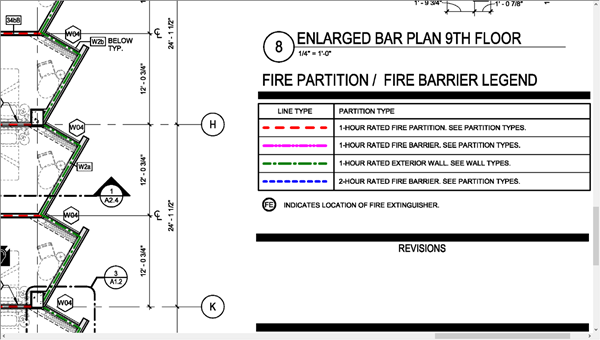
Takeoff Boost drew generic linear takeoff here because the walls were patterned instead of using wall type symbol
Sometimes, architects use shading or patterns to differentiate between wall types, this is not compatible with Takeoff Boost currently.
Wall types found on schedules only
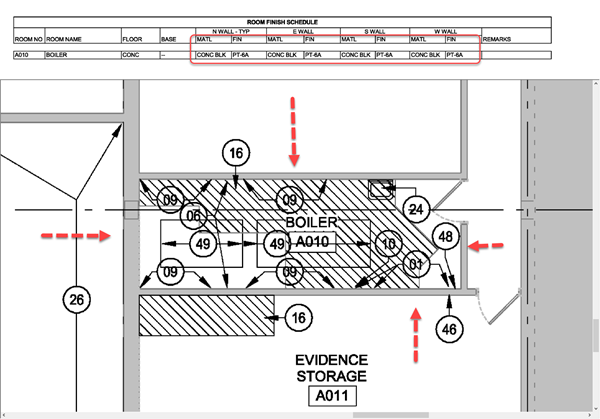
Takeoff Boost cannot assign a wall type if it is not listed on the floorplan
Sometimes, the wall type assignment is only included on a schedule or detail page in your plan set, this won't work with Takeoff Boost.
Wall tags without a line to wall
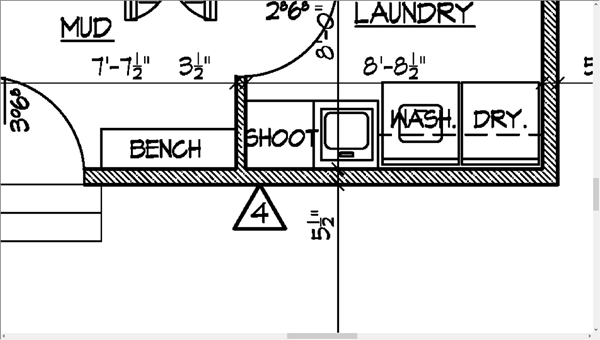
Takeoff Boost cannot assign a wall type if it cannot associate a symbol with walls on the plan
Sometimes, the wall type symbol is there, but there it is not apparent to which wall it is associated.
Resolution
The resolution is to use the available transformation and reassignment tools to fix the takeoff.
Rerunning Takeoff Boost will not produce different results, however we continue to work on the AI models to improve wall type recognition.
If Takeoff Boost generated "generic" Conditions (or did not create Conditions at all) because it could not identify wall types, you'll need to create Conditions first, then reassign the takeoff.
See On-Screen Takeoff - 06.02.08 - Filling in the Gaps - Adding Manual Conditions and Takeoff after Running Takeoff Boost for more information.
Related Articles
