
When you are installing or upgrading PlanSwift, please close any running Microsoft Office applications (Excel, Outlook, etc.) and disable your virus scanner for the duration of the installation.
Curious about MAC support, check out: Can I Run ConstructConnect's Takeoff and Estimating Applications on Apple hardware (a MAC)?
Before you install PlanSwift, be sure your computer meets or exceeds our PlanSwift System Requirements.
Install PlanSwift w/AI Tools (automatically installs PlanSwift 11)(Default installation)
Typically, your browser will save the installer to your Windows "Downloads" folder.
When the download is complete,
- Locate the file that was downloaded and double-click it (if you are using Chrome browser, you can just click on the downloaded file in the lower-left corner of your browser to launch it)
- When prompted by User Account Control, click Yes
You must be a local (Windows) administrator to install and update PlanSwift.
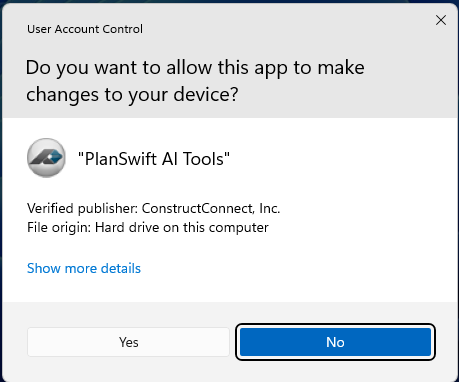
The PlanSwift AI Tools Setup wizard starts, and the first screen you see is a screen telling you that you need to download PlanSwift 11. Don’t worry, this a two-step installation but it’s all pretty seamless.
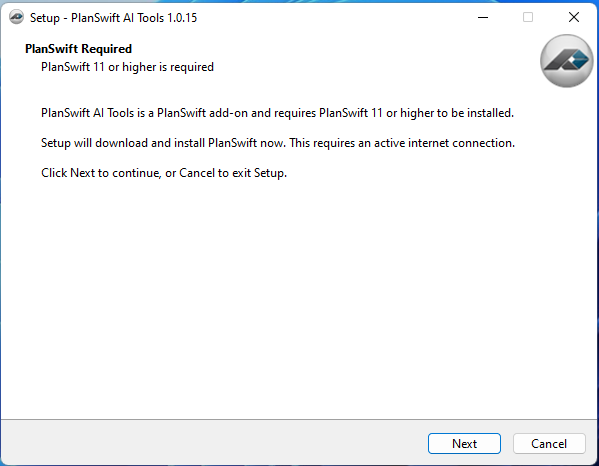
- Click Next
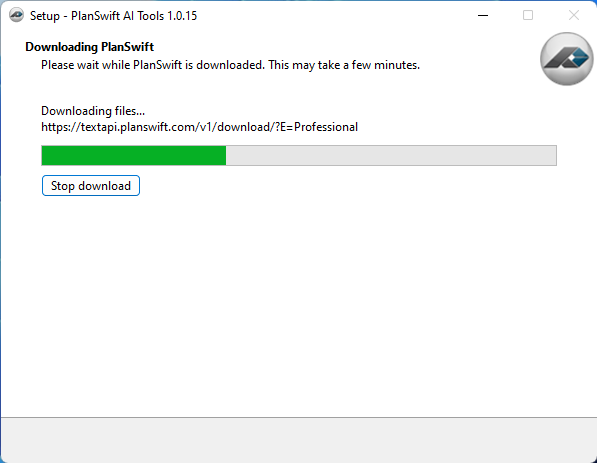
The installer downloads PlanSwift 11 automatically.
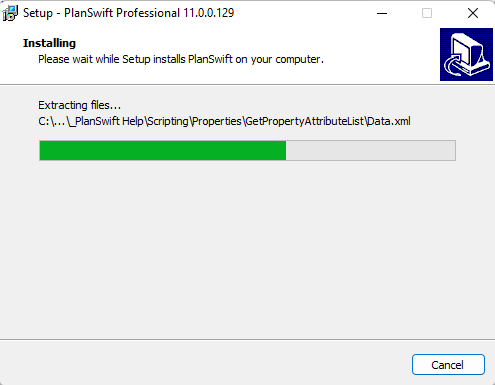
When the download is complete, PlanSwift 11 installation proceeds automatically, just sit back and relax.
If you are interested in reviewing the License Agreement (which you already agreed to during the purchase process), see: https://www.planswift.com/EULA/ .
When the PlanSwift 11 installation is complete, the installer moves right along to installing the AI-Tools update:
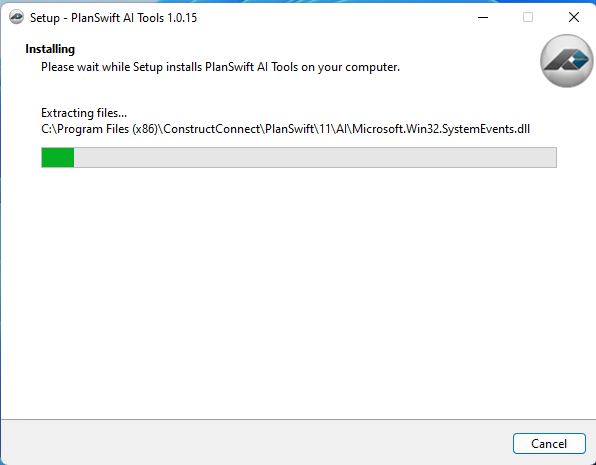
Now you get to click a button!
When the installation is complete, you’ll see a pop-up that lets you know.
- Click OK.
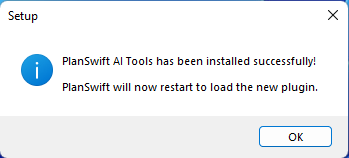
Locate the PlanSwift 11 shortcut on your desktop and double-click it to launch the program.
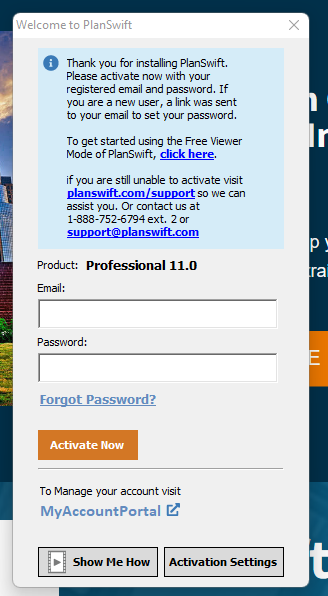
You’ll see the following login screen. Review the next article for more information on licensing.
Installing PlanSwift 11 only (no AI Tools) and Upgrading from PlanSwift 10.
Typically, your browser will save the installer to your Windows "Downloads" folder.
When the download is complete,
- Locate the file that was downloaded and double-click it (if you are using Chrome browser, you can just click on the downloaded file in the lower-left corner of your browser to launch it)

- When prompted by User Account Control, click Yes
The PlanSwift Setup wizard starts, and the first screen you see is the PlanSwift AI Tools Setup screen telling you that you need to download PlanSwift. Don’t worry, this a two-step installation but it’s all pretty seamless.
Click Next
the License Agreement (aka "EULA").

- Please review the EULA, select "I Accept the Agreement", and then click Next
Fresh Install or Upgrade?
Next, you are asked where you want PlanSwift installed...
| Version you are installing | Fresh Install (no previous version) | Upgrading from Previous Version of PlanSwift |
|---|---|---|
| 11.0.0.129 | The Default installation location will be <system drive>:Program Files (x86)PlanSwift11. You can change this location to any valid location you like on your local hard drive, however changing the folder may cause issues with future installations.
| Default Installation: side-by-side installation. PS11 does not replace the previous version of PlanSwift. The Default installation location will be <system drive>:Program Files (x86)PlanSwift11. You can change this location to any valid location you like on your local hard drive, however changing the folder may cause issues with future installations. Do not change this to a previous version's folder as that may cause you to lose historic jobs, templates, or other data.
|
| 11.0.0.89 | The Default installation location will be <system drive>:Program Files (x86)PlanSwift. You can change this location to any valid location you like on your local hard drive, however changing the folder may cause issues with future installations. | Default Installation: upgrade-in-place, replaces highest previous version located The Default installation location will be <system drive>:Program Files (x86)PlanSwiftX where X represents the highest PlanSwift version located. You can change this location to any valid location you like on your local hard drive; we encourage you to change this to PlanSwift11 and import your data from the previous version to avoid the possibility of losing data. When you are done installing 11.0.0.89 and launch the program (assuming you installed to a new folder, not an upgrade-in-place), Click Home > Import Jobs and Templates to import data from the previous version of PlanSwift. (If you have already upgraded from say PlanSwift 9 to PlanSwift 10 but never uninstalled PS9, PS11.0.0.89 allows you to import jobs/templates from PS9 only. To import data from PS10, you must uninstall PS9 first.)
|
| 10.0.0.56 | The Default installation location will be <system drive>:Program Files (x86)PlanSwift10. You can change this location to any valid location you like on your local hard drive, however changing the folder may cause issues with future installations. | Default Installation: upgrade-in-place, replaces highest previous version located The Default installation location will be <system drive>:Program Files (x86)PlanSwiftX where X represents the highest PlanSwift version located. You can change this location to any valid location you like on your local hard drive; we encourage you to change this to PlanSwift11 and import your data from the previous version to avoid the possibility of losing data.
|


- If you are performing an upgrade-in-place over a previous version of PlanSwift, you will see a prompt that this folder already exists, click "Yes" to confirm installation to the existing folder
- Click Next
You can change where the program's shortcut is placed on the Windows start menu - we recommend leaving this as "PlanSwift xx".

- Click Next
- You are asked if you want to create a desktop icon for easier access to PlanSwift, - we recommend you create the desktop shortcut - you can always delete it later if you want

- Click Next
Choose your Default Settings

- Select the Default Language and the Default Measurement Type - these defaults can always be changed after you install the program so if you are not sure what to do, leave them as "English"
- Click Next
On the Ready to Install screen, review your installation settings before you continue.

- Click Install
The installation proceeds - this can take a few minutes to complete.

When the installation completes, you have the option of immediately launch PlanSwift.

- Leave "Launch PlanSwift" checked and click Finish if you want to launch the program right away, otherwise, uncheck "Launch PlanSwift" before you click Finish.
Review the importing job/templates article below if you are upgrading from a previous version of PlanSwift.
Licensing PlanSwift  |
Related Articles
