
When looking at old jobs in your PlanSwift data folders, you may decide you want to sort or see other custom properties. While you can always add a new column and then add the information that way, there is a way to add properties to a job as you pull them into PlanSwift.
To do this we are going to need access to the Types tab in Templates.
Editing Types in the Templates tab can make universal effects to items and properties in PlanSwift. Please tread carefully when editing anything in the Types tab.
Enabling the Types Tab
First, we need access to the Types tab:
- To do this, go to the Settings tab
- Click on Interface
- Click on Show Types in Templates to select it

- Now, click on the Templates tab - the Types tab should now be visible
Create a New Item
- Click the New Item button and name it Job

- To edit the properties in the Job item that we created so that they will show up on our new jobs, click on Advanced on the Properties - New Item window
- Click the green plus (+) button to add a new property
- Edit the properties as shown below
- Name (the name of the property you want, we used “Builder”)
- Type (if you want your input to be a number, leave as 'Number'; if you want text select 'Text')
- Make sure Input is checked
- Make sure Inherit is selected so new jobs will have this property

- Click OK to Save
- Restart PlanSwift
- Create a New Job
The new option should be visible on the second screen when adding a new job.

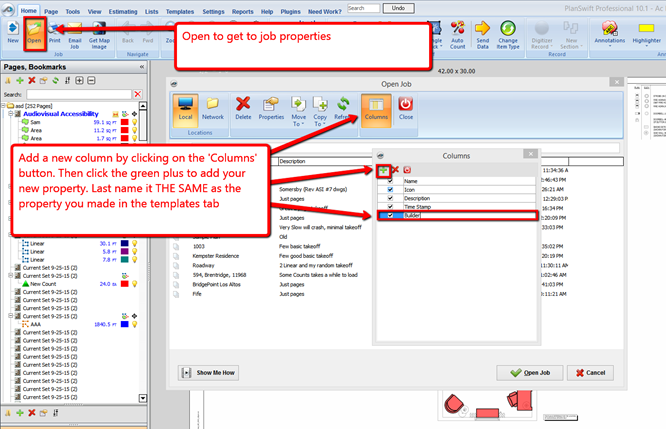
Verify that you can see this property on the open screen
- Click on Open
- Click the Column button on the open screen
- Click on the green plus (+) button to add an extra column, and make sure it is named the same as your property you added
To edit old jobs and input this property,
- Select an old job
- Click the Properties button; it should let you input your new property
Related Articles