

Issue
You and other estimators have worked on different parts of the same Project/Bid and now want to combine your work into one Master Project/Bid.
Discussion
The process of combining bids gives you the option to have estimators work on specific sections, divisions, or trades of a project at the same time. Once the sections are complete, you can combine the separate bids into a single Bid for submittal. (The terms “Projects” and “Bids” are used interchangeably.)
Also known as "merging" Bids.
This article is written for interactive bids, but you can take this information and apply it to standalone On-Screen Takeoff or Quick Bid projects.
You may ask why you cannot just copy the takeoff and allow On-Screen Takeoff to create the Conditions - great question! Because of the way OST copy/pastes, the Conditions may not be created in the same order as the original bids - the steps indicated below assure that you can set the combined bid back to "Interactive mode".
Combining Projects/Bids works for Takeoff, Bid/Typical Areas, Conditions, and Condition details; it is best to set Markups, Payroll changes, Material Pricing, and Labor/Production adjustments etc. after the bids are combined.
Resolution
The following example shows the entire process of combining two bids into one.
In our scenario, there are two estimators that have created two separate bids for the same job; each having done a specific section. These bids are interactive and already priced in Quick Bid although markups and Payroll information may need to be adjusted after combining the bids so these individual totals my change (see Figure 1 and Figure 2).
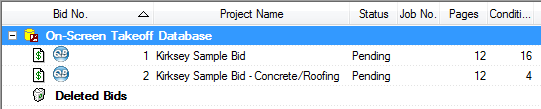
Figure 1: On-Screen Takeoff - Two Complete Interactive Bids

Figure 2: Quick Bid - Two Complete Interactive Bids
First, you will probably want to add the numbers together from the 2 Quick Bid estimates to give a ‘round about’ number to your GC for preliminary bidding. Then, if you are awarded the bid, you’ll want to combine the 2 separate estimates into one.
(In this example: $62,545 + $297,288 = $356,833)
Combing Projects/Bids
- Create a new (Master) Project/Bid in On-Screen Takeoff and one in Quick Bid, both with the same name (in this example we are using Kirksey Sample Bid - Combined as the name). The bid in On-Screen Takeoff should have all the plan pages as the original two.
Do not make these bids interactive yet.
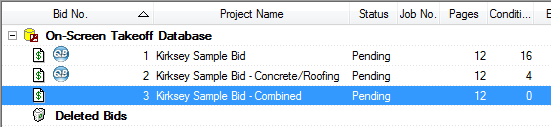
Copying On-Screen Takeoff Conditions to Master Project/Bid
In On-Screen Takeoff, copy all the conditions from the first Project/Bid and paste them into to Combined Project/Bid. To do this, perform the following steps:
To ensure Condition names and numbers match between On-Screen Takeoff and Quick Bid, the following steps must be followed in the exact order detailed below.
- On the Takeoff (fka “Image) Tab of the first Project/Bid, click a Condition in the Condition window
- Click Edit > Select All to select all the Conditions (you can also press <Ctrl> <A> as a keyboard shortcut)
- When all Conditions are highlighted, click Edit > Copy to copy the conditions (you can also press <Ctrl> <C> as a keyboard shortcut) (this does not copy the takeoff, we’ll get to that in a bit)
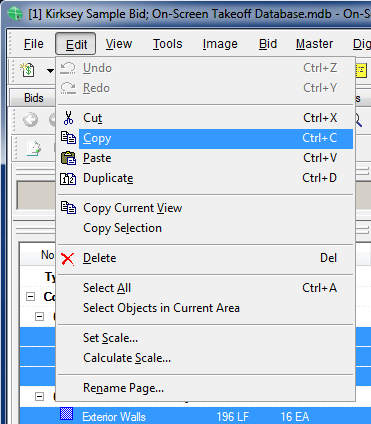
- Open the 'Combined' Project/Bid, and then click inside the Condition window
- Click Edit > Paste to paste the conditions from the first bid (you can also press <Ctrl> <V> as a keyboard shortcut)
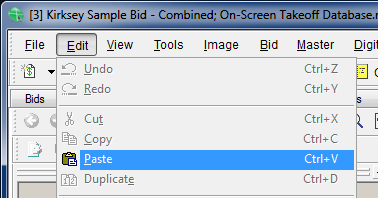
- Repeat this process for the second Project/Bid, copying/pasting the Conditions into the Combined Project/Bid.
Copy Quick Bid Conditions into Master Project/Bid
Next, in Quick Bid, copy all the conditions from the first bid and paste them into to Combined Quick Bid Project/Bid. To do this, perform the following steps:
- On the Condition Tab of the first Project/Bid, click the first Condition
- Press and hold the <Shift> key on your keyboard and select the last condition - this highlights all the Conditions
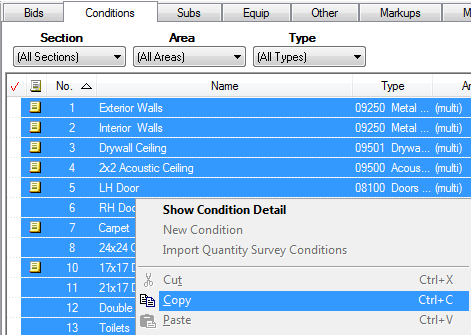
- When all the Conditions are highlighted, right-click and select Copy to copy the conditions (you can also press <Ctrl> <C> as a keyboard shortcut)
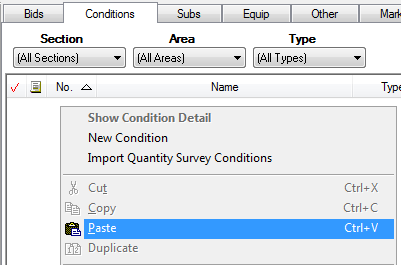
- Open the 'Combined' bid, and then right-click inside the Condition window and select Paste to paste the conditions from the first bid (you can also press <Ctrl> <V> as a keyboard shortcut)
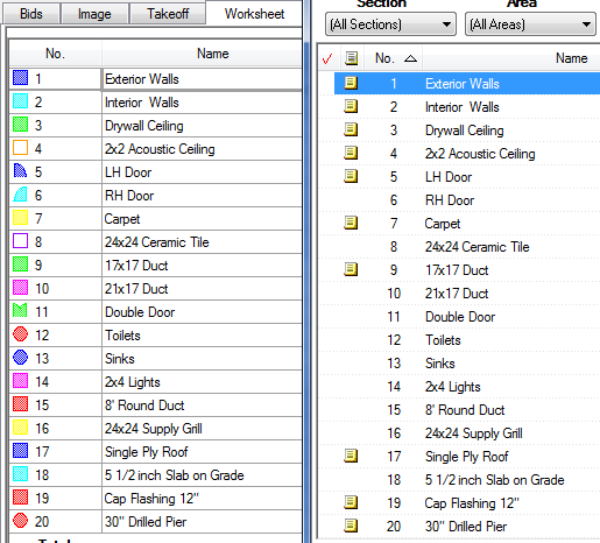
- Repeat this process for the second Quick Bid Project/Bid, copying/pasting the conditions into the Combined Project/Bid. This will give you a list of all Conditions used in both bids along with their pricing, but no Quantities.
Make them Interactive
Now that all the Conditions match,
- Make sure the Master On-Screen Takeoff Project/Bid is selected
- Note the OST Project/Bid Number
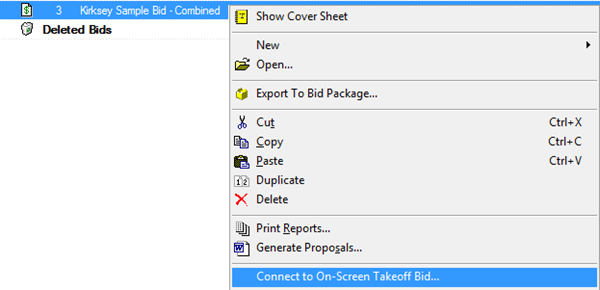
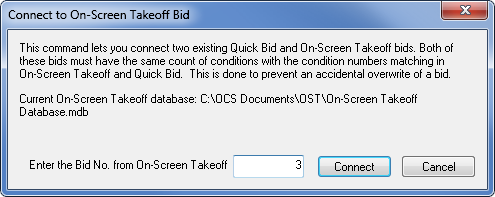
- In Quick Bid, right-click on the Combined Project/Bid and select Connect to On-Screen Takeoff Bid...
- Enter the Project/Bid number for the On-Screen Takeoff Combined bid in the Connect to On-Screen Takeoff Bid window,
- Click Connect
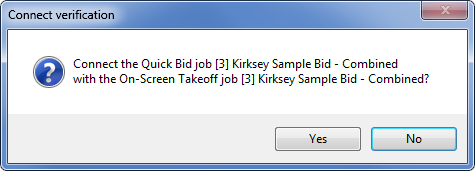
- In the Connect Verification window, select Yes to confirm connecting the bids
Once connected,
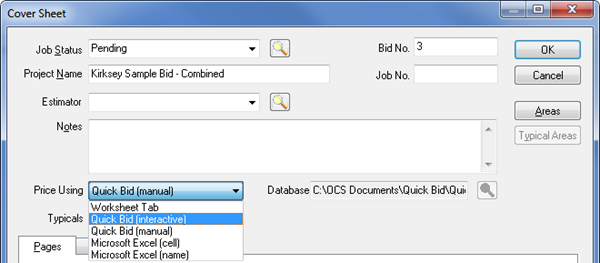
- Open the Cover Sheet for the Combined On-Screen Takeoff Project/Bid,
- Set the Price Using method to Quick Bid (interactive)
Depending on the size of your bid (number of Conditions), it may take up to a minute to reestablish the interactive connection.
There's no takeoff in the 'Combined' OST Project/Bid yet, we'll copy that over next. What we have done so far is to create the framework that allowed us to create a single, interactive Project/Bid.
Now, you have a single Project/Bid, with all your Conditions, interactively connected between On-Screen Takeoff and Quick Bid.
Copy Takeoff to Master Project/Bid
Now that you have an interactive Master Project/Bid, you must copy over the takeoff from the individual Projects/Bids.
Starting with the first On-Screen Takeoff Project/Bid, Page by Page, copy all the takeoff from the first bid into the combined bid. To do this, perform the following steps:
- On the Takeoff Tab of the first Project/Bid click in the Image window for the first page with takeoff
- Click Edit > Select All to select all the takeoff (you can also press <Ctrl> <A> as a keyboard shortcut)
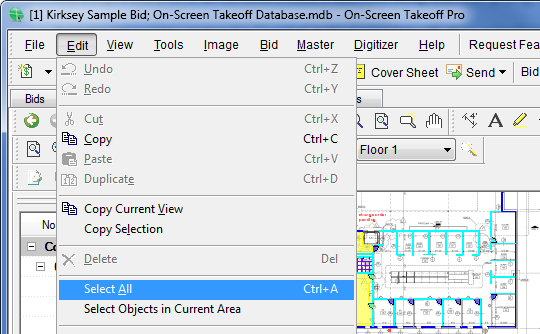
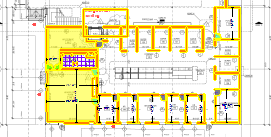
Note that all the takeoff now has an orange border around it, signifying it is selected
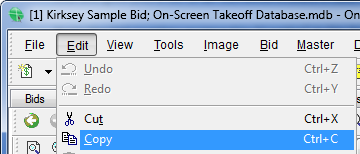
- When all the takeoff is highlighted, click Edit > Copy to copy the takeoff (you can also press <Ctrl> <C> as a keyboard shortcut)
- Open the Combined OST bid to the same page, make sure the scale is correct, and then click inside the Image window to set the focus there.
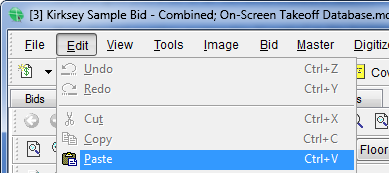
- Click Edit > Paste to paste the conditions from the first bid (you can also press <Ctrl> <V> as a keyboard shortcut) -
Do not right-click and select Paste - your takeoff will not be pasted in the correct place.
This pastes all the takeoff from that Page in the first Project/Bid into the Combined Project/Bid.
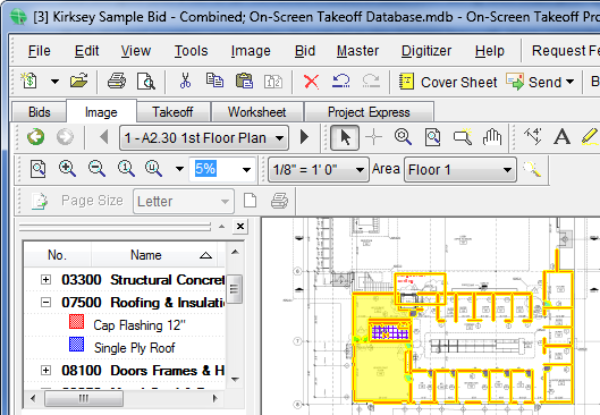
- Repeat this process for all pages in the bid. When you are done, perform these same steps for the second bid; copying/pasting the takeoff to the combined bid.
When all the takeoff from the two bids are copied to the combined bid, it is a good idea to run a Compact and Repair on the database in both applications (see Related Articles).
All quantities should feed into Quick Bid and since you have already copied over the pricing information, the bid should total the same as the sum of the separate bids.

Now, you can copy over any Equipment, Other or Subs information from both original bids and then modify your Payroll Class information, Markups, and Indirect Expenses to ensure they are accurate and not duplicated.
Related Articles
