

You can open up to ten Takeoff Windows for the current bid (plus one extra one where Named Views are displayed when you open them by clicking a Hot Link).
Don't confuse Takeoff Windows with a Bid's Takeoff Tab. There is only one Takeoff Tab for each bid but there can be several open Takeoff windows.
Click the new Takeoff Window button  a new Takeoff Window is open with the same Sheet in view.
Above the Main toolbar are your Takeoff window tabs - these indicate each docked Takeoff window you've opened in the current Bid and lets you switch between them easily. You can open up to ten Takeoff windows for a Bid at any given time.
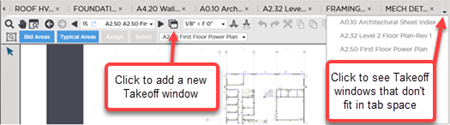
Notice that little icon on the far right - if you've opened more windows than can be shown in the toolbar click this drop-down to see a list of all docked Takeoff windows. Once undocked there is no reference to a Takeoff window in the main interface.
You can undock Takeoff Windows however one Takeoff Window always has to remain in the main application screen. When you undock a Takeoff window its tab is undocked as well - the main screen no longer shows a Tab indicator for that undocked Takeoff Window.
 The Pan Window and Indicator The Pan Window and Indicator | Docking and Undocking Additional Takeoff Windows  |
Related Articles
