

ConstructConnect Takeoff has many functions that encourage and support multi-user collaboration including the ability to see when others from your organization are working in the same project.
How To Identify Active Users
The top right corner of the Plan Organizer displays the initials of all the active users in a project. When you hover over one of the profile icons a pop-up showing the user's full name will appear.
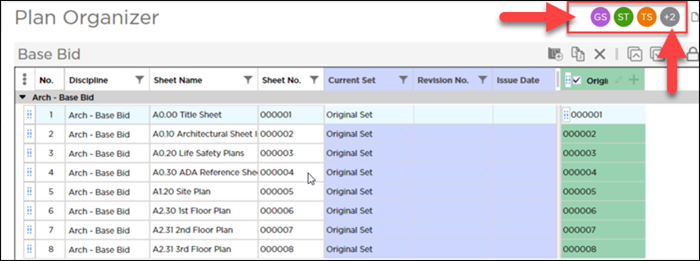
A maximum of four profile icons will be visible at a time. If there are more than four users a counter will appear and you can hover over it to see the names of the other users.
Because a project can contain multiple bids the profile icons shown in the Plan Organizer will include the initials of anyone else working in any of the bids within that project.
Profile icons will be shown in the Plan Organizer when you view it from the main Projects and Bids List or from the right-side menu on the Takeoff Tab of a bid.

Editing the Plan Organizer When Multiple Users Are Active
While one user is editing the Plan Organizer it will be locked (meaning read-only) for all other users in that project (or any of its bids).
During that time other users can open the Plan Organizer - in read-only status - and view/filter plans expand/collapse Disciplines add/hide/resize columns (from three-dot menu in top left) export the plan list and lock/unlock columns.
While the Plan Organizer is being edited other users will see a tooltip in the bottom right corner that identifies another user is currently making edits. When the initial user completes their edits and closes the Plan Organizer it will be available for editing once again.
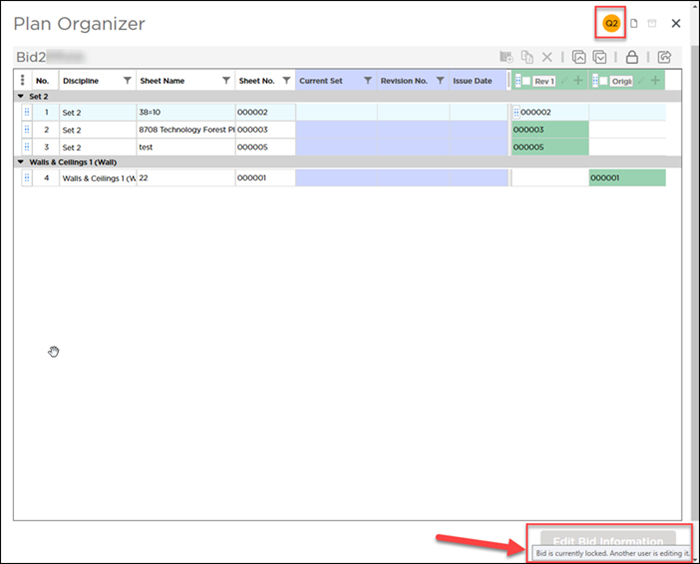
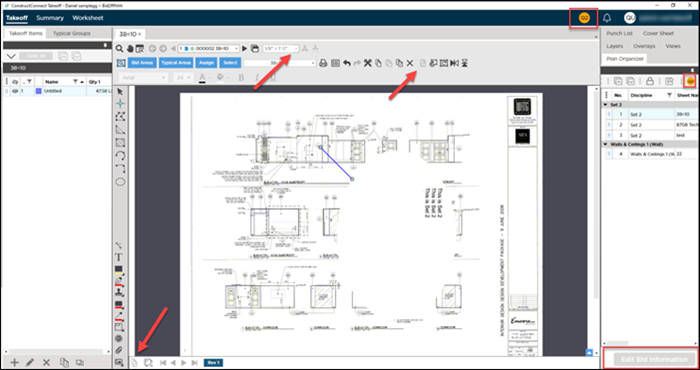
While a user is editing the Plan Organizer if a second user opens one of the bids in that project the second user (and any subsequent users) can do takeoff but they won't be able to rotate/flip plans and takeoff rename pages or change the scale until the initial user finishes their changes and exits the Plan Organizer.
 A Detailed Look at The Plan Organizer Grid A Detailed Look at The Plan Organizer Grid | A Detailed Look at The Plan Set Editor  |
Related Articles
