

We do not do this often but we are starting this article with a Warning:
Deleting plans can cause permanent data loss in your Project!
If you delete a plan from the Plan Set Editor and that plan was the only plan for a particular Page you delete the Page from the entire project. Again this means that takeoff annotation and other objects stored on this Page in any Bid within this Project are deleted permanently.
If you are unsure if this Plan is the only Plan for a Page or if the associated Page has been used - click Cancel then review the Plan Organizer and see if there is a Plan associated with the Page in another Plan Set. If so go back and double-check every bid in this project to see if there is anything drawn or saved on the Page (by you or anyone else in your Organization). You must open each bid in the project and look at the Page before you delete the Page!
Sometimes deleting a plan from a Plan Set is a non-issue. If neither you nor any other user in your Organization has drawn takeoff annotation or created any Named Views Punch Items etc. in any Bid within this Project on the Page created from a Plan deleting the Plan from a Plan Set should be OK although it pays to be very cautious about deleting Plans and Pages.
Let us look at the following project's Plan Organizer.
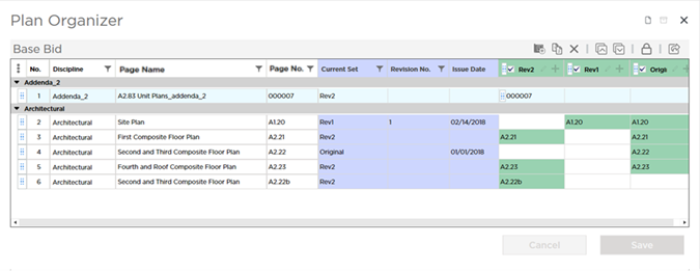
As you can see we have added three Plan Sets (Original Rev 1 and Rev 2).
- The Original Set created Pages A1.20 A2.21 A2.22 and A2.23.
- The 2nd Set (Rev 1) was an update to A1.20 so it did not create any additional Pages.
- The 3rd Set (Rev 2) was an update to A2.21 and A2.23 and created Pages 000007 and A2.22b. The estimator made a mistake when loading this set and created Page "A2.22b" in error - eventually he or she needs to fix this - covered later in Related Articles.
There are a total of 6 Pages in our Plan Organizer built from a total of 10 Plans.
Deleting the Only Plan for a Page
When you delete a plan from a Plan Set if there are no other Plan Sets that include a plan associated with the Page the Page is deleted along with the plan.
In our example:
Page 000007 exists because it was created from the plan in Rev 2. That is the only Plan Set in which a plan exists for this Page (same for A2.22b and A2.22 but that is because the Sheets were not matched when the revision set was added and is a mistake that we correct in Related Articles). Put another way there is no Plan Set other than Rev 2 that contains a plan for Sheet No. 000007.
First open the Plan Organizer.
Next click the Edit Bid Information button.
Then click the Edit Plan Set button  for Rev 2 this opens the Plan Set Editor for that set.
Select the plan or plans you want to remove from this Plan Set and click the Delete button  in the toolbar or press DEL on your keyboard.
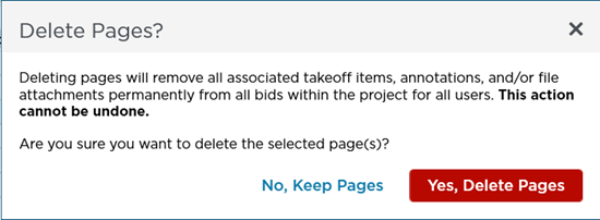
Any time you delete a plan you are prompted to confirm your action. The Confirmation warns you about deleting a Page as a precaution in case removing the plan deletes the Page from the Plan Organizer (at this point the Plan Set Editor does not know if other bids in the project exist or if they have used the Page created by this plan).
Now when you Save and close the Plan Set Editor notice that the Page that was associated with this plan is gone.
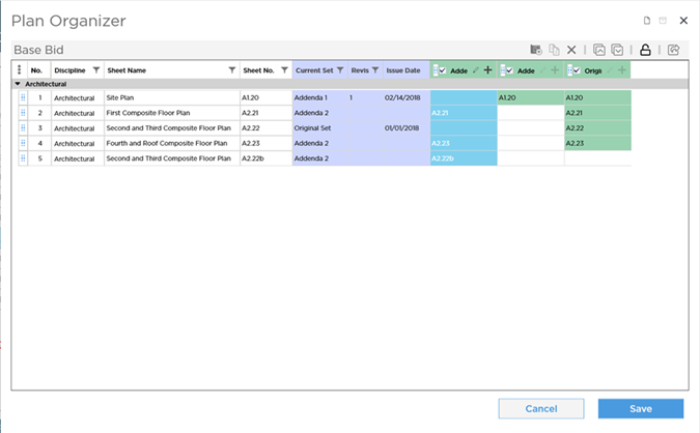
At this point the plan and Page have not been deleted from your project.
To commit your changes you must click Save on the Plan Organizer screen - the program displays "Updating Plans" process box while the plan(s) and Pages or (Pages) are being removed.
If you click Cancel or close the Plan Organizer without saving your changes the delete action is not performed.
We cannot caution you enough to take great care when deleting plans that cause a Page to be deleted. Do not dismiss the warning prompt until you consider the consequences of your actions. You may not be the only person using that Page in a bid within the project. If the Page was not added in error it is best to leave the plan as it is. You can even change its Discipline to "unneeded" or something like that to isolate it from working Pages.
Deleting a Revision Plan for a Page
When you delete a plan from a Plan Set if there are other plans in other Plan Sets associated with this Page meaning you have "matched revisions" all that is lost is the revision for that Page . The Page itself and all other revisions for that Page remain intact.
In our next example. Page A2.21 exists in both the Original Set (where it was created) and Rev 2 (the estimator matched the plan in Rev 2 to the plan in the Original Set). You can see that the Current Set for this plan indicates it is using "Rev 2". Remember the Current Set is always built from the most recent version of all plans for a Page.
You can probably guess what is going to happen when we delete the plan from the Original Set. If you cannot let me spoil the surprise nothing happens to the Current Set or to the Page except you no longer can view the original version of the plan. Let us walk through the steps.
First open the Plan Organizer and click Edit Bid Information.
Next click the Edit Plan Set button for Original Set this opens the Plan Set Editor for that set.
Select the plan or plans you want to remove from this Plan Set and click the Delete button in the toolbar or press DEL on your keyboard.
Any time you delete a plan you are prompted to confirm your action. The Confirmation warns you about deleting a Page as a precaution in case removing the plan deletes the Page from the Plan Organizer (at this point the Plan Set Editor does not know if other bids in the project exist or if they have used the Page created by this plan).
Notice that in the Plan Organizer the Page is still there. Only the plan from the original Plan Set is gone.
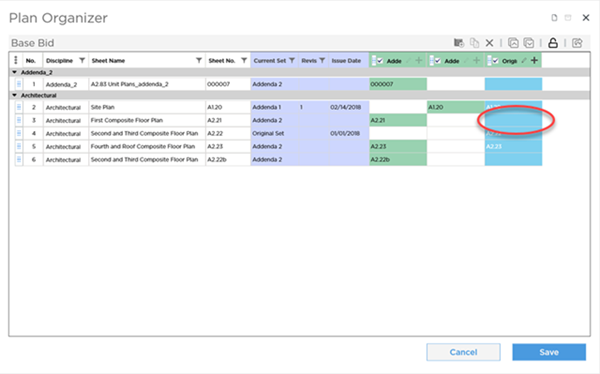
At this point the plan has not been deleted from your project. To commit your changes you must click Save on the Plan Organizer screen - the program displays "Updating Plans" process box while the Pages are being removed.
If you click Cancel or close the Plan Organizer without saving your changes the delete action is not performed.
 Deleting Pages Deleting Pages | Deleting Entire Plan Sets  |
Related Articles
