

If you work in multiple bids at the same time or undock the Takeoff Summary or Worksheet Tabs or open and undock multiple Takeoff windows it is important that you close the correct window when you are trying to close a bid an undocked Tab or window or the program. Of course because your data is stored "in the cloud " on our servers you wouldn't lose anything if you accidentally closed the program - you just have to open the program again and pick up where you left off.
Closing the Program
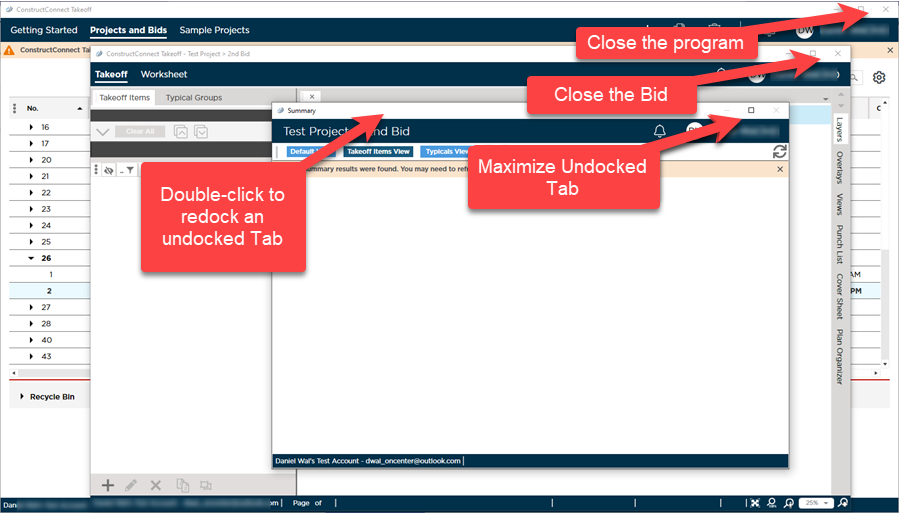
To close program click the "X " in the upper-right corner of the Projects and Bids List above your name.

The product name shows next to the application control buttons (the ones that close the Projects and Bids List) not the project or bid name.
You do not need to 'Logout' of the application before closing it unless you are sharing this computer (and the Window's profile) with someone else.
Closing a Bid
To close a bid click the "X " (in the upper-right corner of the bid's Main Bid window (where you typically see the Takeoff Summary and Worksheet Tabs). The Bid's main window shows the name of the project the bid and at the very top the product name.
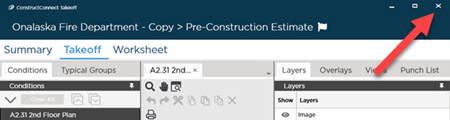
Closing a bid closes all undocked windows/toolbars that belong to the Bid. When you re-open the program undocked Tabs and some windows such as the Conditions or Areas windows re-open in their previous (undocked) locations. Additional Takeoff windows do not reopen - only one takeoff window opens when a Bid is closed/re-opened.
Closing an Undocked Tab or Window
To close an undocked Tab (Takeoff Summary Worksheet) or an undocked Windows (an pane such as the Conditions or Layers pane) double-click the title bar. It takes a moment or two but the object redocks right where it came from.
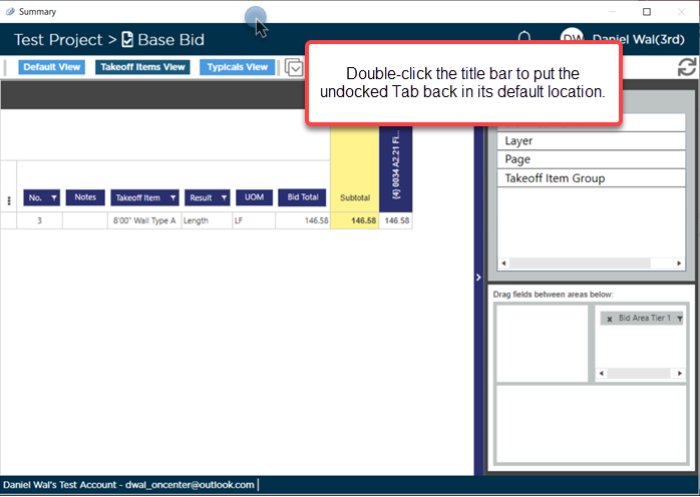
Undocked Summary Tab
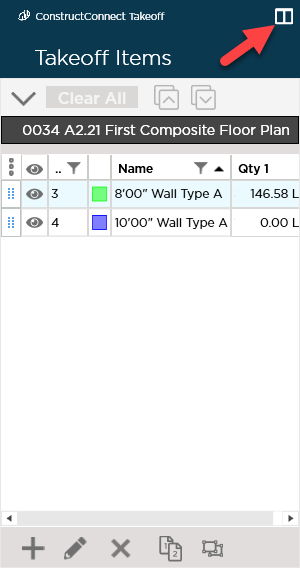
Undocked Takeoff Items Pane
When you close an undocked Takeoff Window it is not re-docked it is closed. You cannot undock every Takeoff Window the program prevents that.
 Opening a Bid Opening a Bid | Duplicating Projects and Bids  |
Related Articles
