

ConstructConnect Takeoff can accommodate both Imperial and Metric Units of Measure (UOM). You set the Measurement Mode in Bid Settings (the Bid's Cover Sheet).
All 'UOM' boxes (where you enter dimensions or measurements) are based on the "System of Measurement" setting in the Bid's Cover Sheet.
Setting Unit of Measure
You can change the default for new Projects/Bids by updating your program Settings...
Takeoff Item Results
When you switch between Imperial and Metric the UOMs available for your Takeoff Items' Results change.
| Measure System | Abbreviation | Meaning |
|---|---|---|
| Imperial | ||
| EA | each | |
| IN | inches | |
| LF | linear feet | |
| LY | linear yard | |
| IN2 | square inches | |
| SF | square feet | |
| SY | square yard | |
| SQ* | square (Imperial roofing term that means 100SF) (No metric equivalent but 1 SQ is 9.290304 m2.) | |
| CF | cubic feet | |
| CY | cubic yards | |
| Metric (Systu00e8m International) | ||
| EA | each | |
| mm | millimeter | |
| m | meter | |
| mm2 | square millimeter | |
| m2 | square meter | |
| mm3 | cubic millimeter | |
| m3 | cubic meter | |
* The roofing industry works with a unit called a Square which equals 10' x 10' or 100 SF. There is no metric equivalent in the roofing industry and a Square is usually considered an Imperial only unit.
In your Takeoff Item Properties dialog box you can see the difference between Imperial and Metric measurement boxes.
ConstructConnect Takeoff relies on specific number formatting to display quantities correctly. If Windows is set to use Regional Settings other than US-English (using commas as thousands separators) metric quantities over "999" may not display correctly. Please review the Related article for instructions on adjusting Windows settings.
Entering Values into Measurement Fields
Many times when using the program you are expected to enter some value into a measurement box (such as indicating the Height of a Takeoff Item or the length of a piece of takeoff). You need to tell the program some information so it can properly calculate takeoff quantities. For example when setting up a Linear Takeoff Item you can tell the program how tall the wall is (its Height) so the program can calculate the wall's Surface Area; you can further specify how thick the wall is (it is Width) to calculate Volume (L x W x H=V).
When entering values into measurement boxes in Takeoff you do not need to enter in units of measure the program converts what you entered based on your System of Measurement.
Imperial (U.S. Standard)
When entering a quantity in any Imperial measurement box the last two digits typed are interpreted as inches and are always converted to feet and inches.
Examples
- "824" is interpreted as 8 feet 24 inches and displays 10' 0" (not as 824 inches - only the last two digits are considered "inches")
- "88" is interpreted as 88 inches which gets converted to feet and inches and displays as 7' 04"
- "800" is 8 feet 0 inches or 8' even displayed as 8' 00" (not as 800 inches)
- "806" is 8 feet 6 inches displayed as 8' 06" (not as 806 inches)
- "10" is 10 inches displayed as 00' 10"
- "12" is 12 inches displayed as 1' 00"
- "1010" is 10 feet 10 inches displayed as 10' 10"
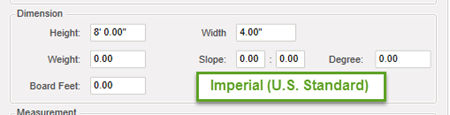
Yes you can use fractions - for example if you want to specify a Height of 7 feet 10 1/4 inches you can enter either "94.25" (94.25 inches) or "710.25" (7'10.25") both are interpreted the same. At this time you have to enter a decimal for fractions (you cannot enter "1/4" you enter ".25").
System International (Metric)
When entering a quantity in any Metric measurement box the value is always interpreted as millimeters.
Examples
- To enter 1.2 meters into a measurement box type 1200 (1200 mm = 1.2 m)
- 10 cm is entered as 100 (100 mm = 10 cm)
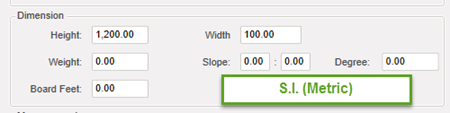
You can specify fractions of a millimeter by entering a decimal (which is really really small).
If you are using Metric and your quantities are not displaying correctly you may need to adjust your Windows Regional Settings see Related Articles for more information.
 ToolTips, Context Menus, and Keyboard Shortcuts ToolTips, Context Menus, and Keyboard Shortcuts | What is ConstructConnect Takeoff Doing? (Status Indicators)  |
Related Articles
