

From the Worksheet Tab you can copy and paste information for use in other programs (such as email) documents and spreadsheets.
Exporting the Worksheet Tab is covered in the previous articles.
Copying Rows of Data
Copying rows is a simple way of getting information from the Worksheet Tab into another application (such as a spreadsheet document or even an e-mail). Copying uses the Windows Clipboard so you should be able to paste into any properly installed and registered program on your computer. Each program may paste the information in differently and that data will likely require formatting changes.
Using your mouse (and Ctrl (click to select) or Shift (select range) or click-hold-drag-release) select the row or rows you want to copy.
In our example we want to copy "Result 1" for each Takeoff Item and paste it into an outgoing email message (or a spreadsheet or any other sort of document). We hold down the Ctrl button and selected each Takeoff Item's Result Number 1.
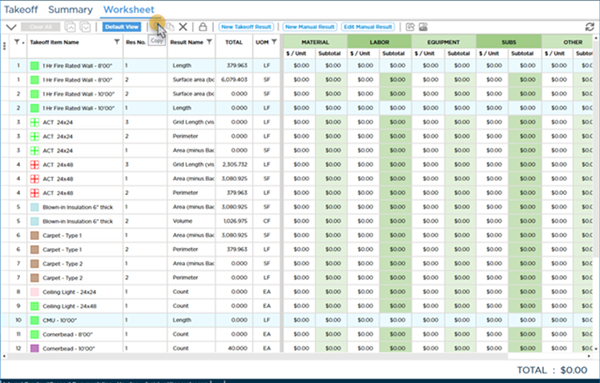
Click the  button in the toolbar or press Ctrl + C.
Pasting Data Into Another Program
Now open the document (spreadsheet document etc.) into which you intend to paste this information.
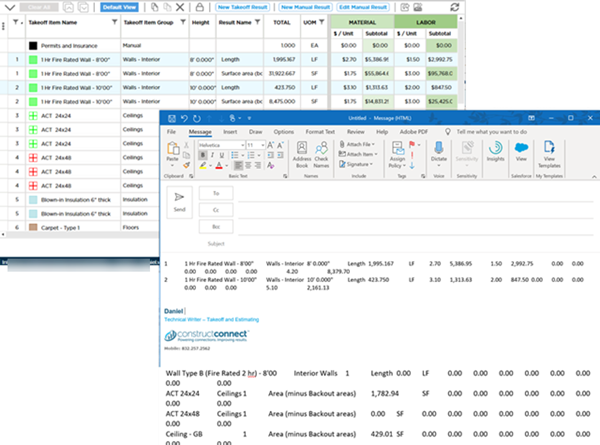
Navigate to where you want the information inserted and click that application's Paste button or use the Windows shortcut Ctrl + V to paste.
Into an e-mail:
Into a spreadsheet:
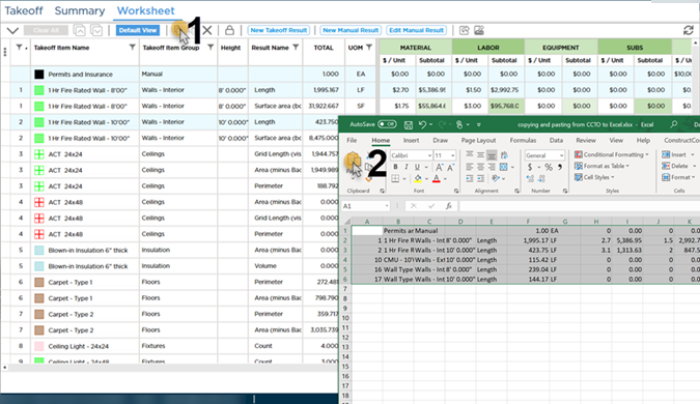
Once the information is pasted into the receiving document you can edit/manipulate it as needed it is no longer "tied" to ConstructConnect Takeoff in any way.
 Worksheet Tab: Exporting Bid Data to Quick Bid® Worksheet Tab: Exporting Bid Data to Quick Bid® | How to Print Takeoff, Plans, and Tabs  |
Related Articles
