

The Worksheet Tab toolbar provides access to all functions available on the Worksheet Tab.

Some functions have shortcut keys or are available on the Context Menu.
| Button/Control | Description | Keyboard Shortcut | What it does/How it is used... |
|---|---|---|---|
 | Show Group by control | Shows the Group By panel | |
 | Hide Group by control | Hides the Group By panel | |
 | Clear All | Active when the Worksheet Tab is Grouped By something - removes all Groupings. | |
 | Expand All | Right Arrow | Expands all row groupings. The Shortcut key only expands the selected section. |
 | Collapse All | Left Arrow | Collapses all row groupings. The Shortcut key only collapses the current section. |
 | Default View | Resets the Worksheet Tab to its default view/layout. | |
 | Copy | Copies selected Row(s) for pasting into a different application(such as Excel). | |
 | Duplicate | Duplicates a manually entered result (not associated with a Takeoff Item) | |
 | Delete | Deletes a Result row (does not delete the Takeoff Item or the Results from the Takeoff Item just removes this Result from the Worksheet Tab). | |
 | Lock Columns | Ctrl + L | When selected (shaded) locks the Takeoff Item Information columns ("No." through "Total") so they remain visible when you scroll to the right to see additional columns. |
 | Add Takeoff Item Result | Ctrl + R | By default the Worksheet Tab only displays the first (primary) Result for each Takeoff Item. If you like you can add one of the other Results you specified instead of or in addition to the primary result. |
 | Add Manual Result | Ctrl + M | Adds a row where you can specify any quantity/UOM you need - not associated with any Takeoff Item. |
 | Edit Manual Result | Allows you to edit a previously added manual result. | |
 | Export to Excel | Ctrl + E | Exports the current Worksheet View to an Excel spreadsheet. |
 | Export to Quick Bidu2122 | Ctrl + Q | Exports the current Worksheet View to an *.OST file that can be imported into the Quick Bid Estimating program. |
 | Refresh Data | F5 | The Worksheet Tab does not update automatically when you or another user makes a change that affects Results. This is so the screen isn't constantly refreshing/changing as you're using it. You'll be prompted to refresh (manually) anytime there are changes not reflected in what you are seeing on the screen. Click the refresh button or hit F5 to recalculate results. |
See the articles that follow for details on using basic and advanced functions of the Worksheet Tab.
The Worksheet Tab Context Menu
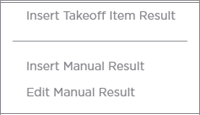
The Context Menu provides an alternate method to insert Takeoff Item Results and to insert or edit Manual Results.
 Using the Worksheet Tab to Generate a Unit Price Estimate Using the Worksheet Tab to Generate a Unit Price Estimate | Worksheet Tab: Adding Takeoff Item Property Columns  |
Related Articles
