

When you use Column Groups (deliberately or if you just use the Default View of the Summary Tab), you may notice that the Bid Total and Subtotal columns do not match and may be wondering "Why?"
It helps to understand what the different columns are showing you.
First we want to set the Summary Tab back to Default View by clicking the  button so the Columns are grouped into Bid Areas (Tier 1, 2, and 3 if used - our bid includes just Tier 1 so we can explain the functionality more easily).
This is our Default View Summary Tab:
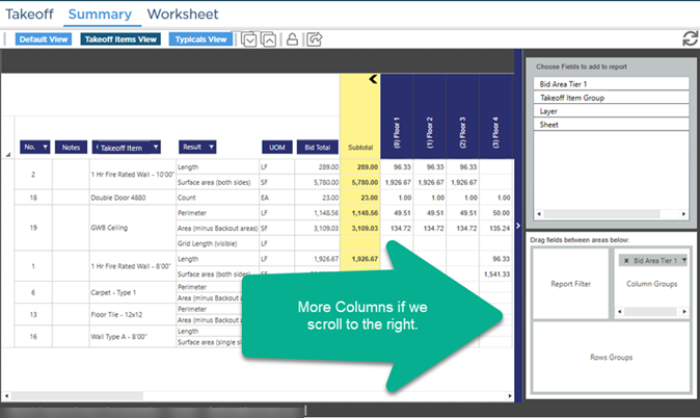
Notice the Bid Total and the Subtotal match - that's because there are no filters applied.
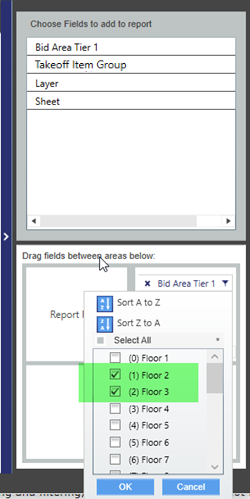
Now we filter the Bid Areas Tier 1 field in the Column Groups box in the lower section of the Pivot Table Controls and select "Floor 2" and "Floor 3".
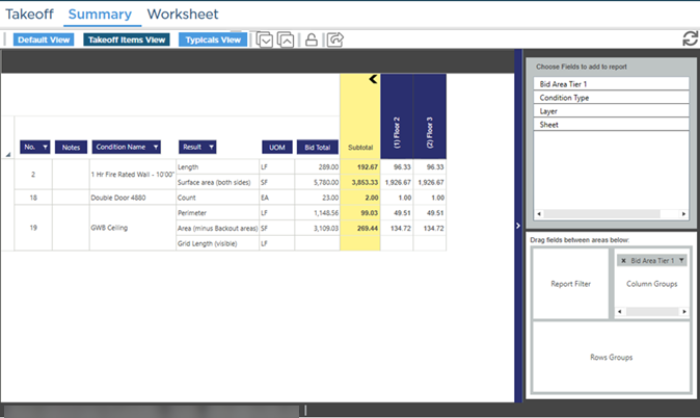
Once we click OK, notice that the visible Column Groups only shows "Floor 2" and "Floor 3".
The Subtotal column is the sum of the Columns remaining after we apply the filter.
Anytime you apply filtering for a field that is not unique to a Takeoff Item your Bid Total and Subtotal may not match. For example:
- If you filtered by Takeoff Item Group - a Takeoff Item has one and only one Group - you cannot "Split up" your Results.
- But if we were to add the Page Column to the grid and then filter out to a specific Page (Sheet), because a Takeoff Item can be (and usually is) used on multiple Pages, the Subtotal and Bid Total may not be the same...
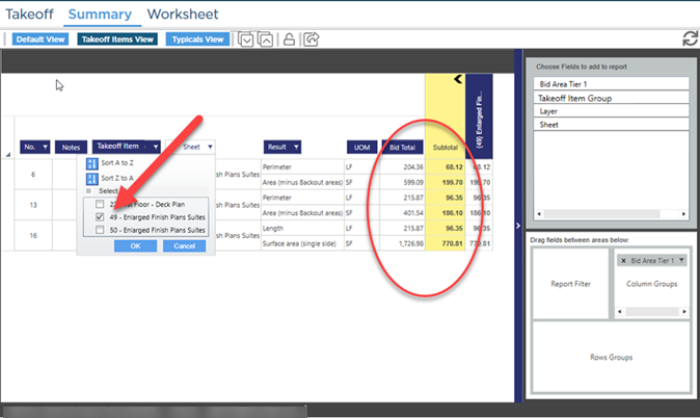
The Subtotal column is always a subtotal of the filtered Results.
Unlike Pivot Table Filters, Column Filters are cleared when you leave the Summary Tab, close the Bid, or even close the Program, or click the button or remove the column by which you are filtering.
 Summary Tab: Filtering Column Groups Summary Tab: Filtering Column Groups | Summary Tab: Using the Pivot Table Controls to Create Row Groups  |
Related Articles
