

To delete takeoff objects or Annotations:
- Select the object(s) in the Takeoff Window
- Press the DEL button on your keyboard or
- Right-click and select Delete or
- Click the
 button on the Edit toolbar
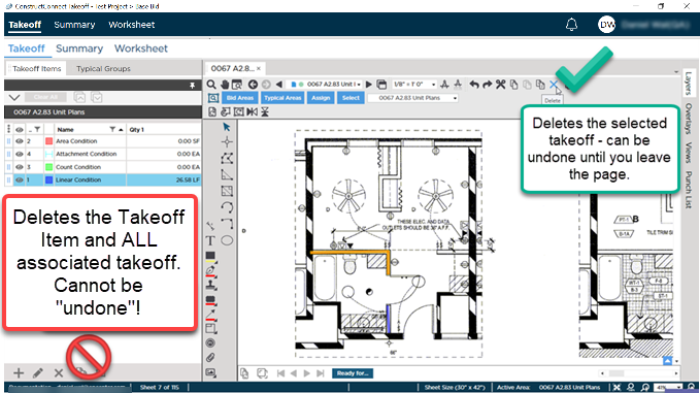
When using the toolbar button be sure you click the Delete button on the Takeoff Window's Edit Toolbar not the Delete button in the Takeoff Items Pane. If you click the Delete button in the Takeoff Items Pane you delete the Takeoff Item and all takeoff drawn with it on every Page in the bid. Deleting takeoff can be undone until you leave the Page or the Page recalculates (every two minutes) but deleting a Takeoff Item cannot be undone.
DELETE VERIFICATION!
Most takeoff edits (even deleting takeoff or most Annotations) are "undoable" meaning if you make some change you really didn't want to make you can click the  button to return to previous state. There are a few exceptions and deleting Takeoff Items is one.
Deleting a Takeoff Item(s) is permanent and immediate - the Takeoff Item(s) and all takeoff drawn with that Takeoff Item(s) is permanently (irretrievably) deleted from every Page in this Bid. Deleting Typical Groups (including Frames) Named Views Punch Items and File Attachments are also permanent actions.
You are required to verify deleting objects if the action cannot be undone. Please consider your actions before continuing and do not click "Yes" without understanding the consequences.
 Duplicating and Reassigning Takeoff for Multiple Takeoff Items Duplicating and Reassigning Takeoff for Multiple Takeoff Items | Tracking and Managing Project Document Revisions  |
Related Articles
