

Remember before you can create a Hot Link you have to have something to point it to so if you have not already created a Named View (or several) review the previous article (below) for instructions.
Hot Links allow you to open/navigate to a Named View from anywhere within your Bid. A Hot Link is a shortcut back to the region defined by the Named View. You place a Hot Link anywhere your plan indicates a reference to a Details or Sections Page (or region of a Page) to provide a quick way to open those Details/Sections.
For example in the previous article, we created a Named View for "D2 - Mech Yard Door Elevations". This Detail section of a Page may be referenced on one or more Pages in your Bid - you can place multiple Hot Links that open the same Named View.
To place a Hot Link to this Named View on a Page,
- Navigate to where the Named View is referenced
- Click on the Named View in the Views Pane
- Then click on the Plan
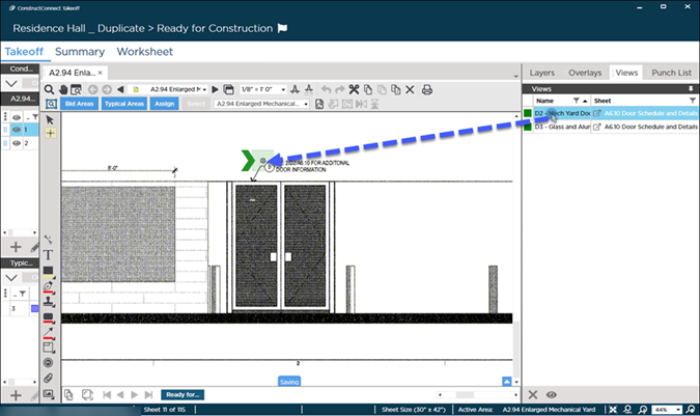
It is best to place the Hot Link  very near the reference to Detail or Section in our example we place the Hot Link next to the reference to "D2..."
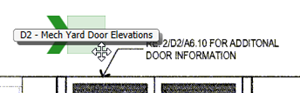
When you hover over a Hot Link it shows you the Named View to which it is linked:
Activating a Hot Link (jumping to a Named View)
When you double-click on a Hot Link a new Takeoff Window opens (a tab is added) and the Named View displays (this is the Named View tab - its a special takeoff window used to display all Named Views when they are activated by clicking a Hot Link to them).
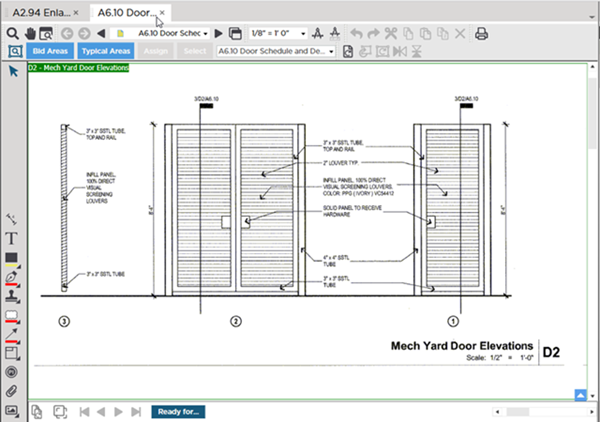
Many users find it convenient to undock the Named View window and place it on a different monitor - that way you can view your takeoff window and the Named View at the same time. See Related Articles for details on undocking additional takeoff windows.
 Creating a Named View Creating a Named View | Adjusting and Deleting Named Views and Hot Links  |
Related
