

When you select only Count Takeoff Items you can draw Multi-Condition Takeoff objects one at a time or you can use the Rectangle Tool and take off four corners in one click-drag. See Related Articles for a refresher on using those tools.
Before you draw any takeoff you must set and verify the scale. Even though Counts are not calculate based on Page Scale, we recommend setting Scale before you draw any takeoff - it is a good habit; see Related Articles for instructions.
In the example below we show you the tools available and how Multi-Condition Takeoff works when you are using Counts only.
Normal Mode (One-at-a-time)
Click where you want to place the Counts.

Rectangle Corner Mode (Four-at-a-time)
The Rectangle Tool allows you to place four sets of Counts quickly. Grab the tool and click-n-drag to draw the box that defines the four corners where you want to place the Counts.

The program places a set of Counts at each corner.
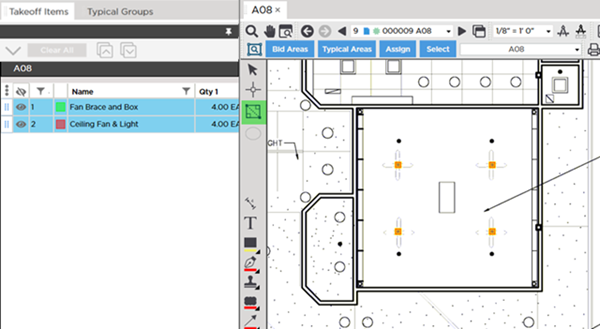
When using Multi-Condition Takeoff objects are placed exactly on top of each other which can make it hard to see them. You can show-hide the different Takeoff Items' takeoff to make it easier to see the individual takeoff objects (toggle the "Show" indicator to the left of each individual Takeoff Item in the Takeoff Items Pane). See Related Articles if you need a refresher on using Custom and Takeoff Item Layers.
 Drawing Multi-Condition Takeoff When Only Linear Takeoff Items are Selected Drawing Multi-Condition Takeoff When Only Linear Takeoff Items are Selected | Use Typical Takeoff and Complete Your Takeoff Faster and More Accurately  |
Related Articles
