

Sometimes, you want to grab all the takeoff on a Page and assign it all to the same Bid Area or Typical Area. For example if the blueprint is only for "Floor 1" odds are you want to assign all your takeoff to a Bid Area named "Floor 1".
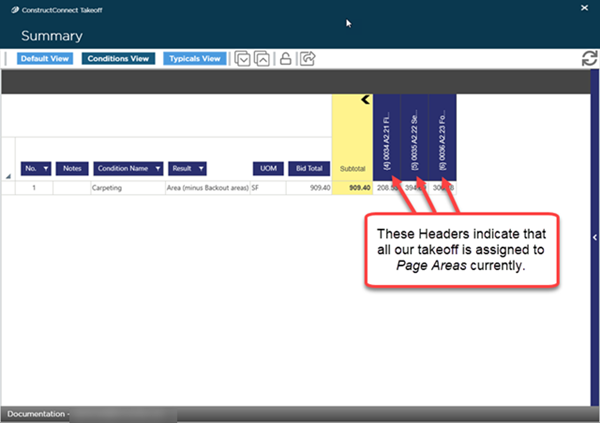
For our example we took off three Pages: the first one covers the 1st Floor of our project, the second covers Floors 2 and 3, and the third covers Floors 4 and the Roof. We drew takeoff on all three Pages and if we take a look at the Summary Tab (which we cover in detail later in this User Guide) we can see that Page Areas are the only Bid Areas used for now.
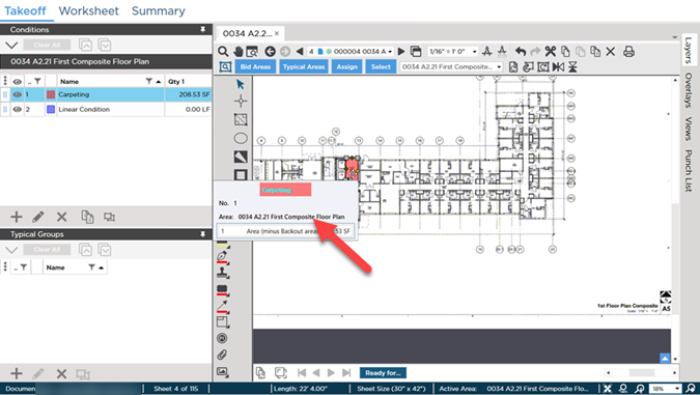
If we look at the First Floor plan and the takeoff we drew we see that it is assigned to the Page Areas (0034 A2.21 First Floor Composite Floor Plan). We need to assign this takeoff to "Floor 1".
Because all the takeoff on this Page should be assigned to Floor 1 there are a few ways we can select all the takeoff:
- Click on the Takeoff Item(s) whose objects we want to select and click the Select Objects button
 on the Takeoff Items Pane toolbar
 - Select the Takeoff Item(s) whose objects we want to select and right-click to open the Context Menu and then click on "Select Objects"
- Click within the Takeoff window and the press Ctrl + A on your keyboard.
- Note: Ctrl + A also selects Annotation if any exists - you cannot assign Annotation to a Bid Area or Typical Area so if you select any Annotation the Assign functionality is disabled (if you want to select all takeoff (without Annotations) on a screen select all Takeoff Items in the Takeoff Items pane right-click and select "Select Takeoff Objects" from the context menu)
- Using the Select Tool click on one or more objects in the Takeoff Window to select them
- Using the Select Tool draw a box around some objects to select them
For details on the various ways you can select objects in the Takeoff Window see Related Articles.
Because there is only takeoff on this Page we click in the Takeoff Window and then press Ctrl + A on your keyboard to select everything.
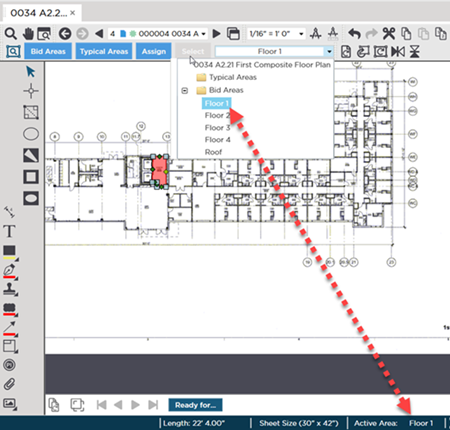
Notice the Page Area is the "Active Area" (both in the Areas drop-down and in the Status Bar).
We change the "Active Area" by clicking the drop-down and selecting "Floor 1". Remember all takeoff is assigned to the Active Area as it is drawn automatically. However existing takeoff must be selected and assigned to the Active Area - existing objects do not get reassigned automatically.
Next we assign the selected objects to that Active Area. Of course there is more than one way to do this:
- Click the Assign button
 on the Areas Toolbar or
 - Right-click within the Takeoff Window and select "Assign to Current Area..." from the Context Menu. (Current Area is equivalent to Active Area.)
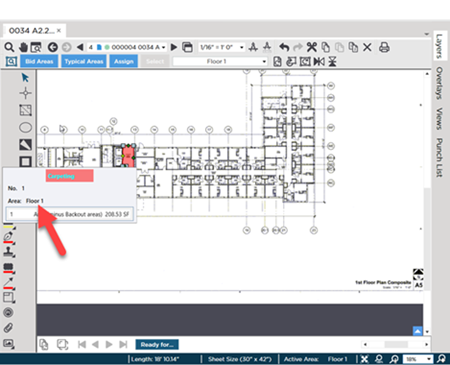
Now when we hover over a piece of takeoff we see it is assigned to Floor 1...
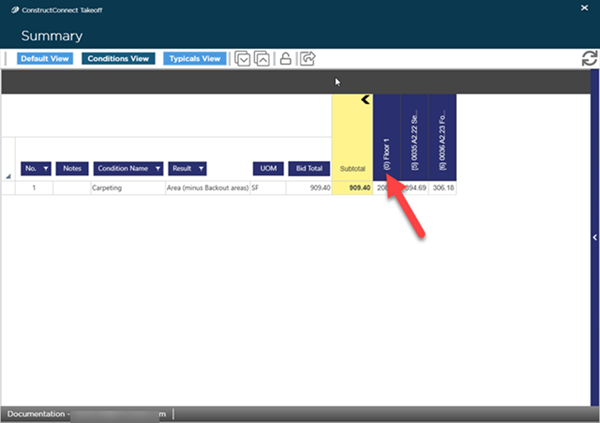
Returning to the Summary Tab we see that it shows that at least some of our takeoff is assigned to Floor 1...
If you need to be more selective on what you are assigning to the Active Area we have you covered in the next article.
 Assigning Takeoff to a Bid Area Assigning Takeoff to a Bid Area | Assigning Selected (Some) Takeoff on a Page to a Bid Area  |
Related Articles
