

The program creates a "Page Area" for every Page in a Bid (named the same as the Page isn't that handy?). If you don't create Bid Areas and assign takeoff to them, all the takeoff on a Page is still assigned an area...the Page Area.
If you used On-Screen Takeoff before, you may be familiar with “Unassigned” takeoff - takeoff that isn’t assigned to any Bid or Typical Area is marked as “Unassigned”. In ConstructConnect Takeoff, there is no such thing - all takeoff is either assigned to a custom Bid or Typical Area (by the user) or automatically assigned to the Page Area.
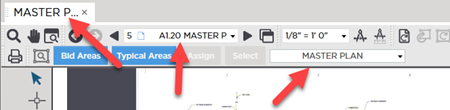
Any takeoff that you do not allocate to a specific Area (a Bid Area or Typical Area that you create) is assigned to the Page Area automatically. Only the current active Page's Page Area is shown in the Areas drop-down. You cannot assign takeoff to different Page Area you can only assign takeoff to a Bid Area or the current Page Area.
You cannot edit or delete Page Areas nor will the program allow you to create a Bid Area with the same name as strong>. (If you try the program adds "(1)" to the Bid Area name.)
You can use Page Areas on the Summary Tab to identify takeoff that has not been assigned to a Bid Area. When you are on the Summary Tab look for any takeoff still allocated to a Page Area then you can go back to that Page and make sure the takeoff gets assigned to an appropriate Bid Area. This is a double-check to ensure that all takeoff is assigned to appropriate Bid Areas before you start reviewing your cumulative bid-level Results. See Related Articles for details on using the Summary Tab.
Next we are going to review the Areas Toolbar so you understand how its various controls and the drop-down works.
 Use Bid Areas to Organize and Separate Takeoff Quantities Use Bid Areas to Organize and Separate Takeoff Quantities | The Bid Areas and Typical Areas Toolbar on the Main Toolbar  |
Related Articles
