

When a Layer or a Takeoff Item Layer is hidden (you have unchecked its check box) and you select a Takeoff Item assigned to that Layer, or you select a Takeoff Item whose individual Layer is turned off, the program prompts you to Turn On the hidden layer.
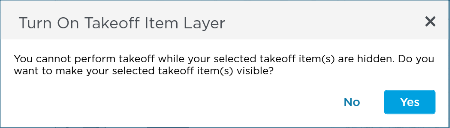
Prompt to turn on a hidden Takeoff Item Layer
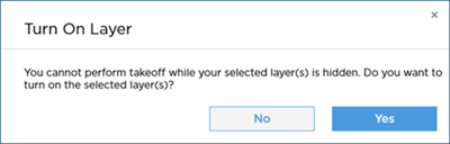
Prompt to turn on a hidden System or Custom Layer
Before you can use the selected Takeoff Item(s) to draw takeoff you must "Show" the Layer(s) or Takeoff Item's Layer(s) by clicking the Show-Hide control or clicking "Yes" when prompted.
See Related Articles for more information on Layers.
Next we are going to look at selecting and editing takeoff and using Bid Areas to organize your takeoff quantities.
 Drawing Area Attachments Drawing Area Attachments | Use Bid Areas to Organize and Separate Takeoff Quantities  |
Related Articles
