

Tags are useful when you are working with other estimators on the same Bid - you can set your initials or name as the "Tag" and then filter the Takeoff Items list by that Tag so you only see 'your' Takeoff Items while performing takeoff. Just be sure you and another estimator do not create Takeoff Items for the same objects (you do not want two Takeoff Items for the same type of wall for example because you wouldn't get a 'grand total').
In our example below we show a Takeoff Items list with less than 30 Takeoff Items but many Bids include 50 100 or several hundred Takeoff Items so it is import to understand how to group the Takeoff Items Pane.
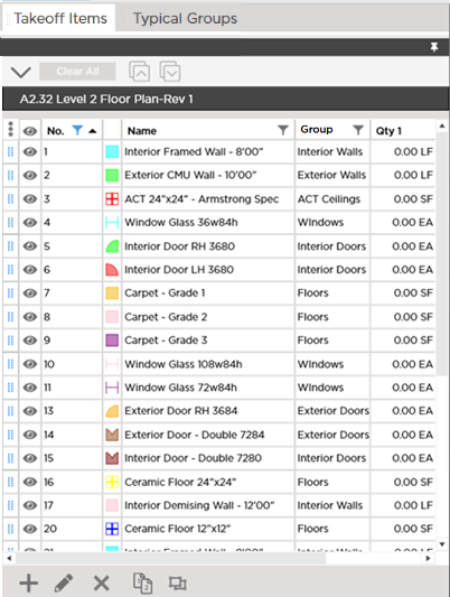
- First click the
 control in the upper-left corner of the Takeoff Items list to open the Column Picker.
 - Select the optional column "Tag" to add Tag to the Takeoff Items list.
- Next click the
 button in the Tag column header
 - Hover over "Filter by >" - a sub-menu opens showing all available Tags for the Takeoff Items currently shown in the grid (Some Takeoff Items may already be hidden - if you already applied a Filter such as "Group" to the Takeoff Items Pane - there may be Tags used for those hidden Takeoff Items but their Tags are not shown in the filter control.)
We select our initials (in this case "jb" for Jason Bourne)...
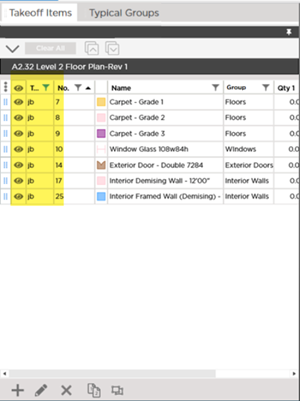
This is a much more "manageable" list - now Jason only sees the Takeoff Items he is using.
Next up we are going to cover using the Takeoff Items we created in this Chapter to measure building objects on your plans.
 Deleting Takeoff Items Deleting Takeoff Items | Saving a Takeoff Item as a Reusable Template  |
Related Articles
