

Project CloudSync is On-Screen Takeoff's new cloud storage utility that allows you to upload a file to our cloud so other users in your Organization can access it.
Project CloudSync requires the latest version of On-Screen Takeoff that uses your e-mail address and a password to apply licensing. If your company is still using a version that uses License Keys and/or a Server Code to license On-Screen Takeoff, do not install this version until your account has been migrated to the new subscription model system.
For legacy On-Screen Takeoff customers migrating to this update, Project CloudSync is the replacement for Project Express.
How Do I Access Project CloudSync ?
Beginning with version 4.0.0.881 (released 7/21/2026).
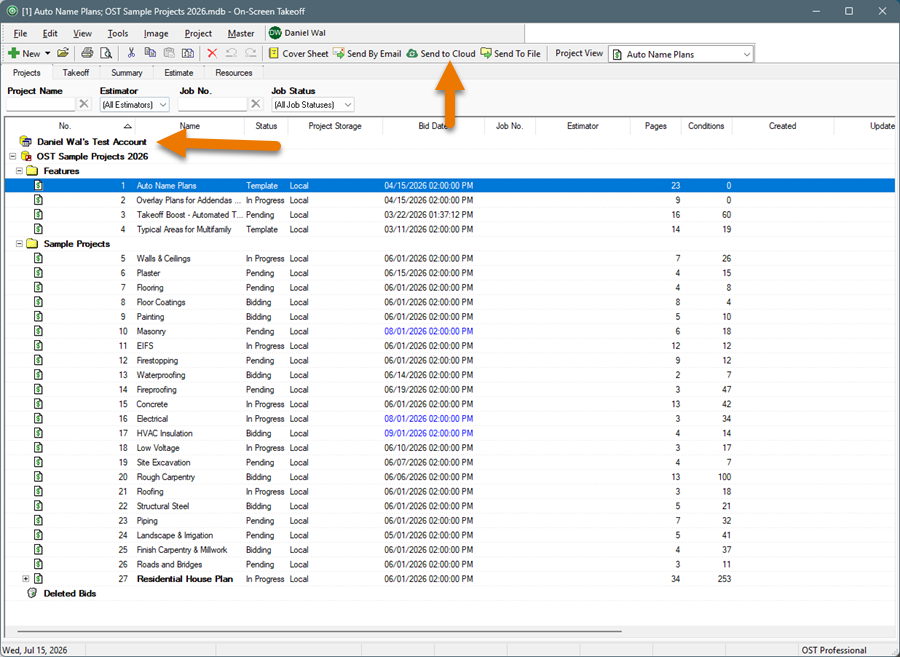
On the Projects Tab, you’ll see a new “database” of sorts named for your Organization (in this case, “Daniel Wal’s Test Account”).
You’ll also see a new button on the Main Toolbar, ‘Send to Cloud”.
How Does Project CloudSync Work?
- Uploading a Project to the Cloud
- Downloading a Project from the Cloud
- Deleting a Project from the Cloud
Uploading a Project to the Cloud
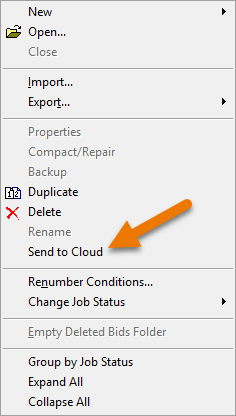
- You right-click on the Project you want to share and select Send to Cloud
- Or, you can select click the Send to Cloud button on the Main Toolbar from any Program Tab
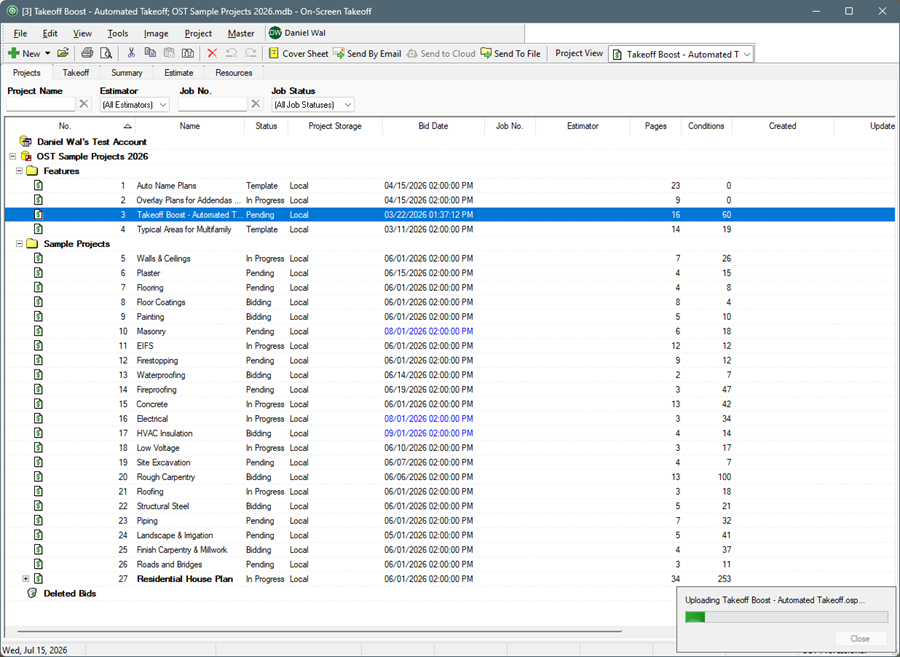
- On-Screen Takeoff creates an OSP Bid Package of your Project that includes all Pages/Plans
- Project CloudSync then uploads that OSP Bid Package to the ConstructConnect Cloud
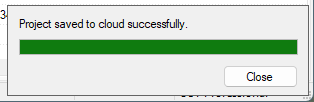
When the upload is complete, you'll see a pop-up letting you know.
All users in your Organization see the Project in the that Cloud “database” immediately
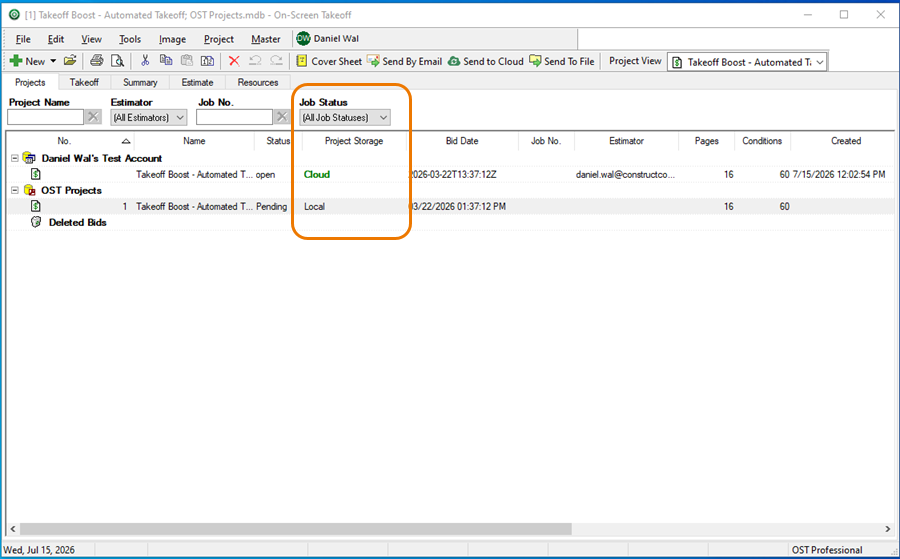
- There is no notification, so if you want to let someone know you’ve uploaded it, you’ll do that outside On-Screen Takeoff
Downloading a Project from the Cloud
Users who want to work on the Project:
- Right-click on it in the Cloud “database”
- Select Send to Local
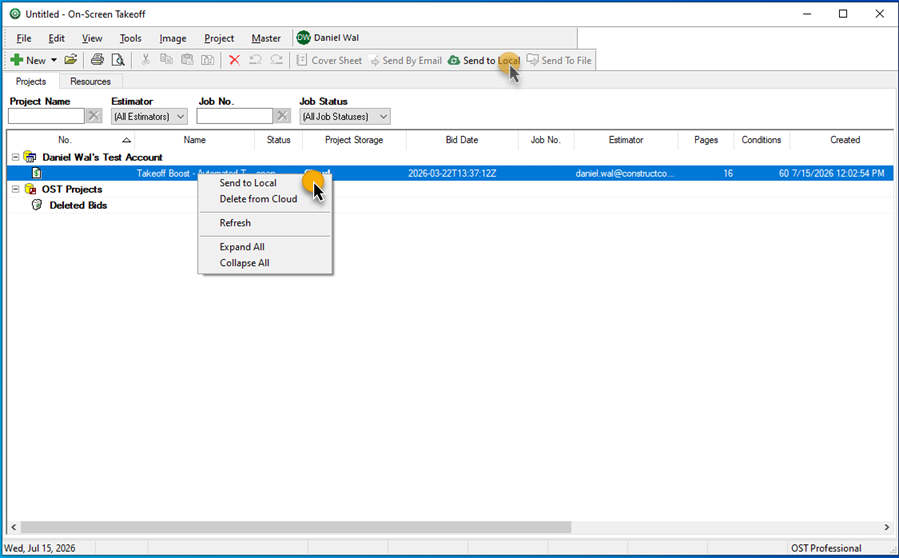
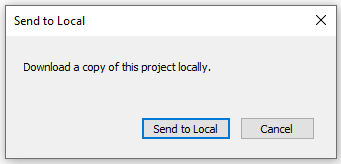
- Confirm the action
- Then, select the database you want to import the Project into
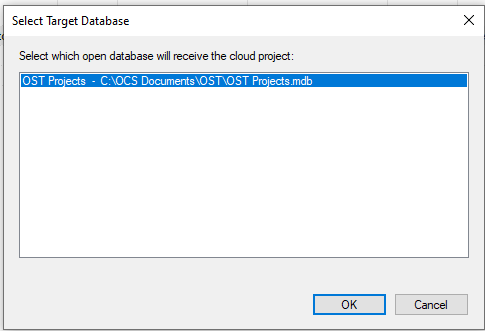
Only Open databases are shown in this dialog box.
The OSP Bid Package is downloaded and extracted into the active database.
Again, you can always tell where a Project is stored by the Location column on the Projects Tab.
Deleting a Project from the Cloud
To remove a Project from the ConstructConnect Cloud:
- Simply right-click on the Project in your Cloud “database”
- Select Delete from Cloud
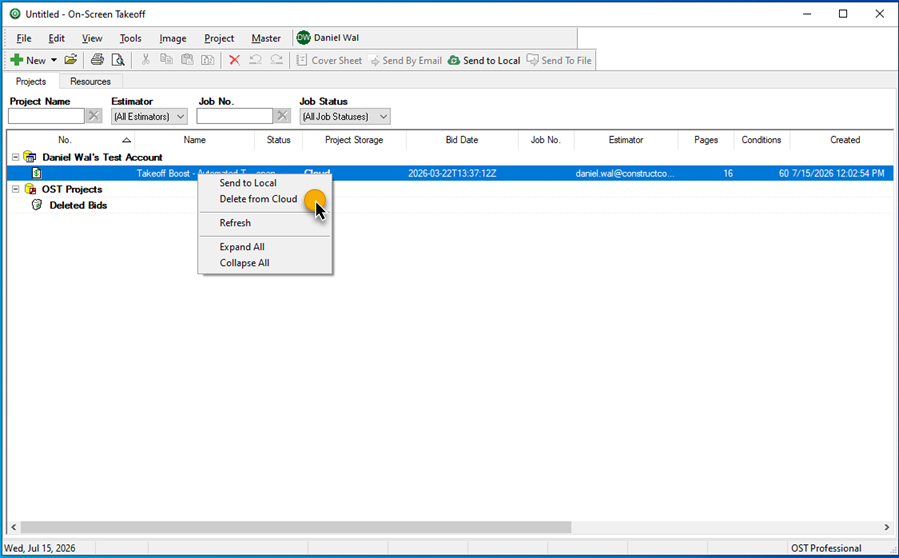
Deleting a Project from the Cloud has no effect on previously downloaded/imported Projects - it is just no longer available to others.
It’s a good idea to keep your Cloud “database” as clean as possible - deleting Projects that no longer need to be actively downloaded by others is the way to do this.
 The Comments List The Comments List | Masters - Overview  |
Related Articles
