

Auto Takeoff puts all its takeoff in a folder name "Boost" - you may want to move it to a custom folder.
You can do this on the Estimating Tab.
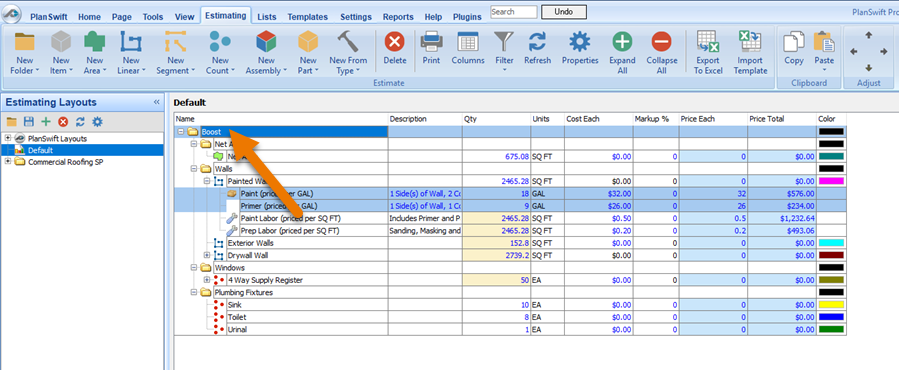
Notice, all the results from Auto Takeoff and Auto Count are under a folder named “Boost”.
Let’s say you want to move them to a custom folder. The first thing you need to do is create that custom folder:
Moving Takeoffs to a Custom Folder
- Click the New Folder button on the Ribbon Bar.
- Enter the Name for the new folder and click Ok
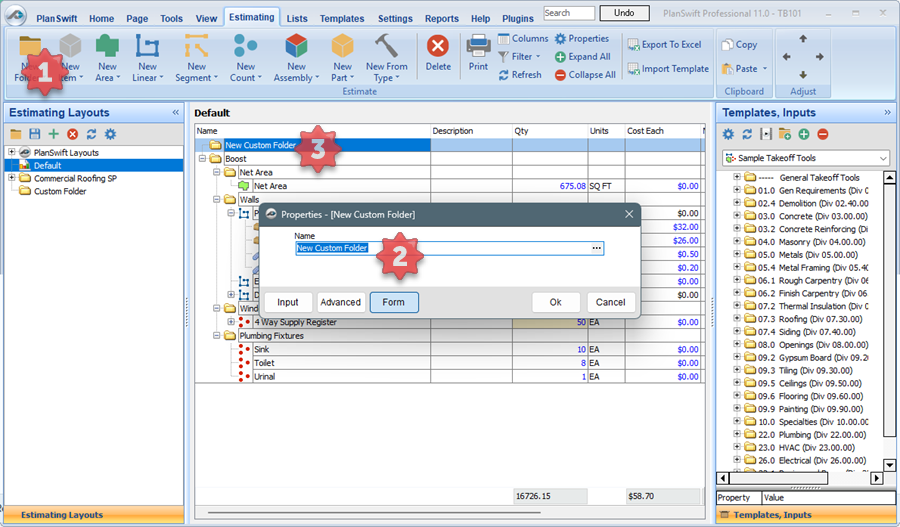
The new folder is added to your grid, wherever your focus was. You can move it by dragging and dropping it or using the Adjust button to promote/demote it.
- Next, select the takeoffs you want to move to that folder
- Hold down the left mouse button
- Drag them to the new folder
- The new folder line will become blue to indicate it is the destination
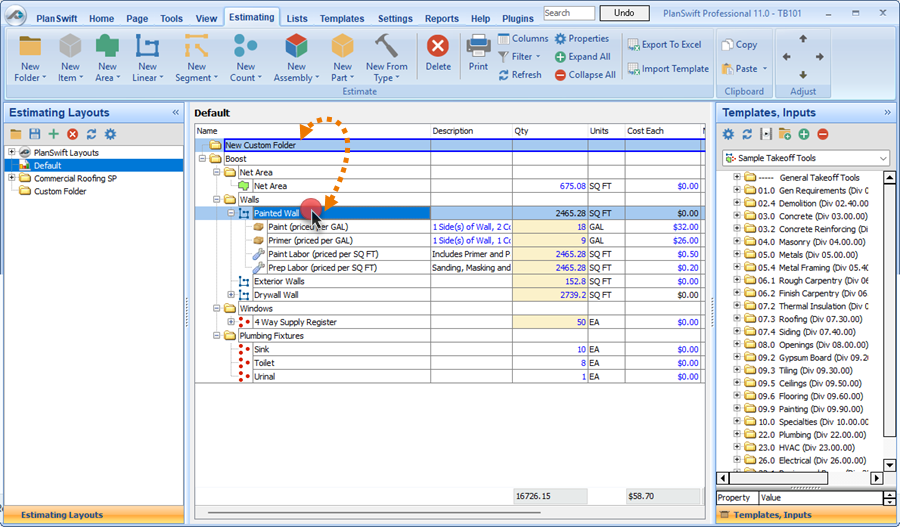
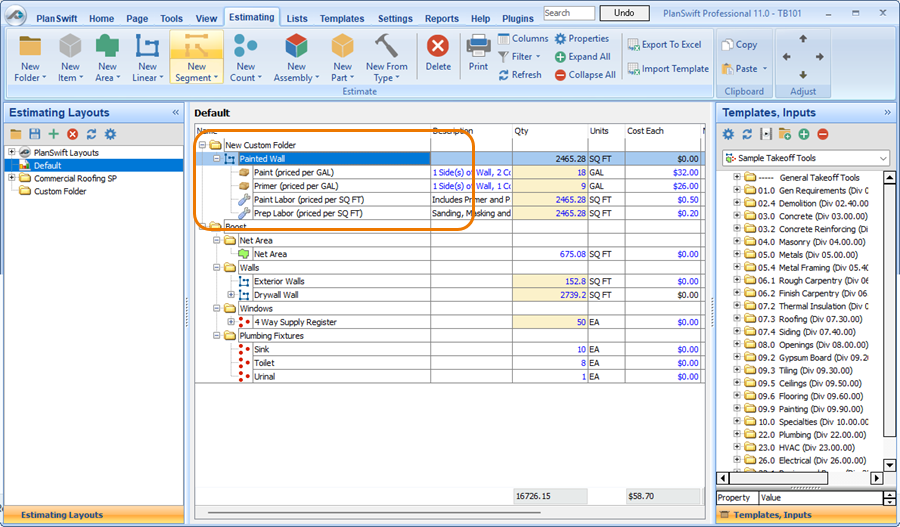
- Release the mouse button
The takeoffs are now in the custom folder you created.
Go To Page
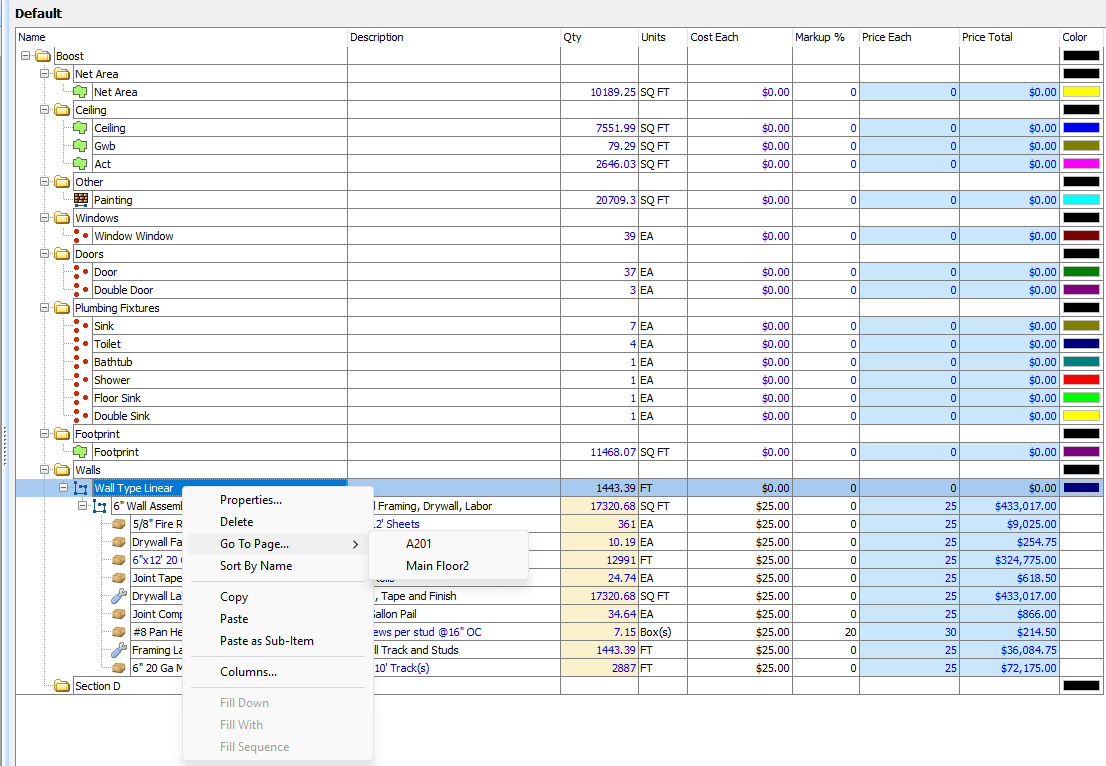
If you want to know where takeoffs exist in your Job, right-click on one and select “Go To Page”, a list of all the Pages on which this Takeoff Item was drawn shows:
View more about the Estimating Tab in this video:
 Reassign Takeoff Tool Reassign Takeoff Tool | The Estimating Tab  |
Related Articles
