

You can search across your Plan Set for a word or phrase on the Takeoff Tab.
- Find Text only works on PDFs and only those with a text layer - if you have converted your PDFs to TIFs inside On-Screen Takeoff and left the original PDF(s) where they were, On-Screen Takeoff can use them to run Find Text.
- Find Text automatically runs across your entire Plan Set.
- Find Text is not available to user on a Standard (off maintenance) subscription.
Using Find Text
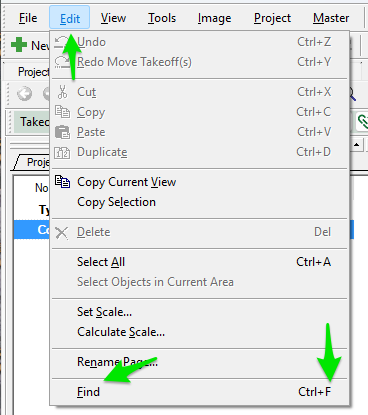
You can access Find Text one of three ways:
- Click Edit > Find, or
- Press <CTRL> + <F> on your keyboard, or
- Click the Find Text button on the Tools toolbar on the Takeoff Tab

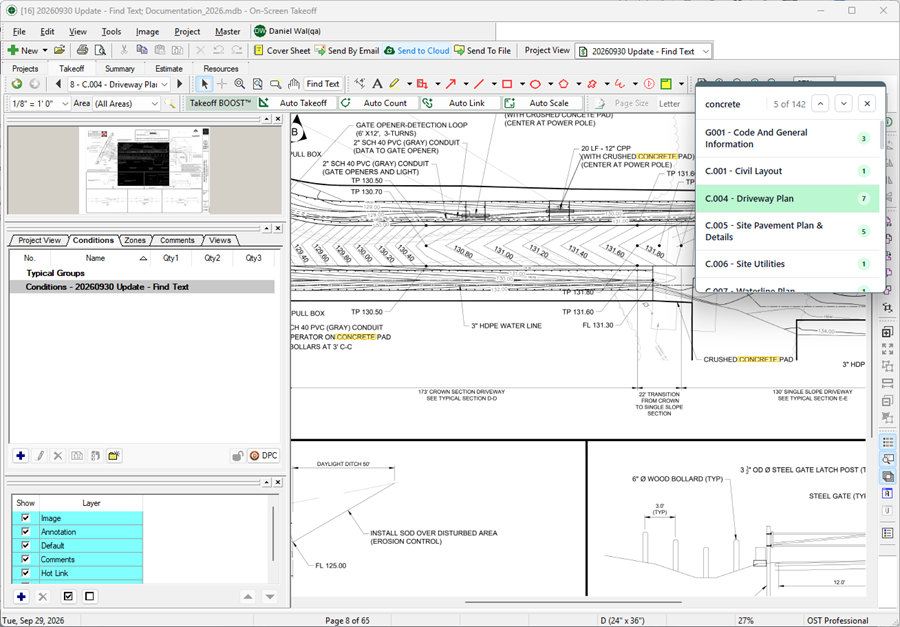
- Enter your search term or phrase in the box that opens
- Press <ENTER> on your keyboard to start the search
The results are shown below the search box along with a small indicator that shows the number of times the term/phrase appears on each Page:

Click on a Page in the results list to navigate directly there. On the Page, you’ll see yellow highlights on all the results.
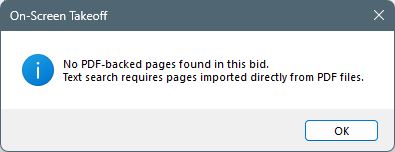
If you attempt to run Find Text on a PDF that does not include a text layer (or any other file type), you’ll see an error:
- Click the “X” in the upper-right corner of the Search box to clear out your search and all results.
 The Takeoff Tab Overview The Takeoff Tab Overview | The Summary Tab Overview  |
