

Re-running Takeoff BOOST™’s Auto Takeoff will not produce different Results.
Unless you change Page Scale or replace the underlying image file with one of significantly higher resolution, rerunning Auto Takeoff will produce the same results.
Notice in the example below, we moved all the Auto Takeoff Conditions out of the "Auto Takeoff” (fka “Boost”) folder and then re-ran Auto Takeoff, the results are exactly the same.

Resurrecting Auto Takeoff Conditions and takeoff...
If you have deleted one or more Auto Takeoff takeoff objects or Conditions and you later realize you need after all, open the Cover Sheet of the Project/Bid, duplicate the Page on which you want to re-run Auto Takeoff, delete all the takeoff on the duplicate page, and then run Auto Takeoff on it. Auto Takeoff recreates all its Conditions and takeoff, exactly like the original. From there, you can copy/paste to the original Page and then delete the duplicate Page. See Related Articles for Advanced Plan Organization details.
Takeoff BOOST™’s tools use Artificial Intelligence to provide results. It is your responsibility to verify results to ensure accuracy.
Use of Auto Takeoff requires uploading of some or all of your project plans. Ensure you have the legal right to do so. Please see the following Master Service Agreement for more information.
Running Auto Takeoff on a Page with existing Auto Takeoff Results
You can re-run Auto Takeoff on a Page on which you have already run it, if you select different Results.
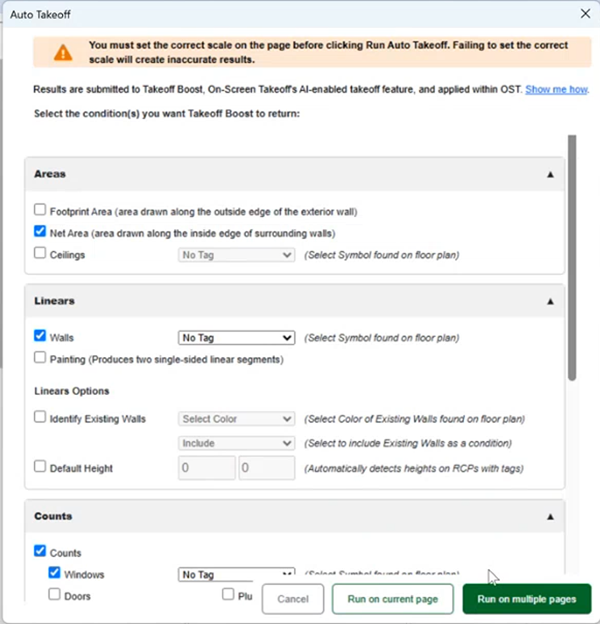
- In the Auto Takeoff dialog box, simply uncheck any Results already delivered by the service and then click "Run on current page".
If you attempt to run Auto Takeoff on a Page on which you've already run it for the selected Condition Results, and you have not renamed the Conditions nor moved the Auto Takeoff Conditions out of the "Auto Takeoff" folder, the following warning displays:

There are a few things to understand about re-running Auto Takeoff:
- You can re-run Auto Takeoff on a Page only if you select different Results from the previous time(s) you ran it.
- Example 1: the first time ran Auto Takeoff, let’s say we only selected "Walls". We can re-run Auto Takeoff as long as we do not select "Walls" again. If you want to run it again with "Walls", you must rename the Auto Takeoff Conditions or delete all associated takeoff.
- So, the next time we run Auto Takeoff, we can select Counts or Areas (any combination).
- Example 2: let's say that we ran Auto Takeoff on Counts for Windows only. We can re-run Counts for Plumbing Fixtures and Other, but not for Windows.
- Example 1: the first time ran Auto Takeoff, let’s say we only selected "Walls". We can re-run Auto Takeoff as long as we do not select "Walls" again. If you want to run it again with "Walls", you must rename the Auto Takeoff Conditions or delete all associated takeoff.
- You can re-run Auto Takeoff if you rename the Auto Takeoff Conditions, move them out of the Auto Takeoff folder, or delete takeoff associated with those Conditions on this Page.
- We do not recommend deleting Auto Takeoff Conditions because you may have takeoff associated with them on other Pages in the Bid.
- Running Auto Takeoff on this Page does not affect other Pages except it re-creates any Auto Takeoff Conditions you previously deleted that are required on this Page.
- If you have renamed Auto Takeoff Conditions or deleted them, they will be re-added to the Project, but only this Page will have new Auto Takeoff takeoff on it.
- If you create a Condition in the Auto Takeoff folder, using a Auto Takeoff Condition Name (such as Wall, Ceiling, Door, or any possible Auto Takeoff Condition Name), and draw takeoff with it on the current Page, you must delete that takeoff, rename the Condition, or move it out of the Auto Takeoff folder before you can run or re-run Auto Takeoff using that Result.
- Auto Takeoff sees Conditions named with its reserved Names in the Auto Takeoff folder as its own.
- If you have gone through the process of renaming Conditions and reassigning takeoff and re-run Auto Takeoff, you will duplicate your takeoff results.
 Filling in the Gaps - Adding Manual Takeoff Filling in the Gaps - Adding Manual Takeoff | Multi-Condition Takeoff (Patented)  |
