

There are two Auto Count tools available in On-Screen Takeoff:
- First is Takeoff BOOST™’s AI-Powered Auto Count that can locate and takeoff any symbol or object on up to 20 Pages at a time. Results are added to each page as they become available and a confirmation shows when Auto Count is done. Only available in On-Screen Takeoff v.4.0.0.770 and newer (Subscription-based, log in using e-mail and password).
- On-Screen Takeoff’s legacy OCR Auto Count utility that scans the current Page to match pixel-level selections. This is available to all licensed On-Screen Takeoff users. This is only available in versions prior to 4.0.0.770.
Takeoff BOOST Auto Count
The new Takeoff BOOST powered Auto Count requires the latest version of On-Screen Takeoff that uses your e-mail address and a password to apply licensing. If your company is still using a version that uses License Keys and/or a Server Code to license On-Screen Takeoff, do not install this version until your account has been migrated to the new subscription model system.
This feature uses Artificial Intelligence to provide results. It is your responsibility to verify results to ensure accuracy.
Use of Takeoff BOOST™ Auto Count tools requires uploading of some or all of your project plans. Ensure you have the legal right to do so. Please see the following Master Service Agreement for more information.
Takeoff BOOST features are only available to users under Essential, Core, Professional, or Plus subscriptions.
Takeoff BOOST’s Auto Count uses the power of artificial intelligence to scan up to 20 Pages in a Project to locate and count whatever object you want to search for.

- To begin, click the
 in the Takeoff BOOST toolbar.
If the Takeoff BOOST toolbar is not visible, click View > Toolbars and select the Takeoff BOOST toolbar to turn it on.
You’ll see a Welcome screen explaining how Auto Count works.
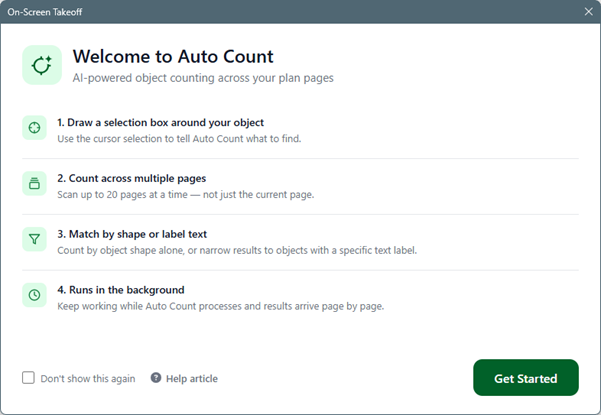
- Click Get Started
- You can also click “Don’t Show This Again” if you want to skip right to the Auto Count dialog box in the future
The cursor changes to the Object Select tool:
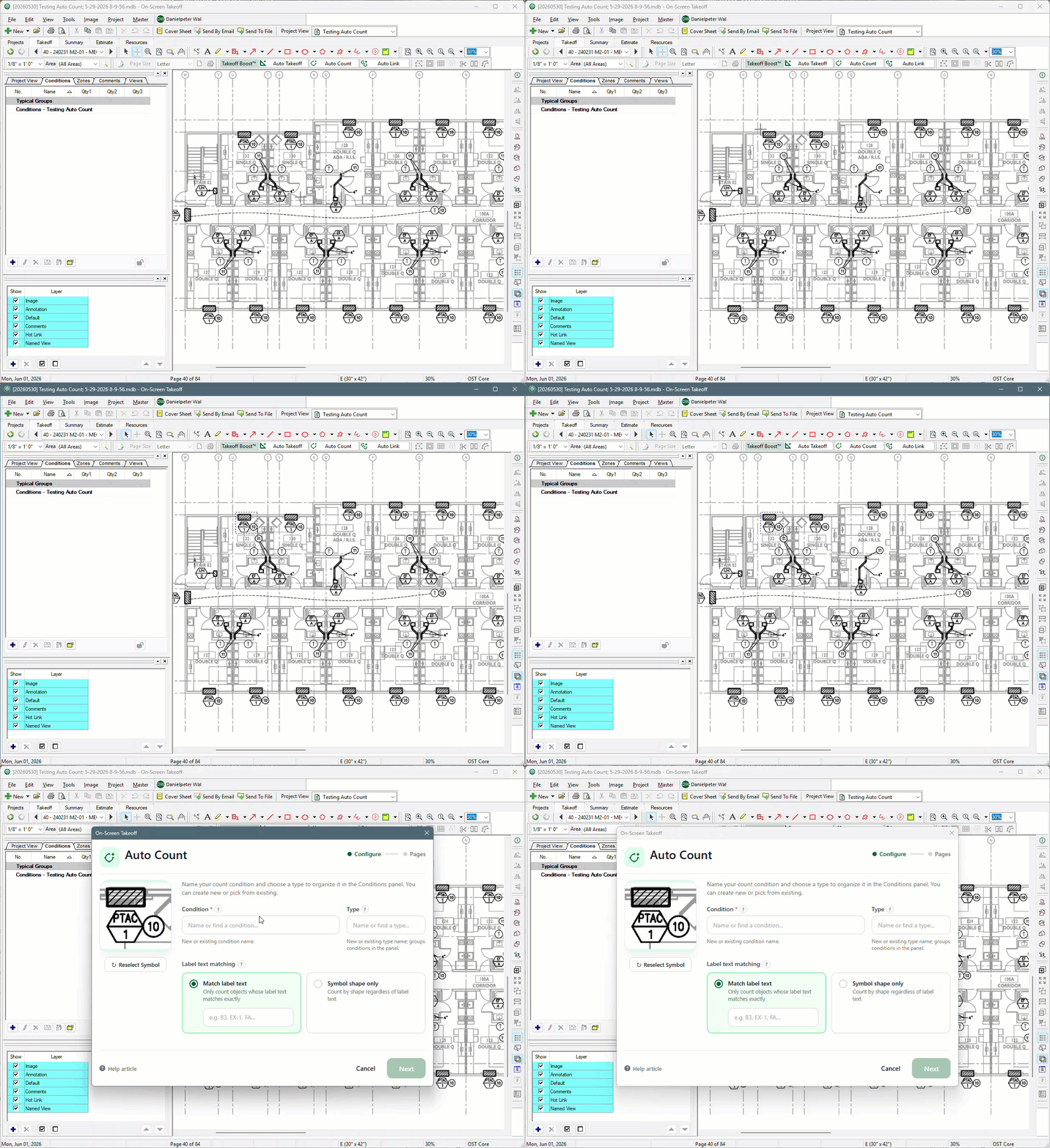
- Draw a box around whatever you want Auto Count to takeoff.
Once you have selected what you want to search for, the Auto Count dialog box opens
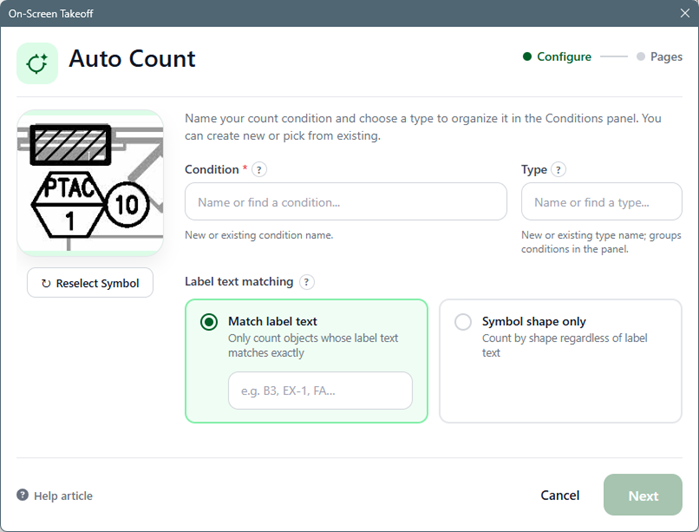
This is where you configure what you want to search for and how you want the results applied.
- Tell Auto Count if you want to apply results to an existing or new Condition and if you want it to match symbols or only objects that include the symbol and text
- Then, click Next
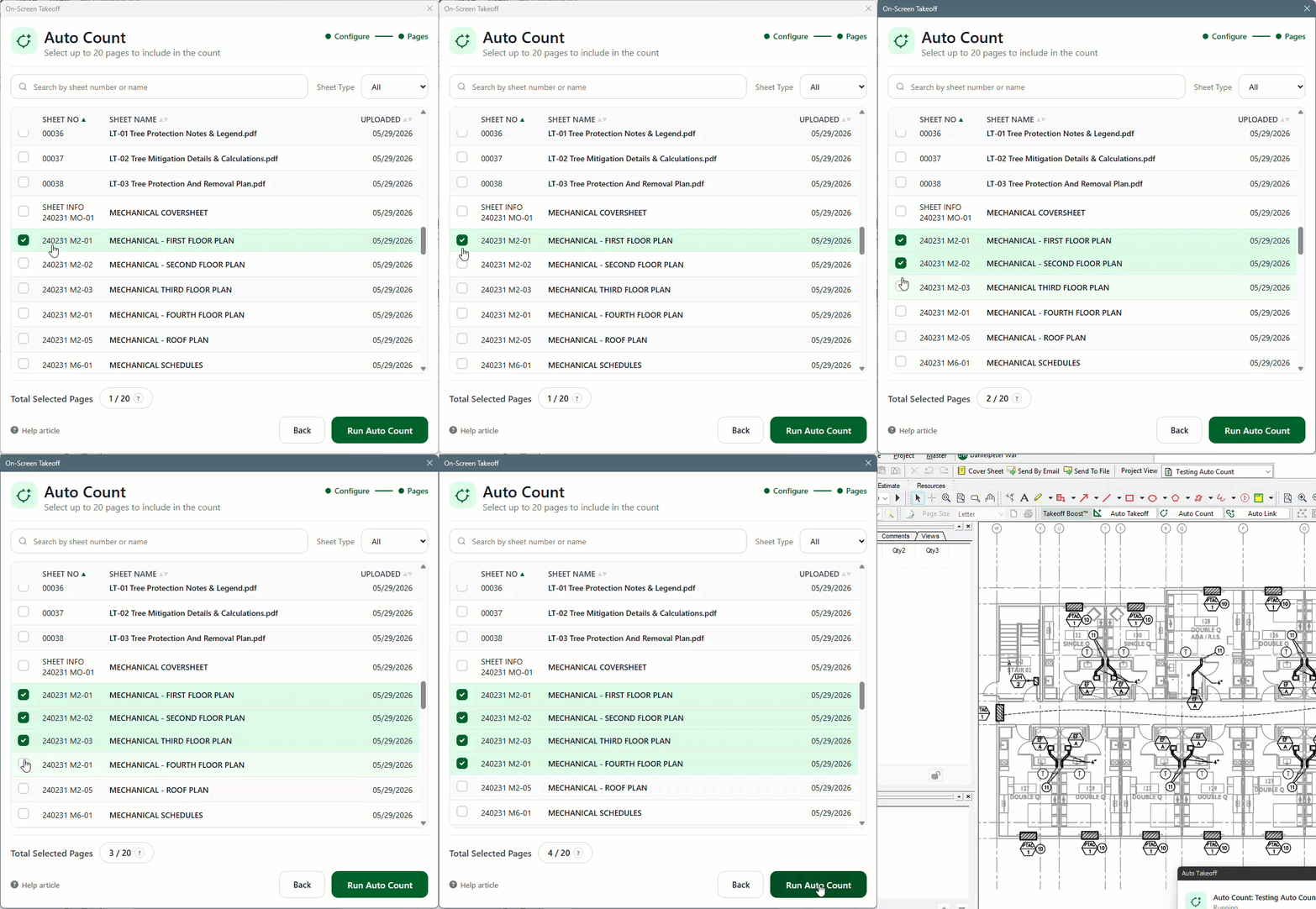
- Select up to 20 Pages to process
- Click Run Auto Count
Keep an eye on the bottom-right pop-up for information on what Auto Count is doing.

When Auto Count is complete, review the results.
Notice, the selected object was taken off on all four selected Pages.
Legacy (OCR) Auto Count
This functionality has been replaced by Takeoff BOOST’s AI-Powered Auto Count in On-Screen Takeoff v.4.0.0.770 and newer. The “old” button launches the new feature.
The Auto Count Tool becomes active after you click on a Count Condition.
Automatic Selection Mode
- Select a Count Condition from the Condition List.
- Click the point at the upper left corner of the object to search for.
- While holding down the left mouse button, drag the cursor to the bottom right of the object (the red box indicates where the selection box is being drawn in the screen shot below).
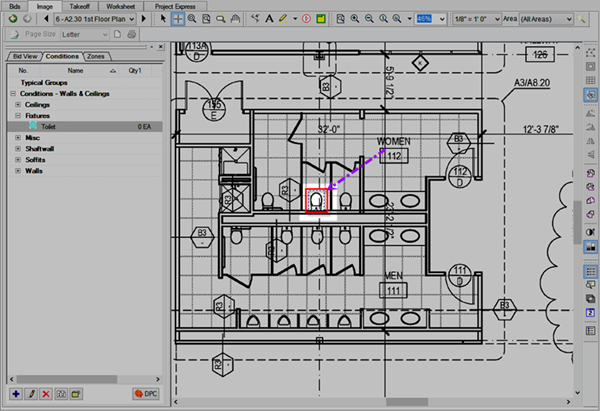
- Release the mouse button and the Auto Count Tool dialog box opens, skip down to Running the Auto Count, below.
Manual Selection Mode
- Select a Count Condition from the Condition List.
- From the Takeoff Mode toolbar, click the Auto Count button
 in the Takeoff Mode toolbar - the curser changes to Takeoff mode
  .
. - Rope the object to count - in this example, a ceiling fan - notice how the fan is surrounded by a blue, dashed line.
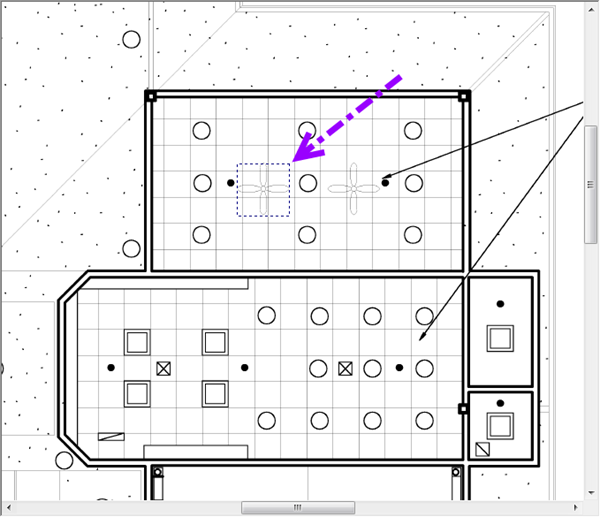
- Release the mouse button and the Auto Count Tool dialog box opens.
Running the Auto Count
After you draw your selection, the Auto Count Tool dialog displays,

- To fine-tune your search, erase any unwanted or stray marks on the selected object by clicking the Eraser button
 and tracing over the detail to remove (original above, corrected below).
 - To redraw the selection, click the Change Selection button
 in the Auto Count Tool dialog box, the dialog box closes and you can make a new selection.
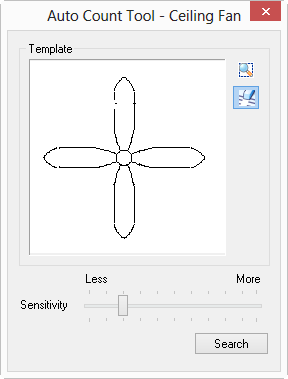
- When you are satisfied with the sample, click Search - a scanning window appears during the search process.
When the search is complete the Auto Count Tool dialog expands to show the results of the search - the total number of matches is displayed and all matches are selected by default.
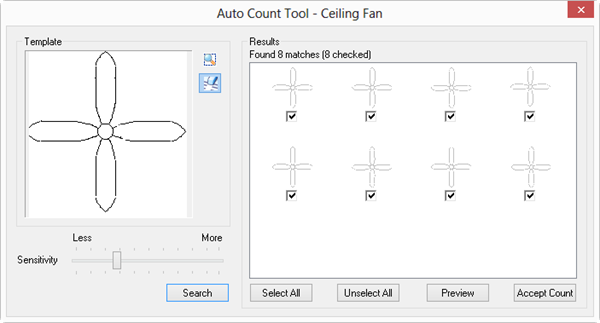
The Auto Count Results dialog box automatically sizes to fit 21 Results, you can resize the window to fit even more.
- View the results and de-select those objects that do not actually match the intended selection.
- Use the buttons provided to Select All, Unselect All, or Preview (which displays the View Window panel with all counted objects highlighted).
- Click Accept Count.
Once accepted, On-Screen Takeoff places a Count takeoff object on top of each 'found' object and updates the Condition List results.
- Press <Ctrl> <2> to open the View Window, so you can review the image and make any selection adjustments. Minimize, Close, or Move the View Window and return to the Auto Count Tool dialog box.
- Adjust the Sensitivity level by clicking and dragging the indicator in the Auto Count Tool dialog - the further right the selector is moved, the more precise the match must be. It is better to perform a less sensitive search and de-select mismatches rather than setting the sensitivity too high and missing potential matches. Experiment a bit as each plan is a little different - some are easier to scan than others, some are blurry or have many overlapping objects which may cause the Auto Count scanner to overlook some objects. Adjust the Sensitivity and rerun the scan while the dialog box is open to see how changing the Sensitivity affects the search.
- Auto Count only scans the current page - repeat this process on any other page where this object occurs.
- If an object was counted incorrectly or was not counted, manually delete or add Count takeoff objects to this page - once Auto Count is done, the takeoff objects are just normal Count objects.
- To quickly remove all Auto Counted objects, immediately after clicking Accept, click "Undo" (or press CTRL+Z).
 Drawing Count Takeoff Drawing Count Takeoff | Drawing Attachment Takeoff |
Related Articles
