

Issues
AND/OR
Discussion
You want to export your takeoff and plan image to a PDF (to e-mail to someone, for example)
Our takeoff apps are designed to send output to physical printers and plotters but work great with a variety of PDF "printers". These PDF Generators are installed like printers on your machine so it is just a matter of 'printing' to a piece of software that creates a PDF.
Printing to a PDF creator can, however, produce undesired results. PDF creators render layers, colors, and artifacts (what makes up your image/takeoff) a little differently than printing to paper. Because of the differences in programs, how they are installed/how they interact with other installed application, and how each utility renders layers, there is no way for our products to control exactly how a PDF will be created.
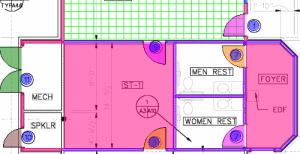
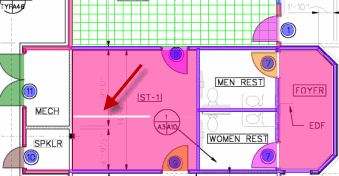
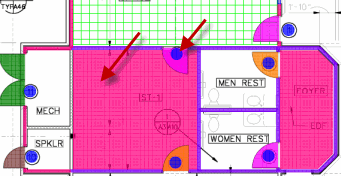
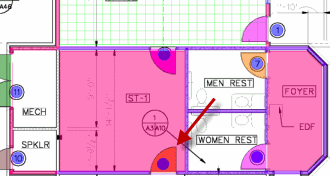
Some examples of inconsistent output are shown in the following images. The first image is a screen capture of the Image Tab, showing exactly how the takeoff was displayed in our software compared to screenshots of the PDFs generated.
There are a number of third-party PDF creators available that allow for 'printing' to PDF (Windows 10 and 11 include a powerful "Print to Microsoft PDF" that suits most users' needs, unless you need to print to Architectural size, then you may need a 3rd party solution).
Resolution
To print plans and takeoff to PDF:
- First, install one or more PDF "Printers" (see the list below for some suggestions).
- Next, setup the print job as usual, (see previous articles).
- Then, in the Print Preview window, choose the PDF 'printer' to create the PDF.
ConstructConnect does not endorse, recommend, or provide support for any third-party utilities. We are sharing these because other clients have had measures of success with them.
PDF “Printers”
You may need to experiment with different PDF creators to find an acceptable solution. Trial and error may be necessary to come up with an accurate PDF for each project. One PDF creator may work well on one project, but not another. On-Screen Takeoff does not include any settings that alter how the PDF is created, however you can customize the output in the Printer Properties. There are a number of third party PDF creators available that allow for 'printing' to PDF.
Below is a list of several PDF creation utilities used by estimating professionals, in alphabetical order.
| Product | Where to find |
|---|---|
| Adobe Acrobat Standard or Professional | http://www.adobe.com/ |
| AdultPDF Creator | http://www.adultpdf.com/ |
| CutePDF Pro | http://www.cutepdf.com/ |
| Microsoft Print to PDF | Built into Windows 10 |
| PDF Creator | http://www.pdf-creator.us/ |
| Universal Document Converter | http://www.print-driver.com/ |
PDF-XChange
We have witnesses issues with printing using PDF-XChange, some takeoff may be reshaped or altered in other ways. If you experience issues when printing using PDF-XChange products, please try using Microsoft's built-in "Print to Microsoft PDF" or another PDF Printer.Printing a PDF to a Architectural Page Size
Many PDF 'printers' do not include Architectural sizes in their page size inventory. You will need to configure the 'printer' with Custom Page sizes that match your Image file page size. Every printer is going to be a little different so consult your particular utility's Help file for instructions.
Discussion
When you 'print' Images and Takeoff to a PDF creator, sometimes the output does not look exactly like the screen
On-Screen Takeoff is designed for printing to physical printers and plotters although it can be used with a variety of PDF creators. Printing to a PDF creator can produce slightly different results depending on the utility used, how the takeoff is performed, the underlying image, and which layers are enabled.
- Graphics printing is best handled by "PCL" print drivers which are available for most physical printers. PDF generators, however, are designed for text, not Graphics, and use "PostScript" technology to generate the output - this doesn't produce graphical output as well as PCL drivers.
- PDF creators render layers differently than printing to paper. Because of the differences in programs and how they render layers, there is no way to determine the output until the file is created. Some examples of issues are shown in the following images. With the exception of the first image, the following images were created with different third party PDF creators.
Examples
This image is a screen shot from On-Screen Takeoff and is used for comparison with the images created with PDF creators:
Below are some examples of the variances you may see when you 'print' to a PDF generator.
Some PDF creators create blocks of images from the takeoff, making it appear as if there are lines missing:
Some PDF creators make translucent takeoff appear solid or with heavy hash marks:
Some PDF creators change or distort the color of the takeoff:
You may need to try more than one PDF 'printer' before you find an acceptable solution. Also, one PDF creator may work well on one project, but not another. On-Screen Takeoff does not include any settings that can be configured to adjust how the PDF is created.
