

Issue
On-Screen Takeoff® reports it cannot display a PDF, or the PDF doesn't import the file at all, or OST crashes during conversion to TIFF.
Discussion
Due to variations in how PDF files are created and what utility is used to create them, at times, On-Screen Takeoff may not be able to display or convert certain PDFs.
Resolution
Here are some suggestions that may get you up and running:
Open the files in Adobe Acrobat Reader and re-save the file(s):
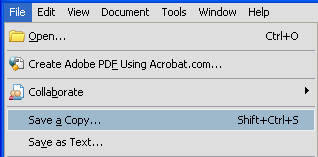
Check resolution (dpi) and Page Size of the saved file - make sure they are at least 300 dpi and Architectural sized.
Contact the author of the file(s) and ask them to re-save them in an alternate format. (Preferably, TIF format). This is the best solution if step 1 doesn't work or you have a large number of PDFs.
Use a 3rd party conversion program to convert the PDF(s) to TIF format outside of On-Screen Takeoff. On Center Software does not provide technical assistance with using 3rd party applications however many of our clients have used Universal Document Converter (www.print-driver.com) and CutePDF (www.cutepdf.com) successfully. On Center Software by no means endorses or recommends either of these.
| Issue | Cause/Resolution |
|---|---|
| Some PDFs are published at letter size (8.5 x 11) instead of Architectural size. | There is simply not enough information contained in a small format PDF to display it with acceptable quality. Contact the Architect or Planroom to get an Architectural sized plan. |
| Password Protected PDFs | On-Screen Takeoff cannot open password-protected PDF files. You must contact the Architect or author to receive an unprotected file. |
Although On-Screen Takeoff fully supports and recommends the PDF file format, we cannot guarantee that every file will work in the application. If you experience problems with using a particular file, try to convert it to another file format using an external converter. For example, if you are having problems with a particular set of PDF files, try using a third party converter to save them to TIF format. Some PDF files just will not work in On-Screen Takeoff - if you run into one of these, please contact Support - they will ask you for a copy of the file so we can add it to our inventory of test files to see if can accommodate the file in a future version.
Issue
When loading a PDF image in On-Screen Takeoff, you receive the following message:

Discussion
PDF Portfolios are a PDF unit type introduced with the release of Adobe® Acrobat® 9 Standard. These files are similar to ZIP files, in that they can contain multiple file types. For more information on PDF Portfolios, visit Adobe's Support site.
Solution
On-Screen Takeoff cannot read Portfolio files (or zip files...). The files must be extracted from the portfolio and then loaded into OST:
Open the PDF Portfolio with Adobe Reader or Adobe Acrobat Standard
To extract a single image right-click the file and select Save File from Portfolio, and then select the location to save the file
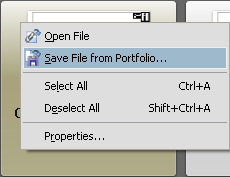
You can select all of the images in the Portfolio by right-clicking within the Portfolio, clicking Select All, and then the selecting the location to save the file
You can also click the file(s) in the Portfolio and drag them to a pre-determined location
Once the files have been extracted out of the Portfolio, they can be used to create a bid within On-Screen Takeoff
Visit Adobe's Website for the latest version of Adobe Reader.
Parallels Incompatibility
Parallels Desktop® is an application designed to allow multiple Operating Systems to run on one computer. This program is commonly used to run Windows® Operating Systems on a Mac, but can also be used to run multiple Windows Operating Systems on the same PC.
Parallels Tools can be found in the listed Programs of the Operating System. Parallels Tools will also show on the Startup tab in MSCONFIG.
Parallels Tools conflicts with the ability to render PDF images in On-Screen Takeoff, the only work around is to convert the PDF images on another PC and them bring them in as TIFF images.
Please contact Apple's or Parallel's technical support for additional assistance.
Related Articles
