

In On-Screen Takeoff 4.0.0.628 (released May, 2026) and newer, Project Express is no longer available. You send Bid Packages and DPC Change files via e-mail or to a file (presumably to share over a Cloud drive).
What version am I using?
It’s easy to check your version, but it’s a little different depending on your version.
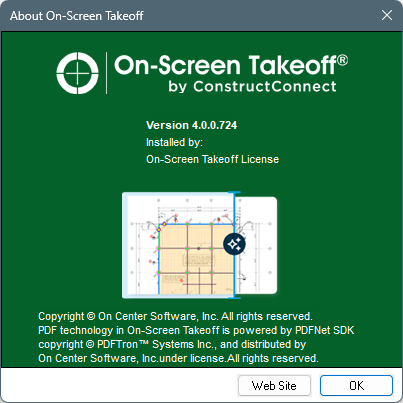
Look at the very top of On-Screen Takeoff, you’ll either see a “Help” menu or a menu named after your user profile. Click on whichever you see and then select “About On-Screen Takeoff” - a splash screen opens where you’ll see your version information.
The process for sending a Project to File or via Email is slightly different, based on the version of On-Screen Takeoff you are using.
Digital Production Control Bid Packages may be too large for most e-mail systems and will fail to send. We recommend you use Send to File instead and use a file-sharing site, such as OneDrive or DropBox to share the Bid Package out to the field. The Foreman’s DPC Change file is small - sending via Email is no problem.
Version 4.0.0.773 and later (you log into the product using your email address and a password to license the product).
The send DPC Bid Package and Send DPC Change File options are only available after a Bid has been “flipped” to DPC mode on the Takeoff Tab. See Project Manager - Flip Project to DPC Mode for details.
- Choose "Complete Package" (*.OSP file), "DPC Package" (*.DPM file), or "DPC Changes" (*.DPC file) (see the table below for explanation of roles and files)
- Click the Send By E-mail or Send To File button on the Main Toolbar
The Send Digital Production Control File dialog box opens.
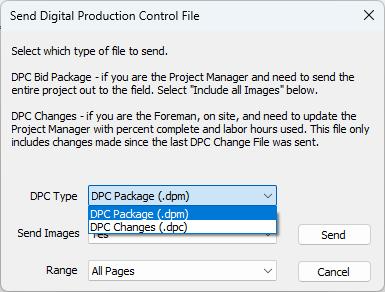
- Select one of the DPC Type Options:
- DPC Package - this is what the Project Manager sends out to the Foreman. It includes the takeoff, the production information and Labor Cost Codes, and the images the Foreman (or Foremen) need to create a copy of the Project on their machine.
- DPC Changes - this is what the Foreman (or Foremen) send back to the Project Manager. It includes progress (percent complete) and labor used (timecards). It does not include images, takeoff or anything like that. It is an incremental file. It only includes what’s changed since the last DPC Changes file was sent. These files must be imported by the Project in the order they were sent by the Foreman.
The Project Manager always select Yes to "Send Images" and “All Pages” as the Range.
After sending a Bid Package to the Foremen, you must always send All Pages, not some incremental number of Pages. Pages not included in the Bid Package are removed, immediately and permanently, from the Foreman’s machine.
- Click the Send button
- By E-mail - the file is saved to "C:\OCS Documents\OST" (or whatever you've designated as your "Package Folder" in Options), and a new Outlook e-mail message is created with the file attached. If you've set "Project Manager" and "Foreman" in the Cover Sheet, the appropriate recipient is entered when sending any DPC files.
- To File - the Export Bid to Package dialog opens. Specify a "File Name" and click Save. Then copy the file to your Cloud drive to share between employees.
Sending only Some Images
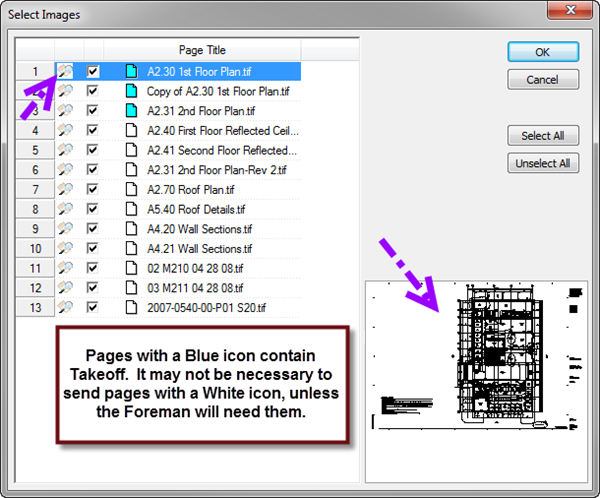
If you've selected "Custom Select Images", you will see the Select Images dialog box where you will select the image to include in this Bid Package. For the purpose of Digital Production Control, we suggest you send All Pages/Images every time.
Version 4.0.0.405 and earlier (you use a License Key or Server Code to license you product).
The send DPC Bid Package and Send DPC Change File options are only available after a Bid has been “flipped” to DPC mode on the Takeoff Tab. See Project Manager - Flip Project to DPC Mode for details.
The main difference is where you find the buttons/options. In older versions, there is a “Send” drop-down control on the Main Toolbar. It opens with three options, detailed below.
- Click Send on the Main Toolbar
- Choose "Complete Package" (*.OSP file), "DPC Package" (*.DPM file), or "DPC Changes" (*.DPC file) (see the table below for explanation of roles and files)
| Roll and License | Options Shown | What Gets Sent |
|---|---|---|
| The Estimator with only a Takeoff license | 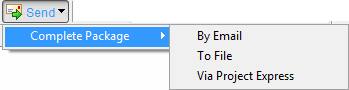 | On-Screen Takeoff Bid Package (*.osp). This file will setup the project on the Project Manager's machine. |
| The Project Manager with TKO and DPM license | 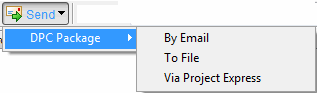 | DPC Bid Package (*.dpm). This is the bid in DPC Mode and will setup the project on the Foreman's machine. Also used to recreate or update the Foreman's project with new budget information. |
| A Foreman with just a DPC-Foreman license | 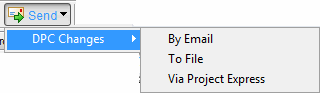 | A DPC Change file (*.dpc). This file sends new percents and timecard entries to the Project Manager. This is an incremental file. Previously sent changes are not included with each new file - only new information. (This is discussed later in this section) |
- Select By E-mail or To File
- Select either Yes or No to "Send Images" (does not display when sending DPC Changes)
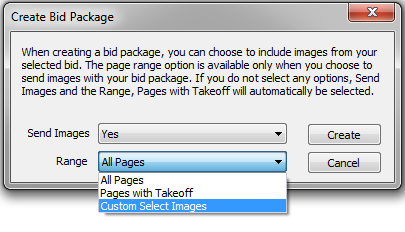
When you opt to "Send Images", the page Range becomes active.
- Select All Pages
- Click the Create button
The same warning applies to older version - always include All Pages, do not use “Custom Select”.
- The Bid Packages is created
- By E-mail - the file is saved to "C:\OCS Documents\OST" (or whatever you've designated as your "Package Folder" in Options), and a new Outlook e-mail message is created with the file attached. If you've set "Project Manager" and "Foreman" in the Cover Sheet, the appropriate recipient is entered when sending any DPC files.
- To File - the Export Bid to Package dialog opens. Specify a "File Name" and click Save. Then copy the file to a CD or USB flash drive (or even a cloud drive) to share between employees.
 Sending Updated Bid to Field Sending Updated Bid to Field | Tracking Production (Percent Complete and Labor Used)  |
Related Articles
