
Geographies let you control which areas each Project Intelligence user sees projects in. When a Company Admin assigns a user to a state, a set of counties, or US Nationwide, that user sees only projects in those locations. For example, a rep assigned all of Alabama plus a few Florida counties sees just those projects.
Geographies are optional. A user's access doesn't change until geographies are assigned to them. Only Company Admins and users with admin permissions can manage geographies.
Viewing and editing a User's Geographies
First, log into the User Management Portal (see Accessing and Logging in to the ConstructConnect Platform User Management Portal for more information on this process).
-
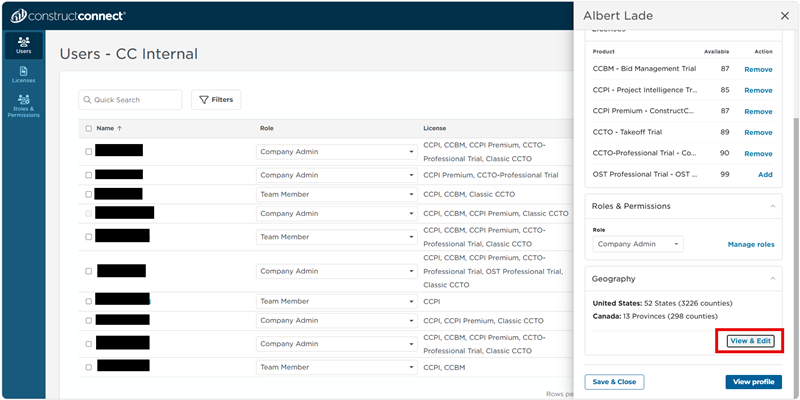
On the Users screen, click the user's name. A panel opens on the right side of the screen.
-
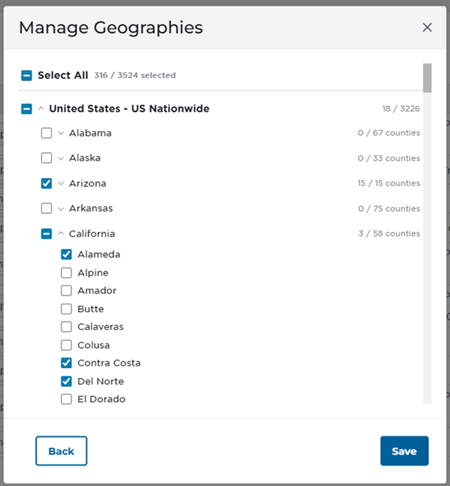
Towards the bottom of the panel, click Geography. Then click View/Edit to open the Manage Geographies window.
-
Choose the areas the user should see: US Nationwide, a full state, or individual counties. Areas outside your subscription are greyed out and can't be selected.
-
Save your selections.
Changes take effect the next time the user signs in. If your organization also uses categories, the user sees projects that match both their categories and their geographies.
Assigning Geographies When Inviting a New User
When you invite a new CCPI user, Manage Geographies is the second window you see in the invitation. Choose their areas as described in steps 3 and 4 above, then finish sending the invitation.
Related Articles