
First, log into the User Management portal. For more information on that process, check out the following article: Accessing and Logging into the ConstructConnect Platform User Management Portal | Community
Click on the Users icon  in the sidebar and select "Users" to manage and delete users and their licenses and to send invitations to other platform users to join your organization.
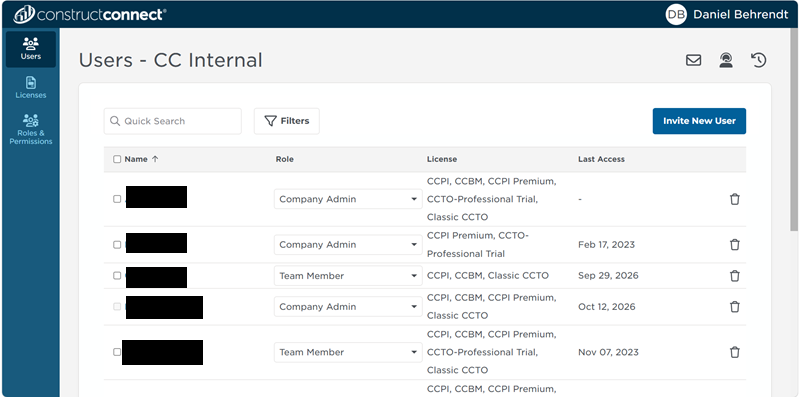
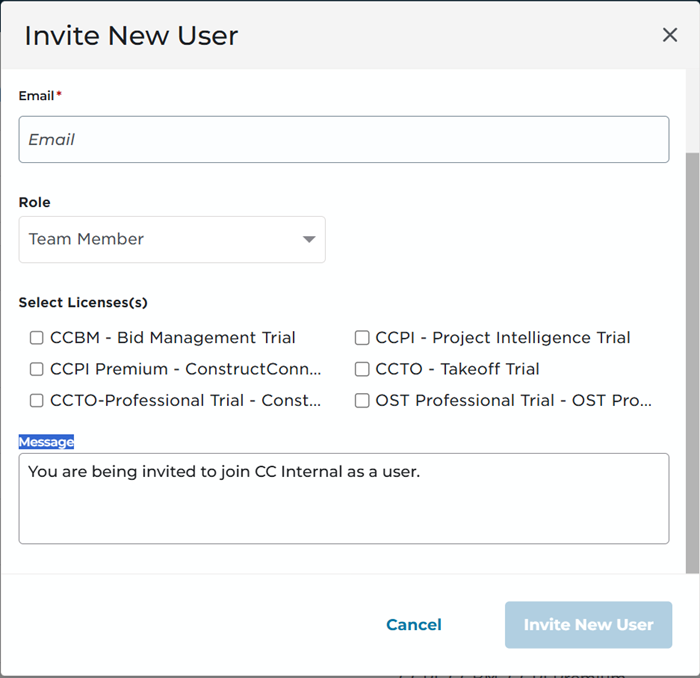
To invite a new user, click the Invite New User button The Invite New User screen opens.
In the Role drop-down, choose the level of access this person needs. Each role controls what the user can see and do in their ConstructConnect account. If you don't choose a role, the person joins as a Team Member by default. Any custom roles your organization has created appear at the bottom of the list.
Enter the person's first name, last name, and email address, then choose their role.
- Company Admin - each organization has at least one Company Admin. This person has access to the User Management Portal and can invite users to join the organization, manage existing users and license allocation, and can off-board users when they are no longer with an organization. Company Admins have full access to Takeoff projects from ConstructConnect Takeoff.
-
Project Manager - Project Managers create, edit, and manage projects, communicate with bidders, and maintain the company directory. They can also delete projects. They do not have access to the User Management Portal. In ConstructConnect Takeoff, they have Editor access.
Bid Coordinator - Bid Coordinators run the bidding process on projects. They can create and edit projects, manage trades and coverage, send project communications, and keep the company directory up to date. They cannot delete projects or access the User Management Portal.
Estimator - Estimators work on projects and bids. They can create and edit projects and project documents, send project communications, and update directory entries. They have a bit less control than Bid Coordinators and cannot delete contacts or manage communication templates.
-
PQ Analyst - PQ Analysts focus on prequalification. They can review and approve prequalification forms, send prequalification requests and reminders, and send general communications. They cannot create or edit projects.
Intern - the most restricted role. Interns can use the products they're licensed for, but they don't have the project management, directory, communication, or prequalification permissions that other roles have.
Team Member - this is the level of access most users require. They have the ability to create projects, save searches, view documents, send projects to Takeoff, and invite other users to collaborate on Takeoff projects.
You can also select the licenses you want them to have, so they're ready to work as soon as they join. Customize your message as needed so the person you're inviting knows what to expect.
Click Invite New User to send the invitation. The licenses you selected are assigned when the person accepts the invitation.
 Accessing and Logging Into the ConstructConnect Platform User Management Portal Navigating the Users Tab in the ConstructConnect Platform User Management Portal

Related Articles
Accessing and Logging into the ConstructConnect Platform User Management Portal
How to Log Into the ConstructConnect Platform to Accept or Decline an Invitation