
Click on the Users icon  in the sidebar and select "Pending Invitations" to view, resend, or withdraw existing invitations.
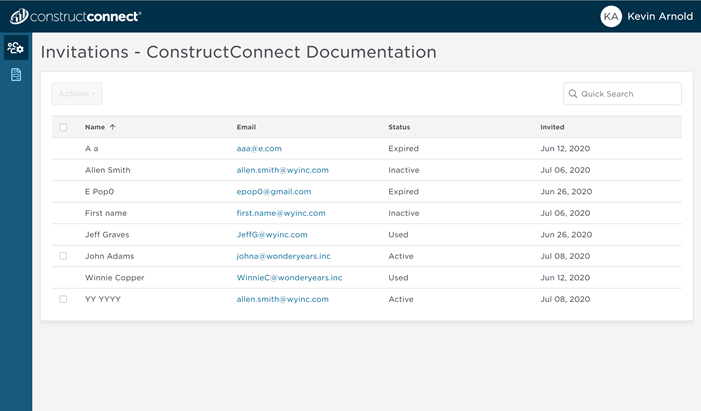
On the invitations screen, you see all the users you have invited to join your organization and the state of those invitations:
- Active - This invitation is pending the user's acceptance.
- You can resend the invitation to them by clicking the checkbox next to their name and then clicking the Actions button.
- You can withdraw the invitation from them by clicking the checkbox next to their name and then clicking the Actions button.
- Declined - The user declined the invitation to join your organization - you can invite him or her again, but they may not want to lose access to their existing Organization. Contact this person before inviting them again - they may want you to use a different e-mail address.
- Expired - This invitation is older than 5 days and has expired (this is a security precaution).
- Inactive - You withdrew this invitation.
If the user has accepted the invite and joined your organization, you will see the user listed in the Users page.
To send a new Invitation, see Related Articles.
Related Articles
