
The Licenses screen shows every license your organization owns, how many are in use, and which user holds each one. Use it to check what's available before you assign a license, or to take a license back from a user.
To get here, log into the User Management Portal (see Accessing and Logging into the ConstructConnect Platform User Management Portal) and click the Licenses icon in the left toolbar.
What you see
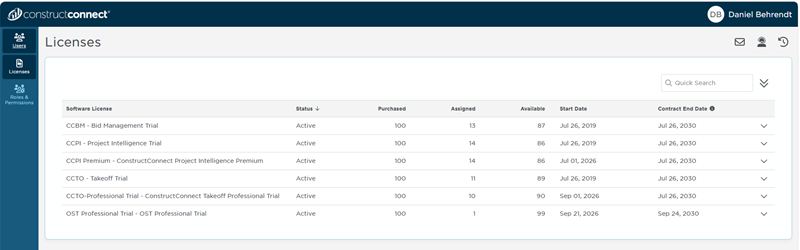
Each license your organization owns appears in the list, along with:
- License - the product name. Trial licenses are marked "(Trial)."
- Status - the current state of the license.
- Purchased, Assigned, and Available - how many licenses your organization has, how many are assigned to users, and how many are still open.
- Start Date and Contract End Date - when the license began and when your current contract ends.
See who has a license
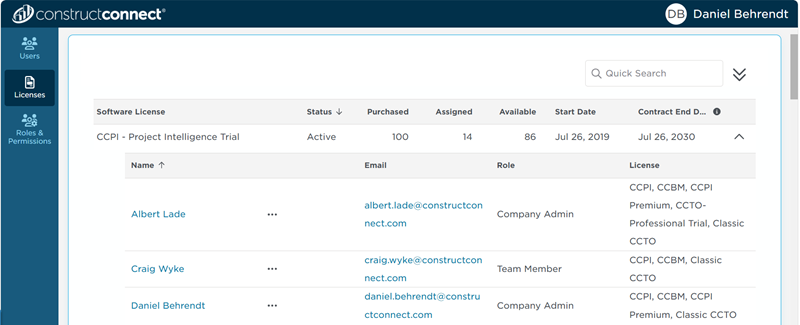
Click the arrow next to a license to expand it and see every user it's assigned to. A license with no users assigned can't be expanded.
Remove a license from a user
- Expand the license.
- Click the three dots (...) next to the user's name and select Remove [License Name] License.
- A window will open where you can confirm to keep or remove that user’s license.
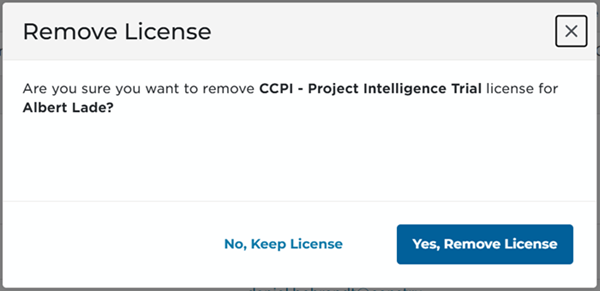
A green message confirms the change, and the Assigned and Available counts update right away. The license is now open for you to assign to someone else.
To give a license to a user, go to the Users screen. See Assigning and Revoking Licenses using the ConstructConnect Platform User Management Portal.
Need more licenses, or have questions about your license inventory? Contact your Customer Success Manager at ConstructConnect.
Related Articles