
The Users screen is where you manage everyone in your organization. You can see who has access, change roles, assign licenses, and invite new people.
To get here, log into the User Management Portal (see Accessing and Logging into the ConstructConnect Platform User Management Portal). The Users screen is the first thing you see:
What you see
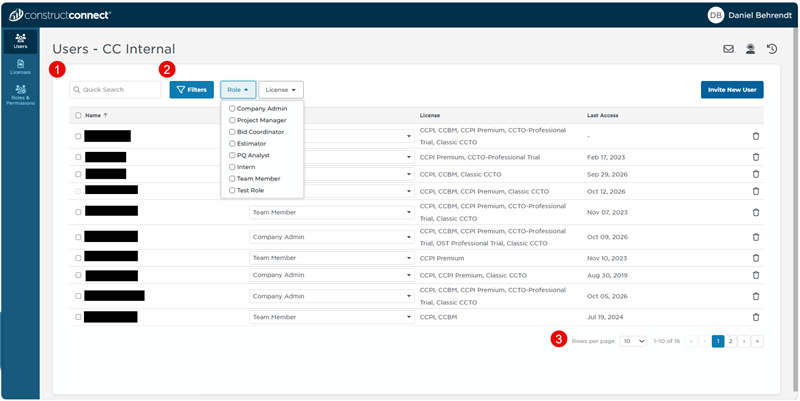
Every user in your organization appears in the list, along with their role, licenses, and last access date. Use the tools above the list to find people quickly:
- Search - find a user by name, email, role, or license.
- Filters - click Filters to narrow the list by Role or License. You can choose more than one. Click Filters again to clear your choices.
- Page controls - at the bottom of the list, choose to see 10, 25, 50, or 100 users at a time.
Open a user's details
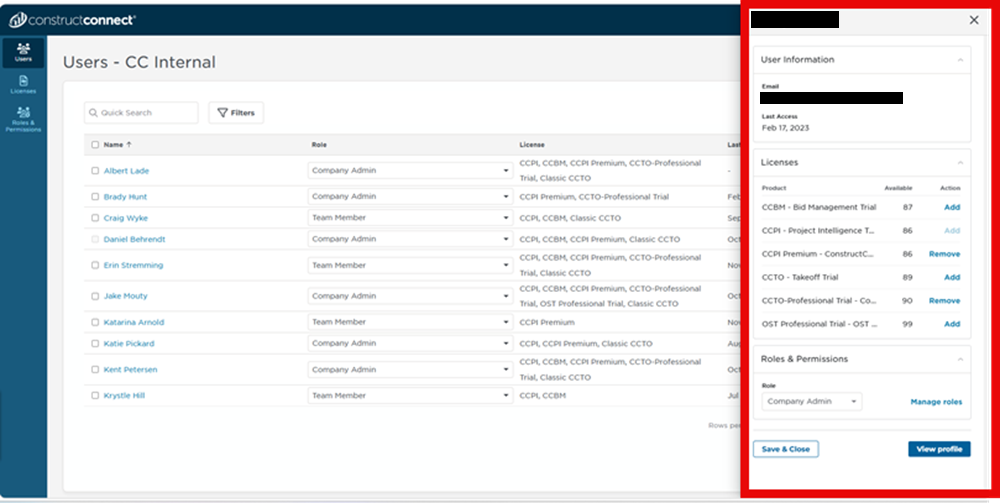
Click a user's name and a panel opens on the right, so you don't lose your place in the list. It's organized into sections:
- User Information - the person's email and when they last accessed the platform.
- Licenses - the licenses they have. Click Add or Remove to change them.
- Roles & Permissions - their current role. Choose a different role from the drop-down, then click Save & Close.
- Geography or Categories - appears for users with a Project Intelligence license.
You can't change your own role or the role of the only Company Admin. Every organization needs at least one Company Admin.
Change roles for several users at once
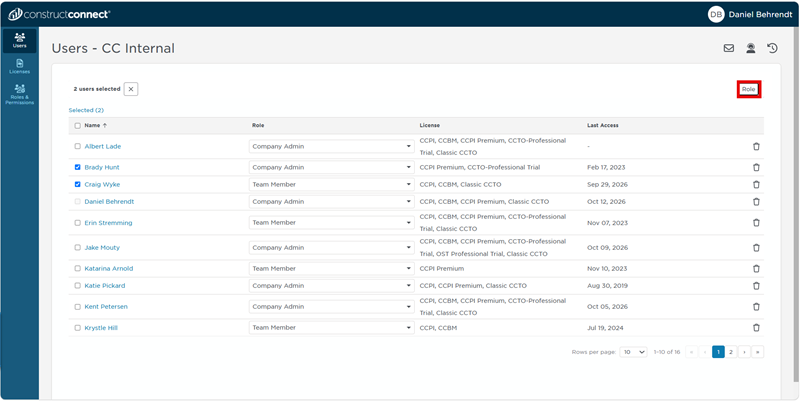
- Check the box next to each user. A bar appears showing how many you've selected.
- Click Role.
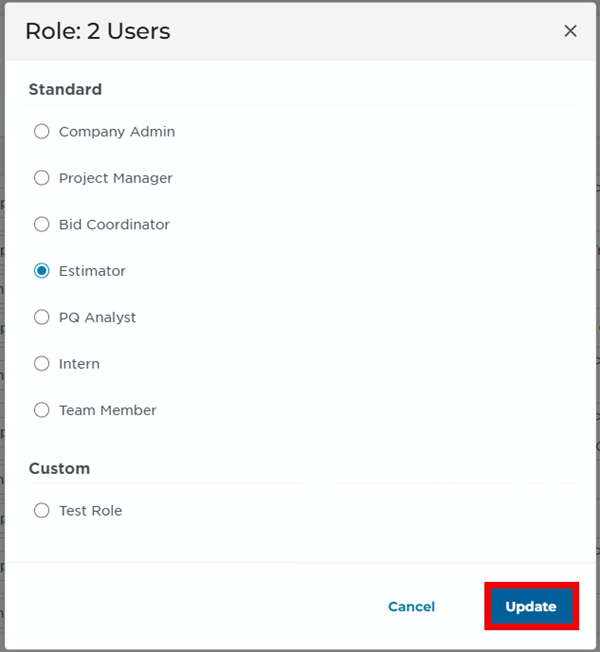
- Choose the new role and click Update.
You cannot select yourself as a user.
More you can do from the User's screen
- Invite a New User using the ConstructConnect Platform User Management Portal
- Assigning and Revoking Licenses
- Removing Users
- Managing Pending Invitations
- Creating and Assigning Roles
Related Articles