
When someone leaves your company or no longer needs access, you can remove them from your organization right from the Users page. Removing a user also frees up any licenses they were using, so you can assign them to someone else.
First, log into the User Management Portal. See Accessing and Logging into the ConstructConnect Platform User Management Portal for more information.
Removing a user
-
On the Users page, find the person you want to remove and click the trash can icon at the end of their row.
-
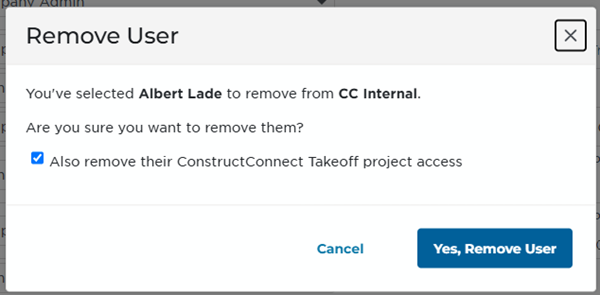
In the confirmation window, check "Also remove their ConstructConnect Takeoff project access" if you also want to take away their access to your organization's Takeoff projects.
-
Click Yes, Remove User.

The user disappears from your list, and their licenses become available to assign again. If you change your mind, just invite them back. See Inviting a New User using the ConstructConnect Platform User Management Portal.
Keep in mind that removing a user's Takeoff project access only affects your organization's projects. They can still open projects that other organizations have shared with them, but without a license they will likely have read-only access.
If you can't remove a user
-
You can't remove yourself. Ask another Company Admin to do it.
-
Every organization needs at least one Company Admin. To remove your only admin, first give another user the Company Admin role. See Creating and Assigning Roles in the ConstructConnect Platform User Management Portal.
-
If the user still has licenses assigned, you'll be prompted to remove them first.
Related Articles