

Takeoff Boost's all-new, AI-Powered Auto Count can locate and take off any object you select on your Plans quickly and automatically (saving you time and clicks!). Based on a selection from the plan image, Auto Count scans up to the current page and locates all occurrences of that selection. This saves valuable time when taking off items such as switches, light fixtures, plumbing fixtures, and fire prevention/detection controls; even text can be selected for the search criteria.
Takeoff Boost’s tools use Artificial Intelligence to provide results. It is your responsibility to verify results to ensure accuracy.
Use of Takeoff Boost™ tools requires uploading of some or all of your project plans. Ensure you have the legal right to do so. Please see the following Master Service Agreement for more information.
Takeoff Boost AI-Powered tools are only available to users on an Essential or Core subscription or Advanced or Premium Maintenance.
At this time, Takeoff Boost tools support Imperial measurements only.
The Auto Count tool is accessible on the Home Tab, in the Takeoff toolbar.

Selecting What To Search For
- Click the Auto Count button
- Click the point at the upper left corner of the object to search for
- While holding down the left mouse button, drag the cursor to the bottom right of the object to draw a box around whatever you want to search for
- In our example, we are selecting an electrical fixture
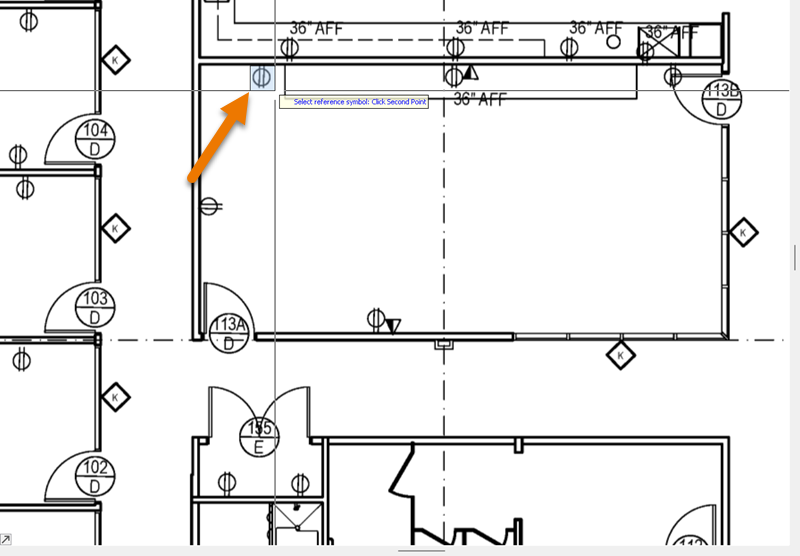
- Release the mouse button and the Takeoff Boost Auto Count dialog box opens
Setting Up Your Auto Count
After you draw your selection, the Auto Count dialog opens. In this dialog box, you tell Auto Count whether you want to create a new Takeoff Item or use an existing one and if Auto Count should count by label text matches or shape matches.
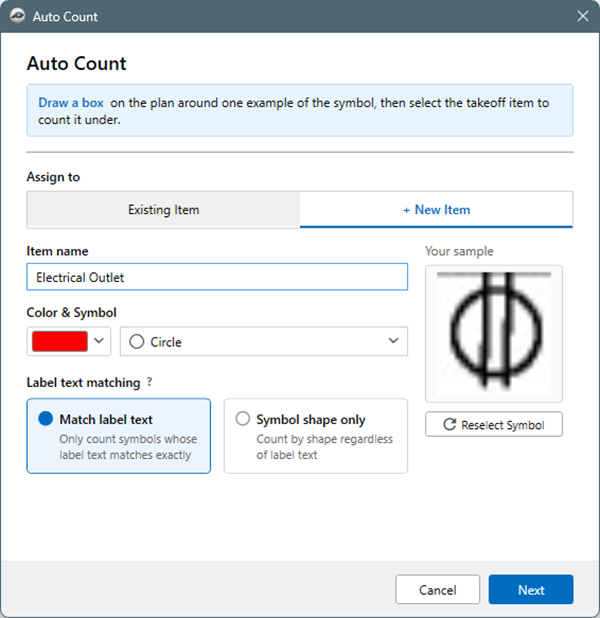
In our example, we are creating a new Takeoff Item so we tell Auto Count how it should look.
If you want to change your selection, click the Reselect Symbol button.
- When you are satisfied with the setup, click Next.
The Page Selection tab opens:

Select the Page(s) (the current Page is automatically selected) you want processed.
You can select up to 10 Pages for Auto Count to process in one session.
Click Run Auto Count when you’re ready.
Processing takes a minute or two, per Page. When Auto Count is complete, you’ll see your takeoff (and Takeoff Items).
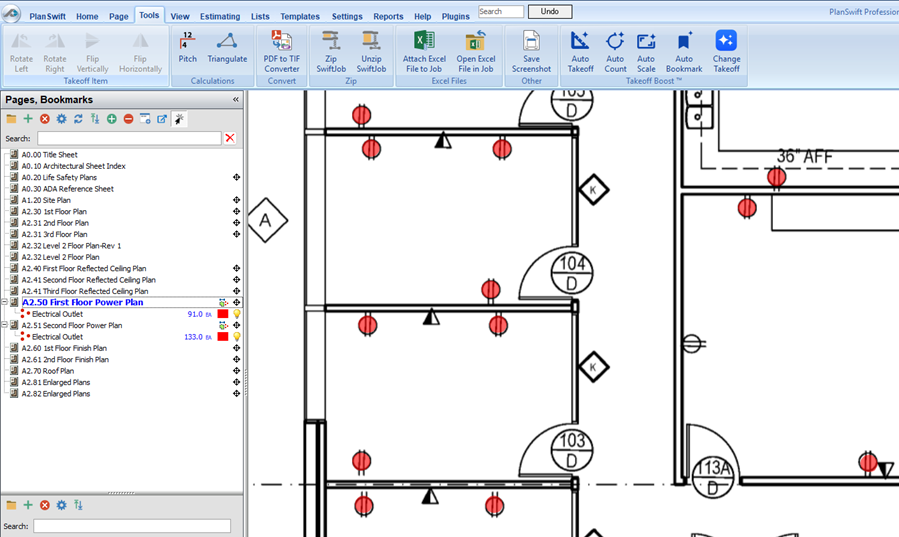
- Review the results and edit as needed.
 Review and Adjust Auto Takeoff Results Review and Adjust Auto Takeoff Results | Using Auto Bookmark  |
Related Articles
