

After Auto Takeoff returns results to PlanSwift, you will:
- Review the Takeoff Items and takeoffs to determine what you want to keep and what you can delete
- Reassign takeoffs to existing or new Takeoff Items (using the Change Takeoff Item plugin) as needed
- Create new Takeoff Items and fill in the missing details
We recommend running Auto Takeoff on every Page you plan to take off before Reviewing, Deleting, Editing, etc. This way, you'll need to edit Takeoff Items just once (don’t make more work for yourself, even though Auto Takeoff saves you hours of manual takeoff!).
Review Results
When Auto Takeoff returns results, they are just normal Takeoff Items and Takeoffs. Now, it’s time for you to bring your estimating prowess to the Job.
The first thing you're going to want to do is figure out what you need (want to keep) and what you don't (what you're going to delete).
Delete What's Not Needed
Let's say you are a drywall contractor. Auto Takeoff returned many of the wall measurements (Linear takeoff) you need. If you selected "Wall Types" in the Auto Takeoff dialog box, most linear takeoff should be associated with a Takeoff Item named for the Wall Type, although, sometimes, the plan's Wall Type labeling may be obscured or missing, these object are associated with a generic Takeoff Item named "Walls".
Auto Takeoff may also return Areas (footprint and net areas) and possibly several Counts (toilets, doors, sinks, etc.), depending on what you selected.
Review all the takeoff and decide what you need and what you don’t.
It’s normal takeoff now, just drawn faster.
If you delete all the takeoff drawn with a particular Takeoff Item (on every Page where it was used), you’ll be prompted to delete that Takeoff Item - that’s entirely up to you.
Reassign Takeoff
The Takeoff BOOST update installs a new Reassign Takeoff function, available on the Tools ribbon bar, in the Takeoff BOOST section.
Use this tool if you want to associate some takeoff objects to a different Takeoff Item.
For example, let’s say your plans didn’t include Wall Type tags or you opted not to search for them, that’s fine and not a big deal. Just create your individual Takeoff Items and use the Change Takeoff Item tool to reassociate selected objects to your new Takeoff Item.
See: Change Takeoff Item Plugin (Reassigning Takeoff from One Item to Another) for details.
Add New
In the next article, we cover Takeoff BOOST’s new AI-Powered Auto Count. This can help you fill in Counts that aren’t included in Auto Takeoff.
You may need to fill in some missing pieces manually, see Performing Basic Takeoffs for instructions on creating manual takeoff to fill in what Auto Takeoff wasn’t able to take off for you.
BOOST Takeoff Items
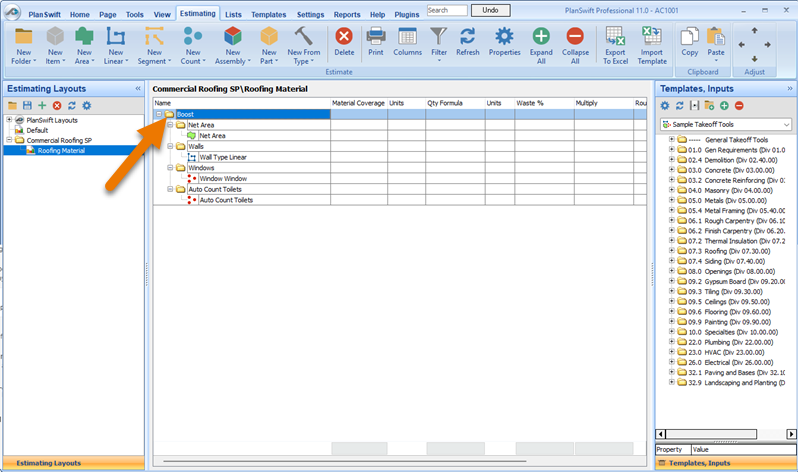
All Takeoff Items created by Auto Takeoff and Auto Count show up under a “BOOST” folder on the Estimating Tab
Takeoff BOOST’s tools use Artificial Intelligence to provide results. It is your responsibility to verify results to ensure accuracy.
Use of Takeoff BOOST tools requires uploading of some or all of your project plans. Ensure you have the legal right to do so. Please see the following Master Service Agreement for more information.
| Running Takeoff BOOST™ Auto Takeoff | Using Takeoff BOOST™ Auto Count |
Related Articles
