

lthough you can create Bookmarks manually, that takes time; let PlanSwift's AI-Powered Auto Bookmark do it for you in a fraction of the time.
Takeoff Boost’s tools use Artificial Intelligence to provide results. It is your responsibility to verify results to ensure accuracy.
Use of Takeoff Boost™ tools requires uploading of some or all of your project plans. Ensure you have the legal right to do so. Please see the following Master Service Agreement for more information.
Takeoff Boost AI-Powered tools are only available to users on an Essential or Core subscription or Advanced or Premium Maintenance.
Using Auto Bookmark
Well, this is relatively easy.
- Click the Auto Bookmark button
 .
.
The Takeoff Boost Auto Bookmark dialog box opens.
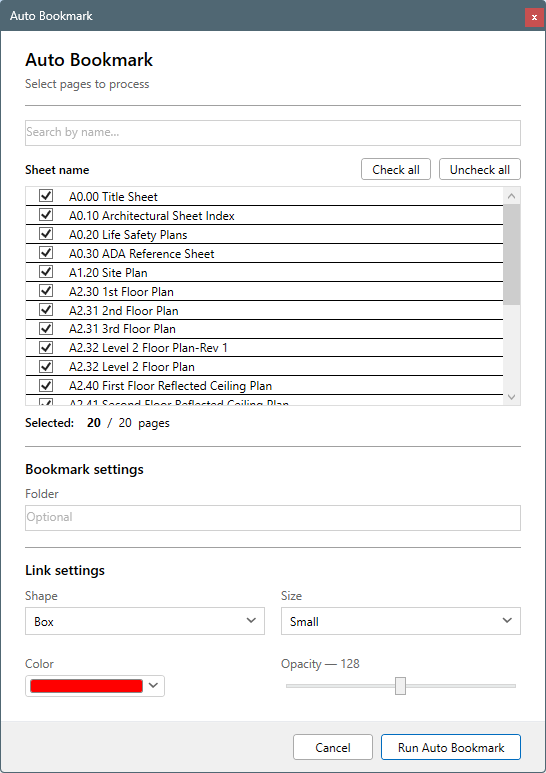
- Select the Pages you want analyzed - if you want to speed up this process, select the Architectural, Structural, and Detail Pages in your plan set, otherwise, use the Select All button - it’ll just take a little longer to process.
Because it takes a few minutes for Auto Bookmark to analyze your plans and return results, if your project contains 20 or more pages, you’ll be prompted to confirm the action..
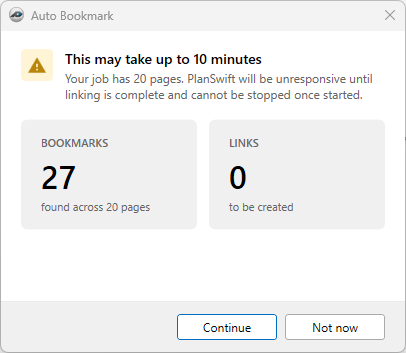
While Auto Bookmark is running, you won’t be able to use PlanSwift.
When Auto Bookmark is complete, you are shown a dialog box and status message that lets you know what was found:
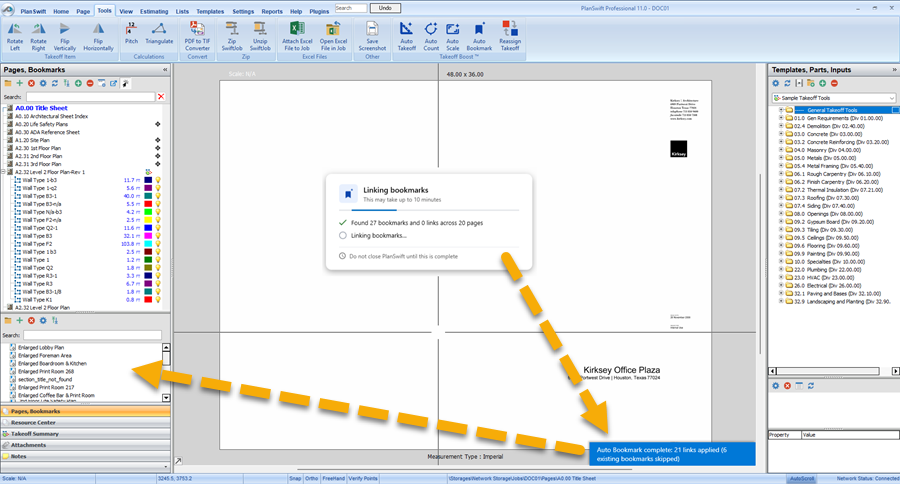
You can delete any Bookmarks you don’t need.
We show you how to create Bookmarks and links back to them manually in Related Articles.
 Using Auto Count Using Auto Count | Reassign Takeoff Tool  |
Related Articles
