
A Project is container of sorts where you store all the Plan Sets and Bids (including the your takeoff and estimate) associated with a specific construction job.
Quick things to know about Projects:
- All Bids within a Project share access to all the Plan Sets in a Project but don't necessarily use every Plan Set available to them. See How Plans Are Shared By Bids in a Project for details.
- Deleting an entire Page from the Project deletes it from every Bid (see the article linked above and Related Articles for details).
- All Bids within a Project are independent - their takeoff and estimating is separate from other Bids in the same Project.
- Each Project has a Cover Sheet that includes generic information about the Project including its:
- Name
- the Project Type (such as a hospital government building school office building etc.)
- the Organization
- the Current Bid, and
- the Project Owner(s)
- Each Bid within a Project has its own unique and independent Cover Sheet of generic Bid details such as Lead Estimator Bid Date Bid Status etc.
- Access to a Project is controlled at the Project Level if you have access to a Project you have access to all Bids within that Project.
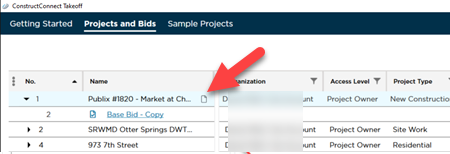
To open a Project's Cover Sheet click the Cover Sheet button  next to the Project's name in the Projects and Bids List.
The Project Cover Sheet
When you open the Project Cover Sheet you're seeing the information for the overarching Project (the Container).
The Project Cover Sheet contains the "Manage Access" button where can you setup sharing/access levels for Org Users.
You can set the "Current Bid" in the Project Cover Sheet now that the project is saved.
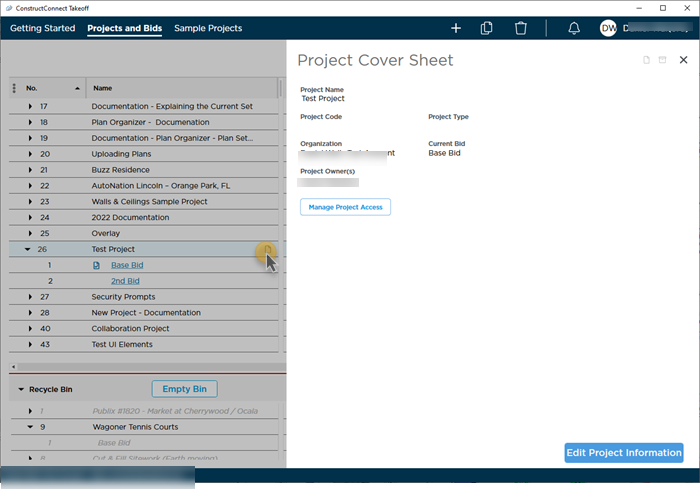
To change any information including setting the Current Bid click the Edit Project Information in the bottom-right corner of the screen.
| Field | Description |
|---|---|
| Project Name | Pretty obvious - this shows on the Projects and Bids List (this is one of the fields the "Search" can search on so give this a good Project Name). |
| Project Code | This is whatever you want it to be - it is a way for you to identify projects by whatever designated code your company uses. This could be an accounting code a department code or a billing reference. This field is visible on the Projects and Bids List although it is not a searchable field. |
| Project Type | You can create/set up custom Project Types to 'group' like projects. For example Office Buildings Hospitals Federal Buildings Universities etc. We recommend setting the Project Type field because it is searchable. |
| Organization | Shows you the name of the Organization. |
| Current Bid | Once you save your project and initial bid you can designate a bid as the "Current Bid". This is a flag to let you and other users know which bid they should be working on or viewing in the project. If your bid moves through phases you may change your "Current Bid" each time a phase has been taken off or when new addenda are issued. You cannot set a Current Bid until after you save this Cover Sheet (because until you save it, there is no bid to set as “Current”). |
| Project Owner(s) | Displays all the Project Owners and their roles within your Organization. If there are more than four (4) click the "See all Product Owners" link below this list. |
| Manage Access | This opens the Manage Access screen where you can share this project with other users in your Organization. |
Next up, we explain what the Current Bid is and how to set it on a Project.
 Uploading Plans Indicator and the Resume Interrupted Upload Button Uploading Plans Indicator and the Resume Interrupted Upload Button | The "Current Bid" in a Project  |
Related Articles
