
We do not do this often but we are starting this article off with a Warning:
Deleting a Takeoff Item Deletes every piece of takeoff drawn with that Takeoff Item on every Page throughout this Bid!
Deleting a Takeoff Item is a permanent action and cannot be undone.
Just because you aren't using a Takeoff Item doesn't mean someone else working on the same Bid isn't - be sure to check with your coworkers before deleting a Takeoff Item because you may cost someone else hours or days of time.
To Delete a Takeoff Item or Takeoff Items:
- Select them in the Takeoff Items Pane
- Click the
 button or press DEL on your keyboard
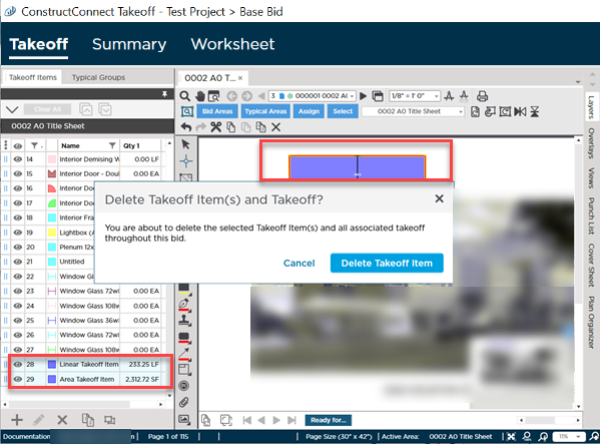
You are prompted to confirm deleting a Takeoff Item - please consider your action carefully!
- Click Delete Takeoff Item if you are absolutely certain
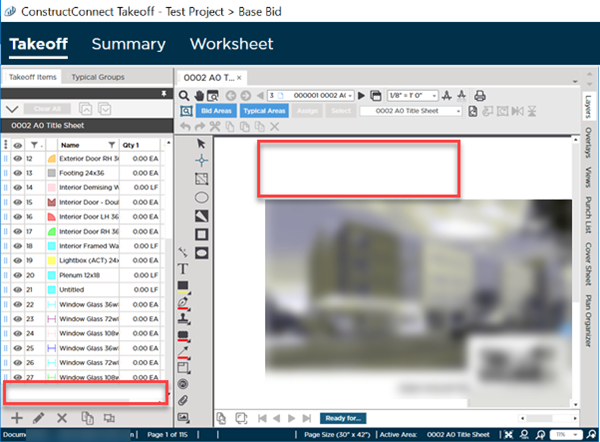
Once deleted notice the Takeoff Items and all takeoff drawn with this Takeoff Item is gone for good, there is no way to recover a deleted Takeoff Item or its takeoff.
Final Reminder:
Deleting a Takeoff Item cannot be "undone"! Once you confirm deletion it and all takeoff drawn with it on every Page in this Bid is gone for good.
There is no way to recover or "undo" deleting a Takeoff Item.
 Duplicating Takeoff Items Duplicating Takeoff Items | Using Tags to Filter or Group the Takeoff Items Pane  |
Related Articles
