

This content applies to the current version of On-Screen Takeoff w/Takeoff Boost. Previous versions return similar results but show status differently.
As Pages are processed and Conditions and takeoff returned by Auto Takeoff, the processing dialog pop-up lets you know status.
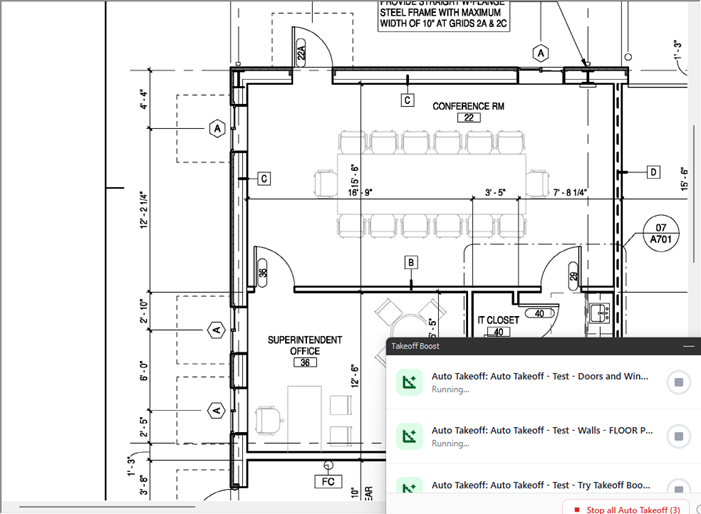
Auto Takeoff Results
Takeoff Boost’s tools use Artificial Intelligence to provide results. It is your responsibility to verify results to ensure accuracy.
Use of Takeoff Boost™ tools requires uploading of some or all of your project plans. Ensure you have the legal right to do so. Please see the following Master Service Agreement for more information.
To see your Auto Takeoff results, return to the Page where you ran Auto Takeoff.
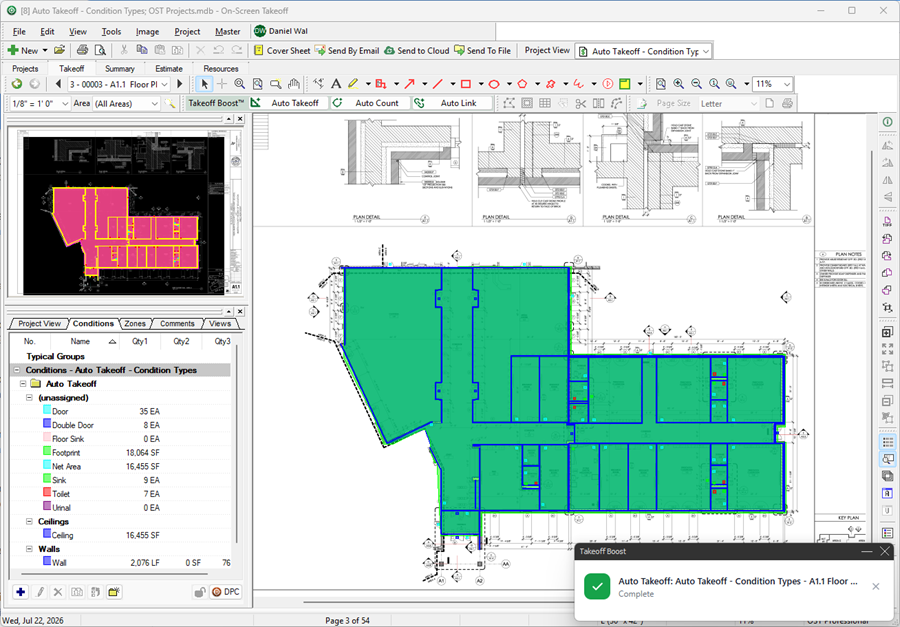
- All Conditions that Auto Takeoff creates are created in a folder named, "Auto Takeoff"
- You can move them out of this folder as needed, we cover that in the next few articles.
- If you rename a Condition that Auto Takeoff creates or move a Condition out of the “Auto Takeoff” folder, Auto Takeoff creates a replacement Condition the next time you run it.
- If you configured Wall Tags , Linear Conditions are set to Condition Type named "Walls" and each identified Wall Type is associated with a unique Condition.
- Unidentified walls/linears are assigned to a generic Condition named “Wall”.
- If you configured Window Tags, the Count Conditions are set to Condition Type “Windows”, and each identified Window Type is associated with a unique Condition.
- Windows are only counted if they are called out using the Tag you specified.
- If you configured Ceiling Tag, the Area Conditions are set to Condition Type “Ceilings”, and each identified Window Type is associated with a unique Condition.
- If you selected Ceilings but did not specify a Tag, Auto Takeoff still separates the takeoff into three Conditions: GWB (Gypsum Wallboard), ACT (Acoustical Ceiling Tile), and Ceilings - based on patterns/shading on the Plan.
- If you selected “Painting”, the takeoff is drawn on both sides of all walls, assigned to one Condition for now (v.4.0 and newer).
- Footprint Area, Net Area, and the other Count Conditions (doors, fixtures, etc.) have no Condition Type set (they show "Unassigned" when the Conditions window is grouped by Type, as in the screenshot above).
- Volume: Footings, Linear Footings, and Slabs are all assigned to their respective Condition Types.
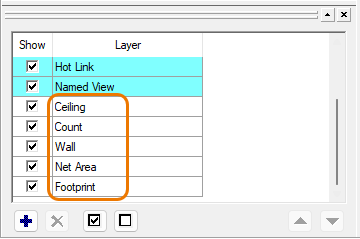
- All Conditions that Auto Takeoff creates are assigned to a Layer: Wall, Net Area, Footprint Area, Count, Window, or Ceiling. This allows you to toggle off each style of takeoff result easily. These Layers are added to your Bid automatically by Auto Takeoff. You can change the Layer for any Auto Takeoff-created Condition in the Condition's Properties window.
Possible Results
Areas
- Footprint Area
- Net Area - interior areas bounded by and not including walls
- Ceilings
- GWB, ACT, and Ceiling are always broken out based on the patterns/shading on the Plan
- If you set a shape for Ceiling Type, each identifiable Type is returned as a separate Condition
Linears
- Wall
- Untagged Walls are allocated to a Condition named “Walls”.
- If you set a shape for Wall Type, each identifiable Type is returned as a separate Condition
- Painting (takes off both sides of walls to account for different finishes)
- Existing Wall, if you opted to include them
- You can select a “Default Height” to apply to all walls returned so you can calculate square footage, too
- If you run Linears on a Reflected Ceiling Plan (RCP), many times Auto Takeoff can set the height automatically
Counts
- Windows
- Unlabeled (untagged) windows are taken off and assigned to a generic “Windows” Condition
- If you set a shape for Window Type, each identifiable Type is returned as a separate Condition
- Doors
- Door
- Double Door
- Opposing Door
- Uneven Door
- Plumbing
- Bathtub
- Double Sink
- Floor Sink
- Shower
- Sink
- Toilet
- Urinal
- Other
- Elevator
Volume
- Spread Footings
- Linear Footings
- Optionally, you can have Auto Takeoff break each linear footing at each spread footing so you don’t “over account” for them.
- Slabs
If you turn off an Auto Takeoff Layer (Such as "Count") and run Auto Takeoff on another Page, or re-run it on this Page, the Count takeoff and Conditions are returned, but the takeoff will not be visible until you turn the corresponding Layer back on.
 Running Auto Takeoff Running Auto Takeoff | Reviewing Auto Takeoff Results and Deleting What's Not Needed  |
Related Articles
