
You use Linear Takeoff Items to draw measurements for construction objects typically measured by linear foot inch meter or millimeter. Even if you select a surface area or cubic area Result if you draw the measurement linearly you use a Linear Takeoff Item. See Related Articles for details.
Linear Takeoff Tools Toolbar
When you select a Linear Takeoff Item from the Takeoff Items Pane the Linear Takeoff Tools toolbar displays. There are several tools and techniques for drawing Linear takeoff.
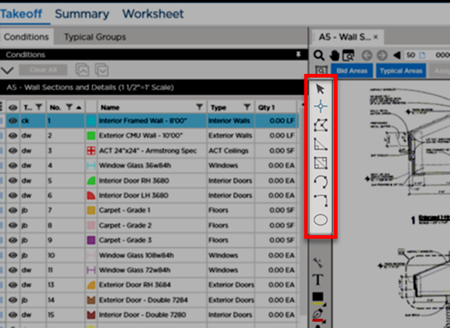
There are seven Linear-specific Takeoff Tools available and your cursor changes shape to match the Takeoff tool you select.
| Button | Tool Description | What it does/How it is used... |
|---|---|---|
 | Select | Always visible - allows you to select or grab objects in the Takeoff Window to edit or adjust them. |
 | Normal Mode | To draw a linear segment you click hold drag release. Useful for plan segments that do not connect or that occur randomly on the plan. |
 | Continuous Mode | To draw linear segments that are connected end-to-end click drag click drag and then double-click to 'end' the takeoff. Useful for drawing many connected segments even if you decide to go back and move or delete some of those segments later. Once drawn the segments can be adjusted independently they are all individual segments. |
 | Right-Angle Segments | Draws two segments connected at a right angle (also known as the "Two-click Two Segments" tool). |
 | Rectangle tool | Draws a rectangle in two clicks (or a click-drag-release). |
 | Curved Line tool | Draws a curved segment that is a section of a circular shape. |
 | Three-point arc tool | Draws an arc with three independent points - can be any curved shape not defined by a circle. |
 | Elliptical tool | Draws a circular object based on two clicks - can be circular or oval. |
To begin drawing Linear takeoff you need to choose the appropriate tool - we cover how to use each tool in the articles that follow.
Before drawing any takeoff you must set and verify Scale; see Related Articles.
 Overview of Drawing Takeoff (Measurements) Overview of Drawing Takeoff (Measurements) | Drawing Single Linear Takeoff Segments Using Normal Mode  |
Related Articles
