
Use the Rectangle tool ( ) to draw boxes (rectangles or squares) of Area takeoff quickly and easily.
To draw a rectangular Area takeoff object:
- Click the button on the Area Takeoff Tools toolbar
- Click in any spot where you want to begin takeoff (this creates your 'anchor' - a corner of your rectangle)
- While holding down the mouse button draw a diagonal line to the opposite corner of the rectangle you want to create
- Release the mouse button and your takeoff is created
If you would prefer not to see the pattern of the area while you are drawing you can change that setting in the Takeoff Item's Properties - just uncheck "Display Pattern While Drawing".
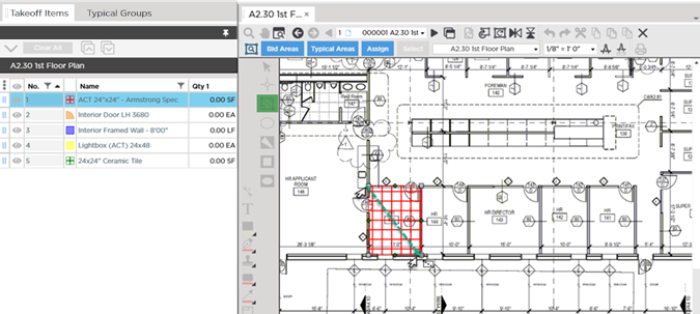
Once drawn you can move or add vertices (corners/joints) and segments however you like the takeoff object is not stuck as a rectangle it's just drawn that way to start.
Before drawing any takeoff you must set and verify Scale see Related Articles.
 Handling an Uncloseable Polygon Area (can't complete an area takeoff) Handling an Uncloseable Polygon Area (can't complete an area takeoff) | Drawing Elliptical Area Takeoff  |
Related Articles
