
When you are using the Areas drop-down there can be one or more "Selected" Areas however in any Takeoff Window there is only one "Active" Area.
- The Selected Area(s) cause takeoff assigned to them to display in color in the Takeoff Window instead of greyed-out/muted.
- The Active Area is the Page Bid or Typical Area to which takeoff will be assigned as you draw takeoff.
Selected Area or Areas
To select a Single Bid Area just click on it in the drop-down.
To select multiple Bid Areas or even a mixture of the Page Area Bid Areas and Typical Areas hold down the CTRL button as you are clicking on Bid Areas.
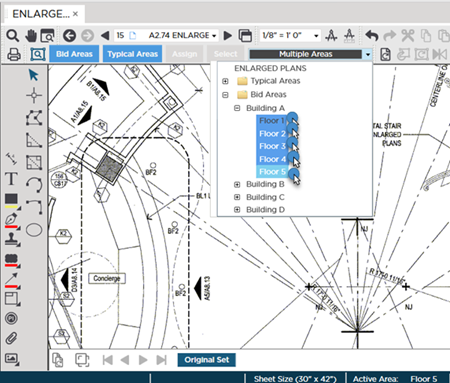
After you select one or more Bid Areas to close the drop-down just click 'away' from it - anywhere that is not on the drop-down.
The Active Area
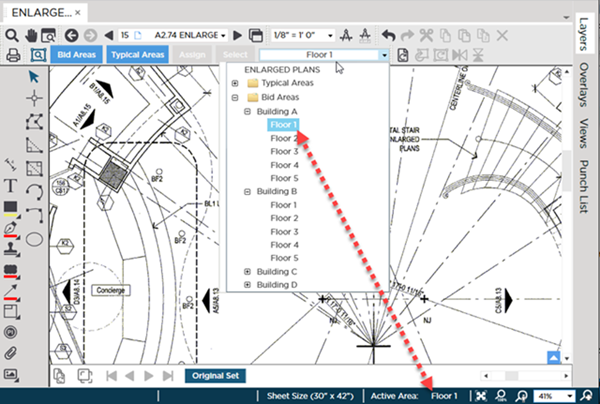
When you select a single Area in the drop-down the drop-down label shows the Page Bid or Typical Area Name. That Selected Area becomes the Active Area and matches the "Active Area" displayed in the Status Bar.
When you select more than one Area in the drop-down the drop-down label shows "Multiple Areas". The last Page Bid or Typical Area you clicked on in the drop-down becomes the Active Area again you see that Active Area in the Status Bar.
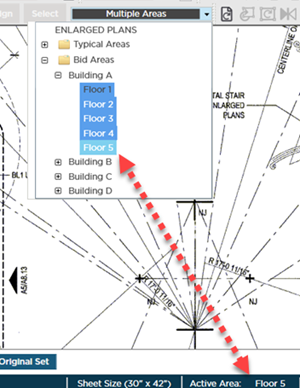
There is only one Active Area for a given Takeoff Window but if you have opened multiple Takeoff Windows each may have its own Active Area so it is important to check the drop-down and the Status Bar when the Takeoff Window is active to determine which Areas is currently the "Active Area".
Bids may have Bid Areas like our example where there are duplicated sub-area names in multiple Bid Areas (we have four Floor 1s four Floor 2s etc. each under a "parent" Building Bid Area). To determine which "Floor 1" is the Active Area in our Takeoff Window we must check the Areas drop-down.
Alternately when you have like-named Sub Areas you can name them "Building A - Floor 1" "Building B - Floor 4" etc. so you could tell the Active Area by looking at the Status Bar on the Takeoff Window.
Be sure you know what the Active Area is on each Takeoff Window before you draw takeoff to ensure the takeoff is assigned to the correct Area.
Why is knowing the "Active Area" so important?
The "Active Area" is important because:
- Everything you draw is assigned (allocated) to Active Area (Bid Area ) automatically (by default if you do not select a Bid or Typical Area that will be the Page Area).
- Any takeoff selected on the Plan is assigned to the "Active Area" when you click the
 button on the Bid Areas toolbar.
 - Any takeoff allocated to the Area or Areas selected (highlighted) in the Areas drop-down is selected (on the Plan) when you click the
 button on the Bid Areas toolbar.
It is important to understand that when you select multiple Bid Areas in the dropdown you must check the Status Bar to determine your Active Area. The Active Area is the last record you click on in the Areas drop-down.
Review the articles that follow for information on assigning takeoff to Bid Areas and using the Assign and Select buttons.
 The Areas Drop-Down on the Areas Toolbar The Areas Drop-Down on the Areas Toolbar | The Color Takeoff Toggle  |
Related Articles
